
📅 MCP Server Configuration - Calendly
Complete guide to integrate Calendly with AI4CALL via MCP server to manage appointments, availability and cancellations
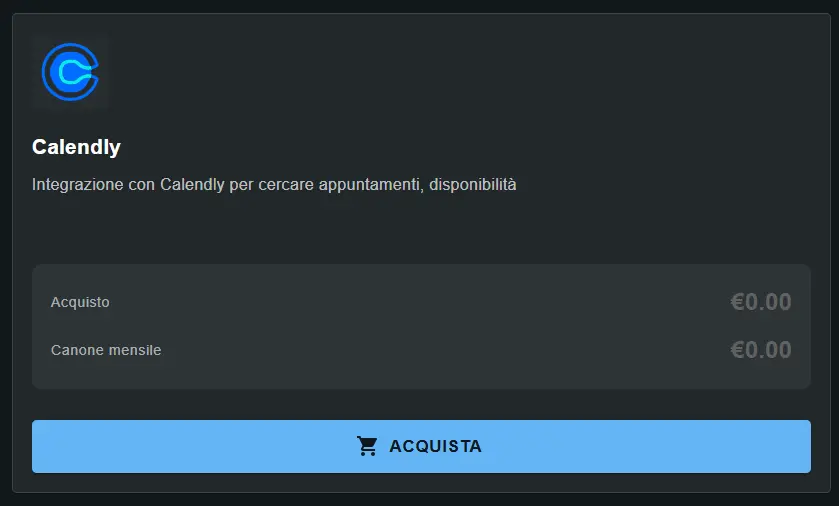
Go to "MARKET" → "Marketplace Plugin" and click Purchase on "Calendly" → FREE
Go to "MARKET" → "My Plugins" and click Configure on "Calendly"
🚀 Quick navigation:
⚠️ Third-party services
The integrations described refer to third-party services.
Rate limits, authentication methods, technical configurations, costs, and policies are defined exclusively by the respective providers and may change over time.
Costs for external services are borne directly by the end user to the service providers themselves and are in no way managed or mediated by our portal (e.g., Meta or other providers for WhatsApp, Zapier, Calendly, etc.).
Available tools allow to: verify availability, consult existing events, read invitees, and cancel appointments. Actual booking must occur via the public Calendly link provided to the customer.
The assistant can however guide the customer by verifying available slots and providing the correct link to book.
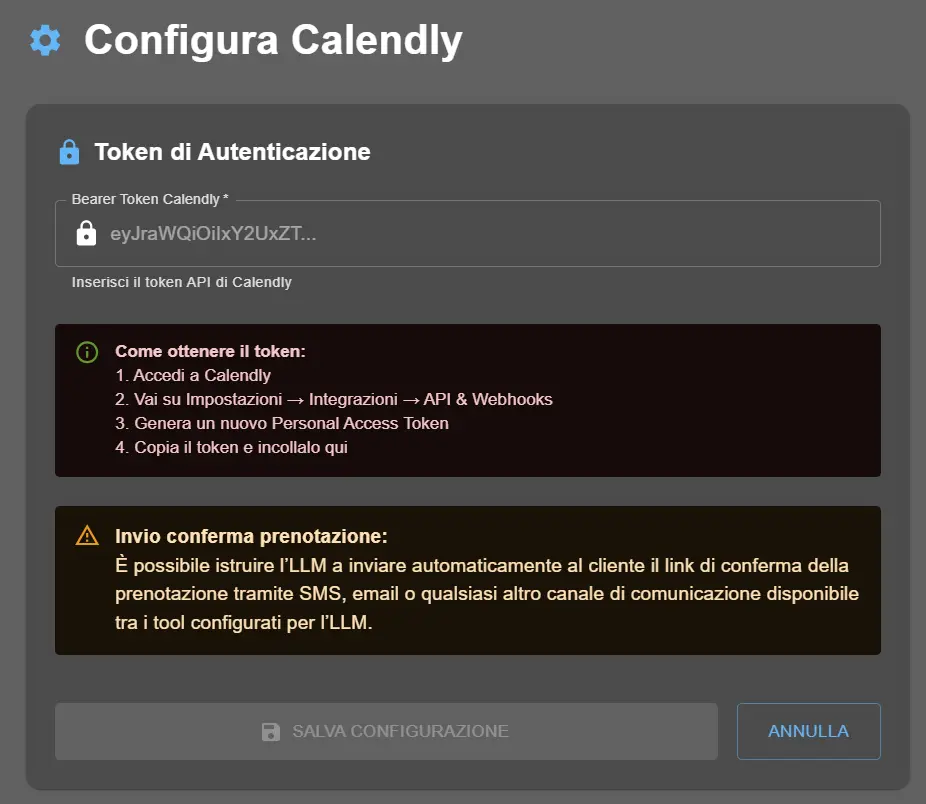
Generate Bearer Token on Calendly
To allow the MCP server to access your Calendly account data, you need to generate a Personal Access Token.
- Login to your Calendly account
- Go to Settings → Integrations → API & Webhooks
- In the "Personal Access Tokens" section, click "Generate New Token"
- Give the token a name (e.g. "AI4CALL Integration")
- Copy the generated token (always starts with
eyJ...)
Copy it immediately and save it in a safe place. If you lose it, you will need to generate a new one. The token guarantees complete access to your Calendly account, treat it like a password.
- Read all your events and availability
- Access invitee data (names, emails, details)
- Cancel scheduled events
NEVER share this token and revoke it immediately if you suspect it has been compromised.
Configure the MCP server on AI4CALL
Insert the Bearer Token in the AI4CALL configuration to activate Calendly MCP tools.
- Select "Calendly" from the list of your Plugins
- In the "Authentication Token" field, paste the Bearer Token copied from Calendly
- Click "Save Configuration"
- Verifies token validity with a test call to Calendly API
- Automatically exposes the 7 Calendly tools to the AI assistant
- Configures authentication for all future requests
- Enables the assistant to invoke tools during conversations
Important: If the token is invalid, you will receive an immediate error. Verify you copied the complete token without spaces or extra characters.
Test the connection
Verify that the MCP server is correctly connected and that tools work.
"What types of events do you have available on Calendly?"
If everything works, the assistant will invoke
calendly_get_event_types and list the event types configured on your account (e.g. "Consultation 30min", "Videocall 1h", etc.). - The Bearer Token is valid
- The MCP server communicates correctly with Calendly
- The tools are exposed and usable by the assistant
You can proceed with instructing the assistant for specific workflows!
- Invalid token: verify you copied the complete token without spaces
- Revoked token: check on Calendly that the token is still active
- Insufficient permissions: ensure the token has API access
- Rate limit: wait a few minutes and try again
In case of persistent error, regenerate a new token on Calendly and repeat the configuration.
Instruct the AI assistant
Configure the assistant prompt to correctly use MCP Calendly tools in common workflows.
"When customer asks availability for [event type], use calendly_get_available_times to verify free slots and propose them to customer. Always specify date and time in clear format."
2. Appointment cancellation:
"If customer asks to cancel an appointment, use calendly_get_scheduled_events to find the correct event, confirm with customer it's the right one (date/time), then use calendly_cancel_event. ALWAYS ask explicit confirmation before cancelling."
3. Send booking confirmation:
"After customer booked via Calendly link, use calendly_get_event_invitees to retrieve confirmation URL and automatically send it via WhatsApp with send_whatsapp_message."
4. Booking status check:
"If customer asks confirmation of his appointment, use calendly_get_scheduled_events to find the event and read all details (date, time, type, invitees)."
You are an appointment management assistant.\n\nCALENDLY WORKFLOW:\n1. Availability: Use calendly_get_available_times to verify free slots\n2. Cancellation: ALWAYS ask confirmation before cancelling with calendly_cancel_event\n3. Confirmations: Retrieve confirmation URL with calendly_get_event_invitees and send it via WhatsApp\n4. Status: Use calendly_get_scheduled_events to check future appointments\n\nIMPORTANT: \n- You CANNOT book directly, provide Calendly link to customer\n- Always specify timezone when talking about times\n- For cancellations, confirm date/time with customer before proceeding
❌ WRONG: "Cancel tomorrow's appointment" → Assistant cancels immediately
✅ CORRECT: "I found the appointment for 15/01 at 14:00. Do you confirm you want to cancel it? Reply YES to proceed."
The operation is irreversible, confirmation protects from accidental cancellations.
🛠️ Available MCP Calendly Tools
7 tools exposed by the MCP server to manage Calendly. Each tool is invoked autonomously by the assistant when needed.
calendly_get_current_user
Parameters: None
calendly_get_event_types
Parameters: None
calendly_get_available_times
Required parameters:
event_type_uuidOptional parameters:
start_time (ISO 8601) calendly_get_scheduled_events
Parameters: None (returns all future events)
calendly_get_event_invitees
Required parameters:
event_uuid calendly_get_invitee
Required parameters:
invitee_uuid calendly_cancel_event
Required parameters:
event_uuid 💡 Practical Workflows
Concrete examples of how the assistant uses MCP Calendly tools in real scenarios.
Scenario 1: Customer asks availability
calendly_get_event_types→ Identifies "Consultation 30min" type and retrieves its UUIDcalendly_get_available_times(event_type_uuid, start_time=today)→ Retrieves available slots this week- Assistant proposes to customer: "I have these times available: Wednesday 15/01 at 10:00, 14:00, 16:00. Which do you prefer?"
- Customer chooses a time → Assistant provides Calendly link to complete booking
Scenario 2: Customer wants to cancel appointment
calendly_get_scheduled_events→ Searches scheduled events for tomorrow- Finds event: 15/01/2025 at 14:00 - Consultation with Mario Rossi
- Assistant asks confirmation: "I found the appointment for January 15th at 14:00 for Consultation. Do you confirm you want to cancel it? Reply YES to proceed."
- Customer: "Yes"
calendly_cancel_event(event_uuid)→ Permanently cancels the event- Confirmation: "Appointment cancelled. You will receive confirmation email from Calendly."
Scenario 3: Automatic booking confirmation sending
calendly_get_scheduled_events→ Retrieves the recently created eventcalendly_get_event_invitees(event_uuid)→ Retrieves invitee data including confirmation URL- Extracts:
reschedule_urlorcancel_urlfrom invitee send_whatsapp_message(customer_number, message_with_link)→ Sends automatic confirmation- Message: "✅ Appointment confirmed for 15/01 at 14:00. Management link: [URL]. For changes or cancellations, click the link."
- Calendly MCP: Retrieves event and invitee data
- WhatsApp MCP: Sends message with confirmation
The LLM autonomously orchestrates necessary tools without specific programming needed!
- Generate token on Calendly → Settings → API & Webhooks → Personal Access Token
- Configure MCP → Insert Bearer Token in AI4CALL → Save
- Test → Make test call asking about available event types
- Instruct assistant → Add workflows in prompt (availability, cancellations, confirmations)
- 7 tools available → get_current_user, get_event_types, get_available_times, get_scheduled_events, get_event_invitees, get_invitee, cancel_event
❓ Frequently Asked Questions
Answers to the most common questions about Calendly MCP integration
No. Available MCP Calendly tools only allow to READ data (availability, events, invitees) and CANCEL events. Actual booking must occur via the public Calendly link or other systems. The assistant can however verify availability and provide the correct link to the customer.
Login to your Calendly account, go to Settings > Integrations > API & Webhooks. Generate a new Personal Access Token and copy it. This token must be inserted in the "Authentication Token" field in AI4CALL configuration. The token always starts with "eyJ".
The assistant can: verify time availability (calendly_get_available_times), consult scheduled events (calendly_get_scheduled_events), read invitee details (calendly_get_event_invitees and calendly_get_invitee), retrieve available event types (calendly_get_event_types), and cancel events (calendly_cancel_event). Cannot create new appointments.
calendly_get_event_invitees returns ALL invitees of a specific event (complete list). calendly_get_invitee returns details of ONE SINGLE specific invitee via their UUID. Use the first to see who participates in an event, the second to retrieve detailed data of a specific person.
Yes, the operation is IRREVERSIBLE. Once the event is cancelled via the MCP server, it cannot be restored. Therefore it is fundamental to instruct the assistant to ALWAYS ask explicit customer confirmation before executing cancellation.
It must first invoke calendly_get_event_types to retrieve all event types configured on your Calendly (e.g. "Consultation 30min", "Videocall 1h"). Then uses the UUID of the correct event type to call calendly_get_available_times. In the prompt you can specify exact names or let the assistant identify the right type from the request.
Not at MCP tool level - if you activate calendly_cancel_event, it works on all events. Limitation must be managed at prompt level: instruct the assistant to cancel only events matching specific criteria (e.g. only future events, only for certain customers, only with explicit confirmation).
The assistant uses calendly_get_event_invitees or calendly_get_invitee to retrieve the confirmation URL from the event. Then, if you configured WhatsApp Business or Email SMTP tool, it can invoke send_whatsapp_message or send_email to automatically send the link to the customer during the call.
Yes. calendly_get_event_invitees returns ALL invitees of an event, so it also works for group events. You can see how many people confirmed, their data, and each invitee status (active, cancelled, pending).
All MCP tools will stop working immediately. The assistant will receive authentication errors when trying to invoke any Calendly tool. You will need to generate a new token from Calendly settings and update it in AI4CALL configuration.
No. You can configure only one Bearer Token at a time in the MCP server. If you have multiple Calendly accounts, you must choose which account to link. To manage multiple accounts, you should configure separate AI4CALL assistants, each with its own token.
It must first invoke calendly_get_scheduled_events to retrieve all scheduled events, then identify the correct one comparing date/time or details provided by customer. Once found the correct event UUID, it can invoke calendly_cancel_event to cancel it.
Shows ONLY slots actually available for booking, based on calendars linked to your Calendly. Already occupied times, slots outside business hours, or blocked dates are not shown. It's the same availability a customer would see on the public Calendly link.
No. The Calendly API via MCP does not support direct event modification (reschedule). You can only cancel the existing event and have the customer book a new slot. The assistant can guide the customer in this sequential process.
Retrieves information about the Calendly account authenticated via token: name, email, timezone, profile URL, and organization UUID. Useful to verify connection works and to retrieve data needed by other tools (some require user URI).
Yes. In the prompt instruct the assistant to invoke calendly_get_available_times with start_time set to current date/time. The tool will return available slots in chronological order, and the assistant can propose first 3-5 slots to the customer.
For each invitee: full name, email, status (active/canceled), timezone, invitation creation date, confirmation URL, any custom questions/answers, and unique invitee UUID. All data necessary to contact customer or verify booking status.
Yes, but limits depend on your Calendly plan. If the assistant makes too many requests in short time, Calendly API may temporarily block calls. For high traffic events, optimize prompt to reduce unnecessary calls (e.g. cache availability for a few minutes).
Yes. The assistant can use multiple MCP tools simultaneously. Example workflow: use Calendly to verify availability, then use WhatsApp tool to send confirmation, or use Google Calendar MCP to synchronize event. MCP tools are composable and LLM orchestrates them autonomously.
Calendly automatically manages time zones. calendly_get_available_times accepts start_time parameter in ISO 8601 format with timezone. Events and invitees returned always include specific timezone. Assistant can automatically convert if needed, using customer timezone.