
🗄️ MySQL Database MCP Configuration
Complete guide to integrate MySQL/MariaDB databases with AI4CALL: connect company databases, create custom SQL queries as MCP tools, allow assistant to read/write data in real time during calls
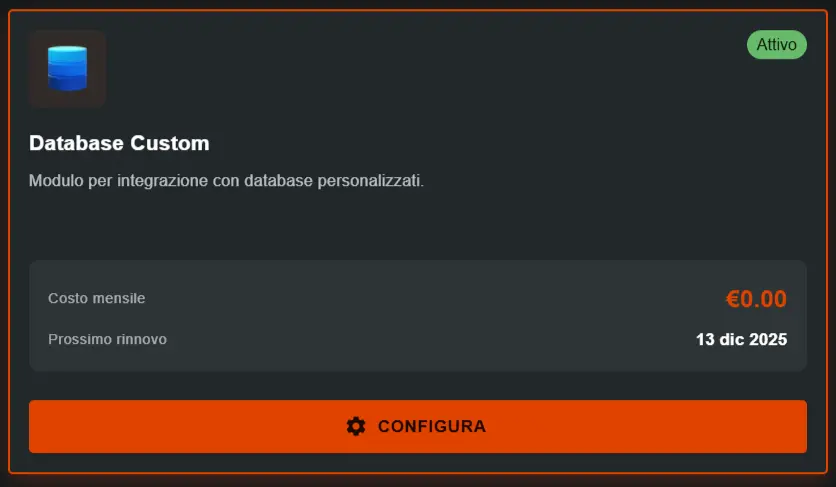
Go to "MARKET" → "Marketplace Plugin" and click Purchase on "Database Connector" → FREE
Go to "MARKET" → "My Plugins" and click Configure on "Database Connector"
🚀 Quick navigation:
⚠️ Third-party services
The integrations described refer to third-party services.
Rate limits, authentication methods, technical configurations, costs, and policies are defined exclusively by the respective providers and may change over time.
Costs for external services are borne directly by the end user to the service providers themselves and are in no way managed or mediated by our portal (e.g., Meta or other providers for WhatsApp, Zapier, Calendly, etc.).
What are Database MCP and how they work
Database MCP is an AI4CALL plugin that transforms your SQL queries into tools the assistant can use during real-time calls. Allows AI to access your company data without need for manual export/import.
- Real-time connection: Assistant accesses database during call
- Parametric queries: Create queries accepting parameters (e.g. customer ID, date range)
- Integrated security: Each query has its own permission context
- Complete logging: All operations are tracked and recorded
- Multiple support: MySQL, MariaDB, PostgreSQL, SQL Server
- Customers: Verify product availability, prices, deadlines
- Support: Consult ticket history, active contracts
- Sales: Check inventory, promotional prices
- Administration: Verify invoices, payments, deadlines
- Projects: Consult timeline, assigned resources
- ✅ Best Practice: Create dedicated DB user with specific permissions
- ✅ Secure Queries: Always use prepared statements for parameters
- ✅ Limited Access: Grant only SELECT on necessary tables
- ❌ Avoid: DROP, DELETE, TRUNCATE permissions
- ❌ Avoid: Queries accepting direct SQL input
Configure database connection
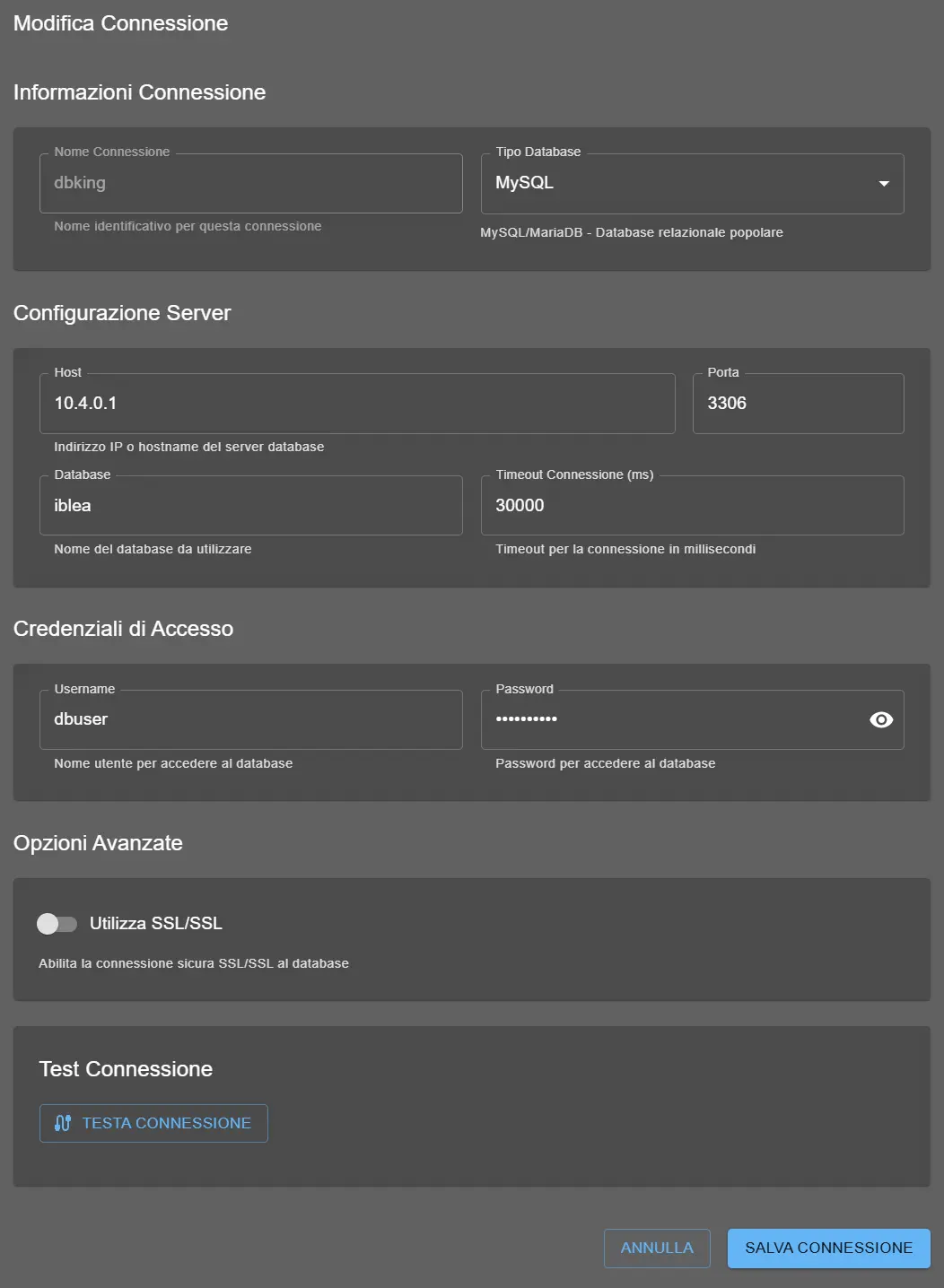
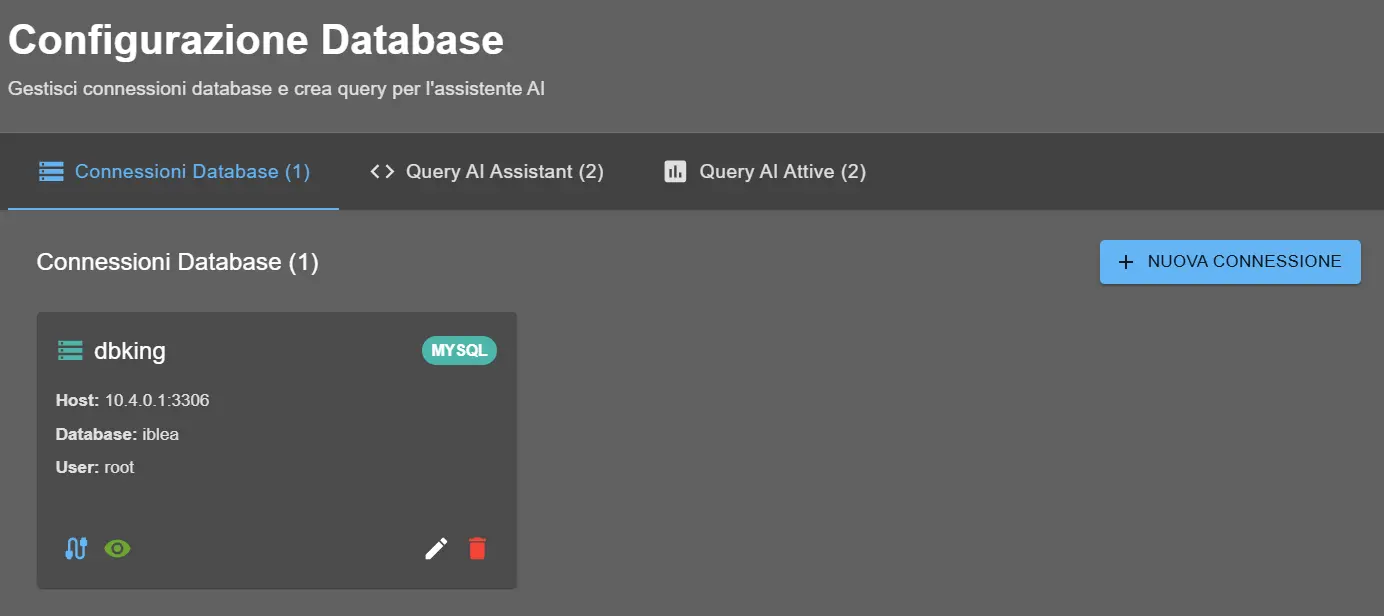
Before creating queries, you need to configure connection to your database. Ensure you have available: host, database name, username, password and port.
- Go to "MARKET" → "My Plugins"
- Click "Configure" on "Database Connector"
- Insert connection data:
- DB Type: MySQL / MariaDB
- Host: server address (e.g. localhost or IP)
- Port: 3306 (default MySQL)
- Database: database name
- Username: user with permissions
- Password: user password
- Click "Test Connection"
- If all ok, click "Save Configuration"
- Error "Host unreachable": Verify DB server is online and accessible from AI4CALL network
- Error "Access denied": Check username/password and user permissions
- Error "Database not found": Verify database exists and is correctly written
- Firewall/Port blocked: Ensure port 3306 is open on server
- Remote connection: For remote servers, verify host allows connections from external IPs
Create custom SQL queries
Now you can create SQL queries the assistant will use as tools. Each query can have dynamic parameters AI will compile during call.
- In plugin configuration, go to section "SQL Queries"
- Click "New Query"
- Configure query:
- Query Name: Descriptive name (e.g. "Search Customer by Email")
- Description: Explain to assistant what query does
- SQL Query: SQL code with eventual parameters {param}
- Parameters: Define name and type of each parameter
- Involved Tables: Select used tables
- Use "Preview Results" to test
- Click "Save Query"
SELECT * FROM clienti WHERE email = {email_cliente}Example 2 - Recent orders:
SELECT * FROM ordini WHERE cliente_id = {id_cliente} AND data > DATE_SUB(NOW(), INTERVAL 30 DAY)Example 3 - Product availability:
SELECT nome, quantita FROM prodotti WHERE id = {id_prodotto} AND quantita > 0Example 4 - Expiring invoices:
SELECT * FROM fatture WHERE cliente_id = {id_cliente} AND pagata = 0 AND scadenza BETWEEN NOW() AND DATE_ADD(NOW(), INTERVAL 7 DAY) - Always use parameters: Never concatenate values directly in queries
- Limit results: Always add LIMIT to queries that might return many records
- Specify columns: Avoid SELECT * when possible, list only necessary columns
- Test with real data: Verify query works with different parameter values
- Consider performance: Complex queries might slow database during calls
Activate queries as MCP tools
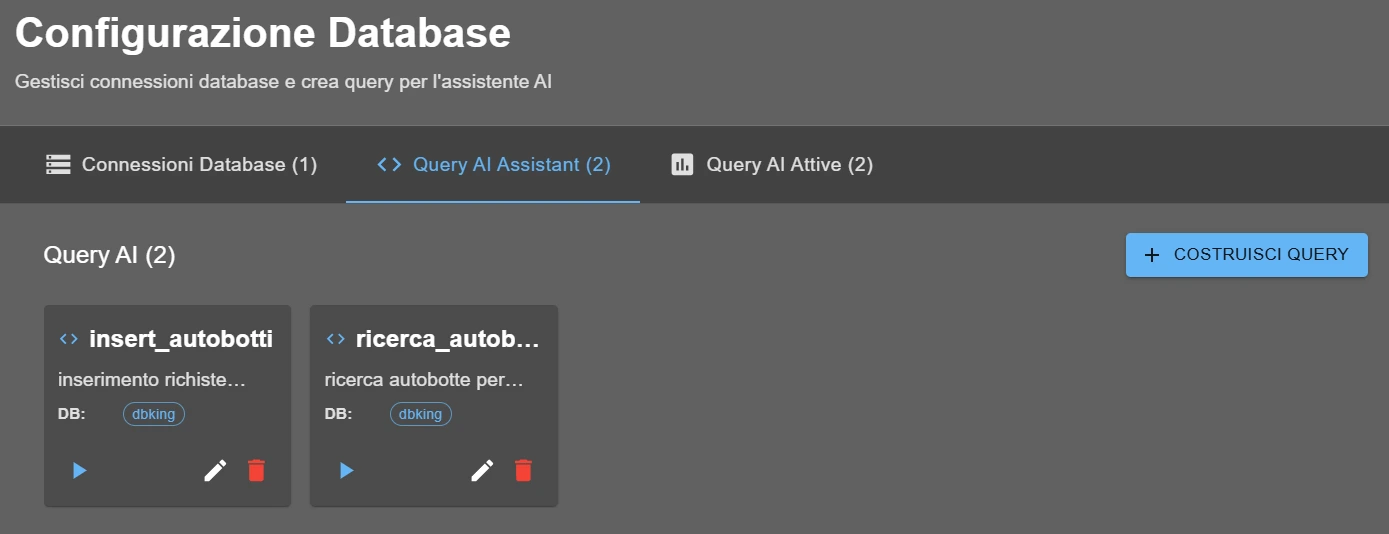
After creating and testing queries, you need to activate them as MCP tools so assistant can use them during calls.
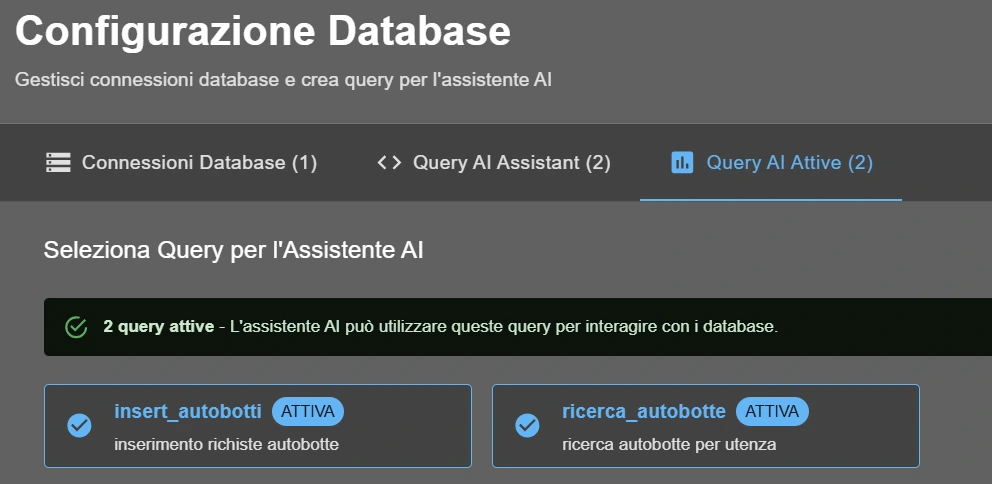
- In query list, find the one you want to activate
- Activate the switch "Activate as MCP Tool"
- Configure tool options:
- Visibility: Choose in which assistants it will be available
- Priority: Set when assistant should use this tool
- MCP Description: How tool is presented to AI
- Click "Save Tool Settings"
- Repeat for all queries you want to make available
1. Conversation context: If talking about customers, orders, products, etc.
2. Specific questions: "What is status of my order?", "Do I have expiring invoices?"
3. Missing parameters: AI will ask necessary parameters (e.g. "I need customer email")
4. Tool description: How accurately you described query purpose
Instruct the assistant on how to use tools
Last step is to instruct assistant on when and how to use database tools you configured. You can do this through system instructions and conversation examples.
"If user asks information about customers, orders, products or invoices, use MCP database tools to retrieve updated information. Ask necessary parameters (e.g. email, ID, name) if not provided."
Conversation Example:
User: "I'd like to know status of my recent order"
AI: "Certainly! To retrieve your recent orders, I need your email. Can you provide it?"
User: "mario.rossi@email.com"
AI: [Uses tool "Search Orders by Email" with parameter email_cliente="mario.rossi@email.com"]
AI: "I found 2 recent orders: ..."
1. Start a test call with assistant
2. Ask information that should activate a database tool
3. Verify AI:
- Recognizes need to use tool
- Asks missing parameters if necessary
- Correctly executes query
- Presents results understandably
4. Check logs in plugin to see executed query
5. Verify data is correct and updated
❓ Database MCP Frequently Asked Questions
Answers to the most common questions about Database Connector MCP configuration and usage
Currently plugin supports one database connection per instance. If you need to access multiple databases, you can: 1) Use a central database replicating necessary data, 2) Create views combining data from multiple databases, 3) Configure multiple AI4CALL instances with different connections.
Yes, queries are executed in real time when assistant decides to use the tool. Database response is incorporated in AI response almost instantly, typically in less than 2-3 seconds.
If database is unreachable, assistant will receive connection error and inform user it cannot retrieve data at the moment. Call will continue normally for other functionalities.
Yes, but with extreme caution. We recommend: 1) Use DB users with minimal necessary permissions, 2) Add confirmations before destructive operations, 3) Implement automatic backups, 4) Test thoroughly in development environment.
There's no fixed limit to number of queries, but for optimal performance we recommend: 1) Maximum 20-30 active queries simultaneously, 2) Group similar queries in one parametric, 3) Deactivate queries not frequently used.
Yes, plugin supports any MySQL/MariaDB compatible database, including cloud services. Typical configuration: 1) Use endpoint provided by cloud as host, 2) Configure security group to allow AI4CALL IP, 3) Use SSL if required.
If you modify tables/columns: 1) Update queries using those tables, 2) Test all modified queries, 3) Communicate changes to users if affecting results, 4) Consider backward compatibility (e.g. new optional columns).
Yes, using SQL conditions: WHERE (email = {email} OR {email} IS NULL). The assistant will still try to provide all defined parameters. For truly optional parameters, create separate queries with and without that parameter.