
📧 Email MCP Server Configuration (SMTP/Gmail)
Complete guide to allow AI4CALL assistant to automatically send emails to customers via SMTP server or Gmail
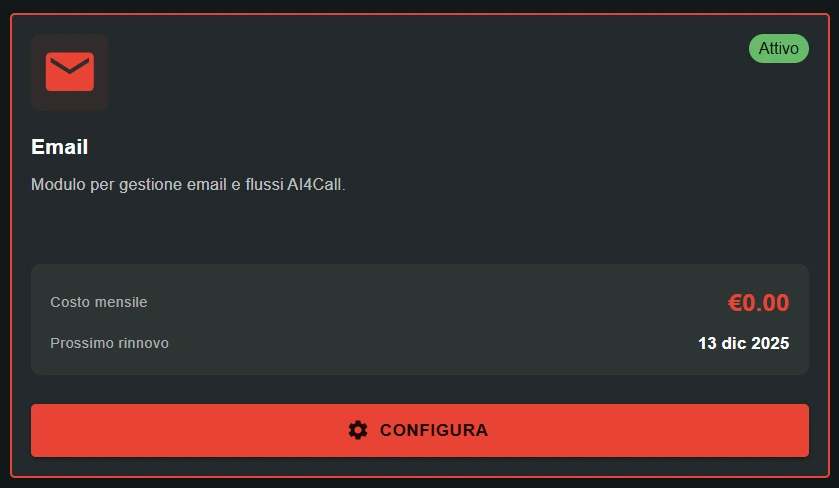
Go to "MARKET" → "Marketplace Plugin" and click Purchase on "Email (smtp)" → FREE
Go to "MARKET" → "My Plugins" and click Configure on "Email (smtp)"
🚀 Quick navigation:
⚠️ Third-party services
The integrations described refer to third-party services.
Rate limits, authentication methods, technical configurations, costs, and policies are defined exclusively by the respective providers and may change over time.
Costs for external services are borne directly by the end user to the service providers themselves and are in no way managed or mediated by our portal (e.g., Meta or other providers for WhatsApp, Zapier, Calendly, etc.).
- ✅ appointment confirmations with date/time/location details
- ✅ call summaries with key discussed points
- ✅ document/brochure/price list sending via attachment
- ✅ order confirmations with tracking number
- ✅ deadline/payment/renewal reminders
- ✅ support tickets with reference number
- ✅ post-call follow-up with links/resources
Advantages: customer receives immediate written confirmation without waiting for manual email from operator.
What is Email MCP Server and how it works
Email MCP Server is a tool allowing AI assistant to send emails during or at end of calls via standard SMTP protocol.
→ assistant collects customer email and relevant data
→ example: "Can you provide your email to send you confirmation?"
2. Content generation:
→ assistant automatically generates subject and email body
→ personalizes with conversation data (name, appointment, requests)
→ can use plain text or formatted HTML format
3. Sending via SMTP:
→ assistant invokes send_email tool with compiled parameters
→ email is sent via configured SMTP server
→ customer receives email immediately
4. Confirmation to customer:
→ assistant communicates: "I sent you confirmation email to [address]"
→ customer can verify in real time during call
- ✅ uses company domain email (@yourcompany.com)
- ✅ greater control and customization
- ✅ professional branding
- ⚠️ requires SMTP credentials from email provider
Option 2 - Gmail (smtp.gmail.com):
- ✅ quick setup with existing Gmail account
- ✅ high reliability
- ✅ email history in Gmail sent
- ⚠️ limit ~500 emails/day (Gmail free) or ~2,000/day (Workspace)
- ⚠️ requires app password (not normal Gmail password)
Recommendation: Gmail to start quickly, company SMTP for professional production.
For company SMTP:
- SMTP Host (e.g. mail.yourdomain.com, smtp.provider.com)
- SMTP Port (465 for SSL, 587 for TLS)
- SMTP Username (typically: your-email@domain.com)
- SMTP Password
- Security protocol (SSL or TLS)
For Gmail:
- Active Gmail account
- 2-step verification enabled
- App password generated (NOT normal Gmail password!)
If you don't have this information, contact your email provider or IT administrator before proceeding.
Configure the SMTP server
Insert SMTP server credentials to allow email sending.
→ e.g.
mail.example.com, smtp.gmail.com, smtp.office365.com→ provided by email provider
SMTP Port: server communication port
→
465 for SSL (Secure Socket Layer)→
587 for TLS (Transport Layer Security) - recommended→
25 not secure - deprecated, avoidSMTP Username: email account for authentication
→ e.g.
no-reply@example.com, assistant@company.com→ typically matches sender email
SMTP Password: email account password
→ for Gmail: use app password (not account password!)
→ keep it secure, do not share
Security: encryption protocol
→
SSL if port 465→
TLS if port 587Sender Name (optional): displayed name
→ e.g.
AI4CALL Assistant, Customer Support→ appears as display name in recipient email client
- Enable 2-step verification:
→ go to myaccount.google.com/security
→ enable "Two-step verification" if not already enabled - Generate app password:
→ go to myaccount.google.com/apppasswords
→ select app: "Mail", device: "Other (custom name)"
→ enter name: "AI4CALL SMTP"
→ click "Generate"
→ COPY the 16-character password shown (won't be visible again!) - Configure in AI4CALL:
→ SMTP Host:smtp.gmail.com
→ SMTP Port:587(or 465)
→ SMTP Username:your-email@gmail.com
→ SMTP Password:[16-character generated password]
→ Security:TLS(or SSL if port 465)
→ Sender Name:AI Assistant - Save configuration
IMPORTANT: never use normal Gmail password - Google will block access as "less secure". ALWAYS use app password.
Protection:
- 🔒 keep SMTP password in secure password manager
- 🔒 do not share credentials with third parties
- 🔒 use dedicated email account (e.g. no-reply@) instead of personal email
- 🔒 monitor sending logs for anomalous activity
- 🔒 change password periodically (every 6-12 months)
If suspect compromise: revoke Gmail app password, change company SMTP password, verify recent sending logs.
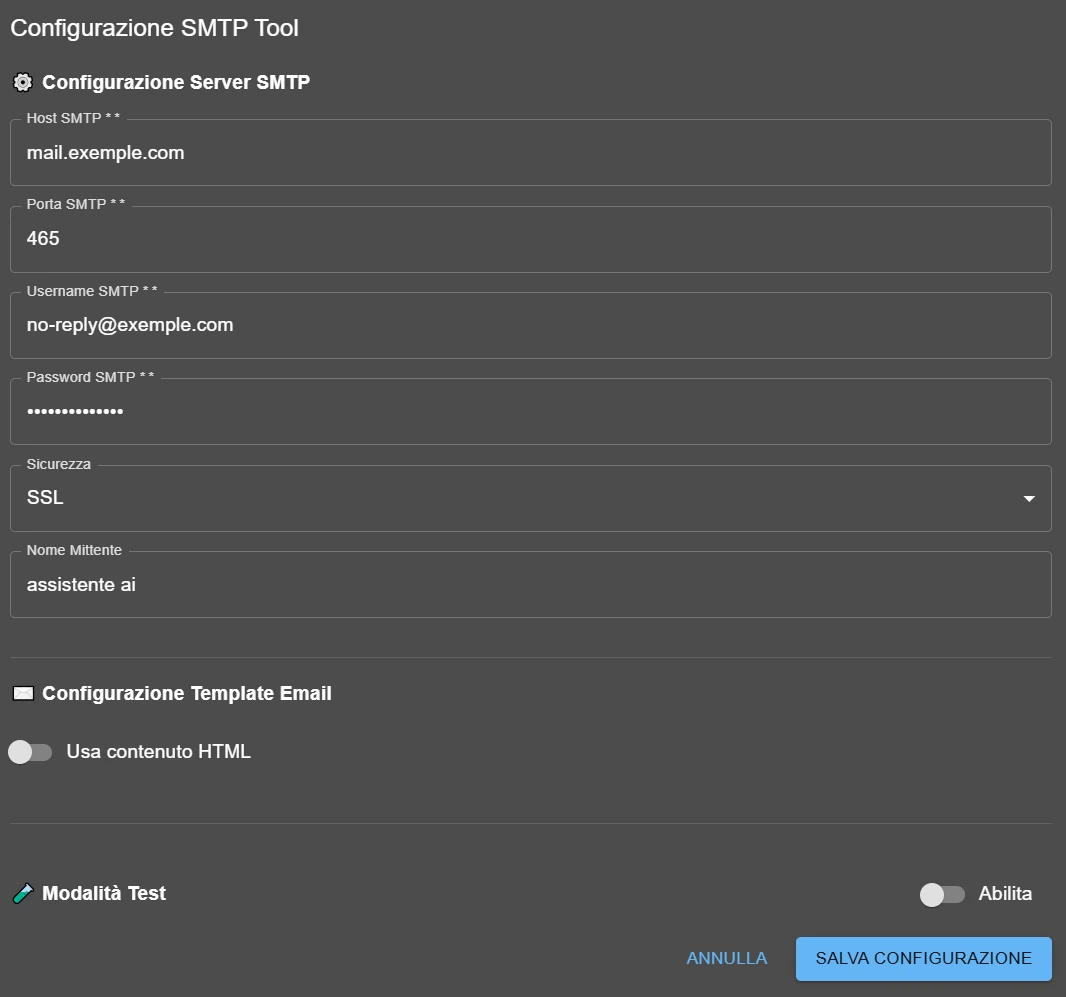
Configure email template options
Customize how the assistant generates and sends emails to customers.
→ OFF: assistant sends only plain text emails
→ ON: assistant can send formatted HTML emails (colors, images, links)
When to enable HTML:
- ✅ want professional emails with company branding
- ✅ need formatting (bold, lists, tables)
- ✅ want to include logo or images
- ✅ clickable links with button design
When to use only text:
- ✅ maximum compatibility with all email clients
- ✅ simple and fast emails
- ✅ avoid spam filters (HTML can trigger spam)
Functioning:
- ✅ limit 10 total test emails
- ✅ emails are sent ACTUALLY to recipients
- ✅ email subject contains prefix
[TEST]automatically - ✅ doesn't consume email credits (if system has sending costs)
When to use Test Mode:
- 📧 verify SMTP configuration correct
- 📧 test HTML templates generated by AI
- 📧 check formatting on different clients (Gmail, Outlook, Apple Mail)
- 📧 validate workflow with BCC and attachments
After test: disable Test Mode for production use. Emails won't have [TEST] prefix anymore.
1. Enable "Use HTML content"
2. Instruct assistant in prompt to ALWAYS include both text and html versions:
"When sending emails, always generate content in two formats:
- parameter 'text': simple text readable version
- parameter 'html': formatted version with company colors (#2563EB blue), logo, professional formatting
Include both for maximum compatibility. Old email clients or with HTML disabled will show text version."
Advantages: maximum compatibility + professional design + avoid spam filters.
Test email sending
Verify SMTP configuration works correctly before production use.
- Enable Test Mode (if available)
- Save SMTP configuration
- Make a test call to assistant
- Ask assistant to send you a test email:
→ e.g. "Send me a test email to test@youremail.com" - The assistant should invoke send_email with parameters
- Verify email reception:
- Check test email inbox
- Check spam folder if not arriving
- Verify subject contains [TEST] if test mode active
- Check sender (name and email correct?)
- Verify HTML formatting if enabled
- Test on different clients:
→ Gmail web, Outlook, Apple Mail, mobile client
→ HTML rendering varies between clients
- ✅ correct sender (name and address)
- ✅ correct subject (with [TEST] if test mode)
- ✅ content formatted as expected
- ✅ doesn't end in spam
→ Configuration correct! Disable Test Mode and switch to production use.
Also test:
- 📧 sending with BCC (verify BCC recipient receives but doesn't appear in header)
- 📧 complex HTML content (tables, images, links)
- 📧 long emails (>1000 characters)
1. SMTP authentication error:
- → verify correct username/password
- → Gmail: use app password, not account password
- → check AI4CALL log for specific error
2. Wrong port/security:
- → port 465 requires SSL
- → port 587 requires TLS
- → try alternating 465↔587 and SSL↔TLS
3. Email in spam:
- → check spam/junk folder
- → add sender to contacts
- → verify domain SPF/DKIM configuration
4. Firewall blocks SMTP:
- → verify firewall allows ports 465/587 outbound
- → some ISPs block port 25
Instruct the assistant for email workflows
Configure the assistant prompt to correctly use send_email in common workflows.
"At end of appointment booking, automatically send confirmation email to customer. Include: customer name, appointment date/time, location address, what to bring/prepare. Subject: 'Appointment confirmation [DATE]'. Format: HTML with company logo in header."
2. Call summary:
"If call lasts >5 minutes and contains important information, ask customer if they want summary via email. If yes, generate email with: personalized greeting, key discussed points (bulleted list), next steps, support contacts. Format: professional HTML."
3. Documentation sending:
"If customer requests brochures/price lists/documents, send email with download links materials. Subject: 'Requested documentation - [TYPE]'. Body: materials description, download links, offer validity deadline if applicable."
4. Support ticket with BCC team:
"For technical support requests, create ticket and send email to customer with ticket number. Put in BCC: support@company.com. Subject: 'Ticket #[NUMBER] - [PROBLEM]'. Communicate to customer: 'will receive response within 24 hours'."
"Standard email HTML template:
- Header: background #2563EB (blue), logo centered, padding 20px
- Body: background #FFFFFF, max-width 600px, font Arial 14px
- H1: color #1F2937, font-size 24px, margin-bottom 16px
- Paragraphs: color #4B5563, line-height 1.6
- Lists: bullet with color #2563EB
- Footer: background #F3F4F6, padding 20px, font-size 12px, company contacts
- CTA Button: background #2563EB, color white, padding 12px 24px, border-radius 6px"
AI will dynamically adapt template to specific call data!
🛠️ send_email Tool
Technical specifications of MCP tool for email sending via SMTP.
send_email
Parameters:
to(required, string): recipient email addresssubject(required, string): email subjecttext(optional, string): plain text contenthtml(optional, string): formatted HTML contentfromCustom(optional, string): customized sender addressattachments(optional, array): email attachmentsmethod(optional, string): "smtp" or "gmail" (default: smtp)googleEmail(optional, string): Google email if method=gmailccn(optional, string|array): BCC - single address or array
Example 1 - Simple email:
send_email({
  to: "customer@example.com",
  subject: "Appointment confirmation",
  text: "Dear Mario,\n\nWe confirm appointment 15/03 at 10:00.\n\nBest regards"
})
Example 2 - HTML email with BCC:
send_email({
  to: "customer@example.com",
  subject: "Ticket #12345",
  text: "Text version...",
  html: "<html><body><h1>Ticket</h1><p>Problem registered</p></body></html>",
  ccn: ["support@company.com", "manager@company.com"]
})
❓ Frequently asked questions
Answers to the most common questions about Email MCP Server (SMTP/Gmail)
Yes. Configure SMTP Host: smtp.gmail.com, Port: 465 (SSL) or 587 (TLS), Username: your Gmail email. For password you must generate an "app password" from Google Account → Security → Two-step verification → App passwords. Do not use normal Gmail password - Google would block it as non-secure access.
Port 465 uses SSL (Secure Socket Layer) with encrypted connection from start. Port 587 uses TLS (Transport Layer Security) with STARTTLS upgrade. Both are secure - 587 is more modern and recommended. If 587 doesn't work, try 465. Port 25 (not secure) is deprecated and blocked by many providers - avoid it.
Test Mode allows sending up to 10 test emails with AI4CALL SMTP. Emails are actually sent to recipients but with "[TEST]" added in subject. Use this mode to immediately verify usage with AI assistant.
Yes, the send_email tool supports "attachments" parameter accepting array of files. However the AI assistant cannot create files during call - attachments must be existing files accessible to system. Typical workflow: generate document with another tool (e.g. generate PDF with n8n/Zapier), obtain file URL/path, pass to send_email as attachment.
Parameter "text" contains plain text version of email (without formatting). Parameter "html" contains HTML version with formatting, colors, images, links. Best practice: always include both - old email clients or with HTML disabled will show text version. If send only html, some clients might block email as spam.
Yes. Sender name configures in "Sender Name" (e.g. "AI4CALL Assistant") - appears as display name. Sender address default is "SMTP Username"; to override for single email, specify in prompt. Attention: many SMTP servers block unverified senders - use only addresses of your domain.
Use parameter "ccn" (copia carbone nascosta) of send_email tool. Accepts string with single address (ccn="manager@company.com") or multiple addresses separated by comma (ccn="manager@company.com","support@company.com"). BCC recipients receive email but don't appear in header - useful to keep team informed without customer knowing.
Parameter "to" accepts single recipient. For multiple sending there are two approaches: (1) assistant invokes send_email multiple times (one per recipient) - not recommended for large numbers, (2) use CC parameter for visible recipients or BCC for hidden ones.
The assistant will receive error when trying to send email and can inform user "unable to send email, contact support". Common errors: wrong SMTP host (connection refused), wrong port (timeout), invalid credentials (authentication failed), non-matching security (SSL vs TLS mismatch). Use Test Mode to verify configuration before real use.
Yes, you MUST use your SMTP. Search provider documentation: "SMTP configuration" or "outgoing mail server settings", configure and test the service.
Depends on: (1) sender domain reputation - new domains more easily end in spam, (2) domain SPF/DKIM/DMARC configuration, (3) email content - too many links/images/spam words trigger filters, (4) sending volume - sudden spikes get flagged. Best practice: use verified company domain, include text version, avoid excessive UPPERCASE, link shorteners, exe/zip attachments.
Depends on configured SMTP server, not AI4CALL. Gmail free: ~500 emails/day. Gmail Workspace: ~2,000 emails/day. Dedicated SMTP servers: configurable limits. For high volumes (1,000+ emails/day), use dedicated transactional services (SendGrid 100 emails/day free, then paid, AWS SES $0.10 per 1,000 emails). AI4CALL imposes no own limits.
Instruct assistant to handle gracefully: "If send_email fails, inform customer: 'I couldn't send confirmation email. I'll provide details via SMS/call'. Don't insist with automatic retries - might be temporary SMTP problem. Save data for manual sending later via Zapier/n8n." Avoid assistant telling technical errors to customer.
Yes, with HTML tag pointing to public URLs:
 . Images must be hosted online (not inline Base64 attachments - many clients block). Best practice: use reliable CDN for images, specify width/height for stable layout, include alt text for accessibility, test on different clients (Gmail, Outlook, Apple Mail).
Yes, if correctly instructed in prompt. LLM can generate complete HTML with: branded header, formatted text, bulleted lists, tables, footer with contacts, company colors. Provide in prompt: brand colors (e.g. #2563EB primary blue), desired structure (header/body/footer), variable content to insert. AI dynamically adapts template to conversation data.
Absolutely. Common workflows: (1) Calendly verifies availability → Email sends appointment confirmation, (2) CSV Custom searches customer → Email sends data summary, (3) Condomatica verifies fees → Email sends payment reminder, (4) n8n creates ticket → Email confirms to customer. Tools are composable - LLM orchestrates optimal sequence automatically.
Depends. If using Gmail SMTP (smtp.gmail.com), emails appear in Sent Mail of configured Gmail account. If using custom SMTP server, depends on server configuration - some save in sent folder, others don't. Gmail SMTP advantages: complete history in Gmail, visibility of conversation threads, easy search. Disadvantage: counts in Gmail daily limits.