
🔧 MCP Server Configuration - Excel Custom
Complete guide to configure the MCP (Model Context Protocol) server for searches on Excel files with your AI4CALL assistant
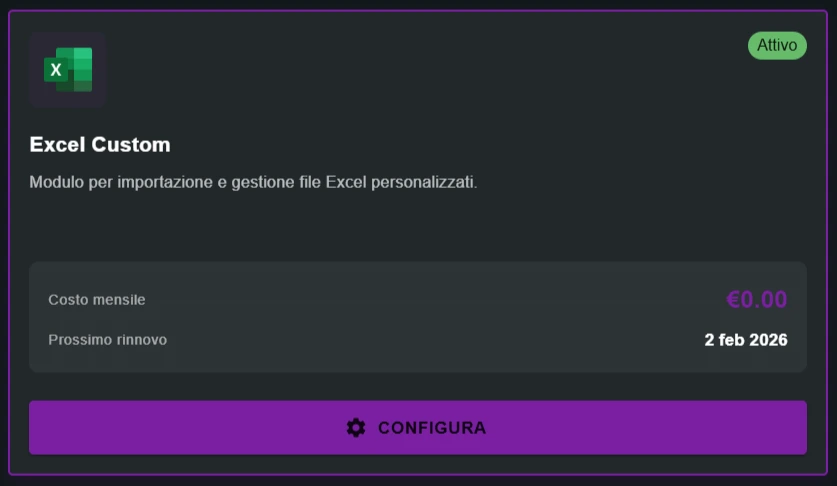
Go to "MARKET" → "Marketplace Plugin" and click Purchase for "Excel Search" → FREE
Go to "MARKET" → "My Plugins" and click Configure for "Excel Search"
🚀 Quick Navigation:
⚠️ Third-party services
The integrations described refer to third-party services.
Rate limits, authentication methods, technical configurations, costs, and policies are defined exclusively by the respective providers and may change over time.
Costs for external services are borne directly by the end user to the service providers themselves and are in no way managed or mediated by our portal (e.g., Meta or other providers for WhatsApp, Zapier, Calendly, etc.).
You can upload and configure as many files as you want, but the AI assistant will only be able to use the one you have explicitly activated with the "ACTIVATE EXCEL" button.
When you activate a new file, the MCP server automatically replaces the previous file. Other files remain saved in the system but are not exposed as tools until activation.
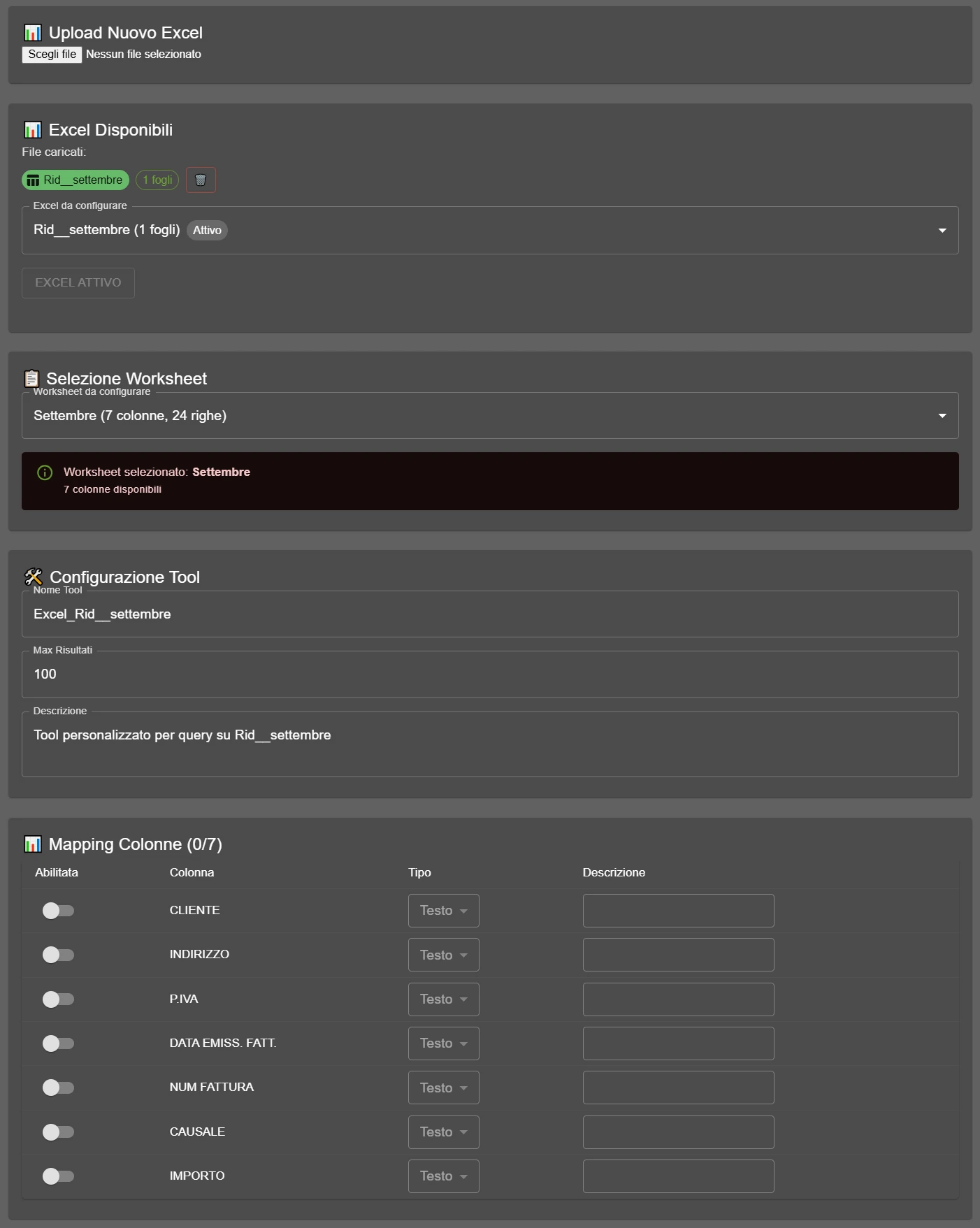
Upload your Excel file
Start by uploading the Excel file that contains the data you want to search on.
- Go to the "Upload New Excel" section
- Click on "Choose file"
- Select the file from your computer (supported formats:
.xlsx,.xls) - The file will appear in the "Available Excel" list
You can upload multiple files and configure them all, but remember: the MCP server will only use the one you have explicitly activated.
Select the worksheet
The MCP server can work on ONLY ONE sheet at a time. Choose which specific sheet of your Excel file you want to expose as searchable.
- In the "Excel to configure" section, select the file you want to configure from the dropdown list
- Scroll to the "Select Worksheet" section
- Open the dropdown menu and choose the sheet you are interested in
- You will see information like: "OperationalStatistics (29 columns, 1000 rows)"
If your Excel has multiple sheets (e.g., "January", "February", "September"), you must choose which specific sheet to expose. You cannot activate multiple sheets simultaneously - the MCP server will only work on the selected sheet.
Make sure to choose the correct sheet before proceeding with column mapping!
Configure the MCP tool
Define the parameters that the assistant will use to identify and use this specific Excel file via the MCP server.
- The MCP server creates a tool called "search_excel"
- The tool description tells the LLM: "When the user asks for X, invoke this tool"
- The mapped columns become the tool's dynamic parameters
- The column descriptions tell the LLM: "To search for Y, use parameter Z"
In practice: The more precise and detailed you are in the descriptions, the better the assistant will understand WHEN and HOW to use this Excel!
- Tool Name: REQUIRED
Unique identifier for the MCP tool (e.g.,Excel_OCClient_1orExcel_September)
→ The assistant will use this name to invoke the tool via MCP - Max Results: REQUIRED
Maximum number of rows to return in a search (e.g.,100)
→ Technically limits the results returned by the MCP server - Description: FUNDAMENTAL
Clearly explain what this Excel contains and when to use it
CORRECT Example: "Complete customer database with call history and operational data for October 2024"
WRONG Example:"Excel File"or"Data"
→ The LLM uses this description to decide IF to invoke this tool! Be specific!
❌ WRONG: "Customer Excel file"
✅ CORRECT: "Complete database of active customers with call history, operational data and statistics for the month of October 2024"
❌ WRONG: "September data"
✅ CORRECT: "Weekly operational statistics of all call center operators for the period September 1-30, 2024, includes response times and number of calls handled"
❌ WRONG: "Sonixis excel"
✅ CORRECT: "Report exported from Sonixis containing technical and demographic details of all received calls, with timestamp, duration, outcome and operator identifier"
Why is this important?
The LLM reads these descriptions to understand IF it should invoke this tool. The more detailed you are about WHAT it contains and WHEN to use it, the better the assistant will understand when to search in this Excel instead of giving a generic answer.
Map the searchable columns
This is the MOST IMPORTANT part: decide which columns of your Excel can be used by the assistant for searches.
Disabled columns (⚪) exist in the file but the assistant will NOT be able to use them as search filters.
- Text: search by content/similarity (e.g., "Mario" finds "Mario Rossi")
- Number: exact comparison or by range (e.g., searching "42" finds only exactly 42, not "42abc")
- Date: temporal comparison (e.g., after, before, between dates)
- Boolean: true/false values (true/false, 1/0)
If you get the type wrong, searches will fail! E.g., if a column contains numbers like customer ID (12345) but you set "Text", the comparison will not work correctly.
- Enabled: Toggle ON/OFF (🟢/⚪) CRITICAL
→ Only ENABLED columns (🟢) become available parameters in the MCP tool!
→ If you disable a column, the assistant will NOT be able to search on it, even if it exists in the file - Column: Automatic name detected from the Excel sheet header
→ E.g., "Id", "User", "IdOperator", "AfterCallWork", "Staffed" - Type: REQUIRED
Data format - needed by the MCP to make correct comparisons
Options:Text(search by similarity),Number(exact/range comparison),Date(temporal comparison),Boolean(true/false)
→ IMPORTANT: Choose the correct type! If you put "Text" on a numeric column, searches will fail! - Description: FUNDAMENTAL
Explain what the column contains and when the LLM should use it
CORRECT Examples:- "Unique identifying customer code"
- "Full name of the operator who handled the call"
- "Timestamp of the call date and time"
- "Phone number of the customer who called"
WRONG Examples:"Id","Data","Field"
→ The LLM uses this description to understand ON WHICH column to search when the user asks a question!
Mapping configuration:
- ✅ Column "CUSTOMER" → Toggle ON (🟢)
• Type:Text
• Description: "Full name of the customer (surname and name)" - ✅ Column "CITY" → Toggle ON (🟢)
• Type:Text
• Description: "Customer's city of residence" - ❌ Column "INTERNAL_NOTES" → Toggle OFF (⚪)
• Not configured = not searchable
MCP Result: The server generates a tool with dynamic parameters
CUSTOMER and CITYUsage example:
User asks: "Search Mario Rossi in Milan"
→ The LLM invokes:
search_excel(CUSTOMER="Mario Rossi", CITY="Milan")→ The assistant finds results filtered by both parameters
→ INTERNAL_NOTES are not accessible to the assistant
→ 3 mapped columns (activated)
→ 29 total columns available in the sheet
Activate the Excel for the MCP server
Final step: make the Excel file effectively exposed by the MCP server to the AI assistant.
This final step "tells" the MCP server: "Use THIS file when the assistant invokes the search_excel tool"
- After completing the configuration and column mapping
- Scroll to the bottom of the page
- You will find a green button labeled "ACTIVATE EXCEL"
- Click on it
- The MCP server will load this file and expose it as a tool available to the assistant
- The MCP server loads the selected file into memory
- Creates a tool called
search_excelwith dynamic parameters based on the mapped columns - Exposes the tool to the AI assistant with the description you wrote
- The assistant can now invoke the tool when the user asks relevant questions
If there was another Excel active, it is automatically deactivated and replaced with the new one.
- Select the new file from the "Excel to configure" list
- Click on "ACTIVATE EXCEL"
- The old file will be automatically deactivated by the MCP server
- The new file becomes the one exposed as a tool to the assistant
Important: Only one file at a time can be exposed by the MCP server. It is not possible to have 2 Excel files active simultaneously.
search_excel tool to the assistant. The AI can now invoke this tool to search for information in the data you configured.Try asking the assistant a question that requires searching in your Excel data!
- Upload the Excel file → "Upload New Excel" section
- Select the worksheet → "Select Worksheet" dropdown
- Configure MCP tool: Unique name + DETAILED DESCRIPTION (fundamental!) + Max results
- Map columns: Activate toggle (🟢) + Correct type + SPECIFIC DESCRIPTION for each column
- Activate the Excel → Green button "ACTIVATE EXCEL" (without this it does NOT work!)
❓ Frequently Asked Questions
Answers to the most common questions about Excel Custom configuration
No. The MCP server can expose only one Excel file at a time as the "search_excel" tool. You can upload and configure multiple files, but only the one activated with the "ACTIVATE EXCEL" button will be usable by the assistant. Others remain saved but are not exposed.
Select the new file from the "Excel to configure" list, then click "ACTIVATE EXCEL". The MCP server will automatically replace the previous file with the new one. The replacement is instantaneous.
Unmapped columns (with toggle deactivated) do NOT become parameters of the MCP tool. The assistant will not be able to search on those columns, even if the data exists in the file. Only columns with active toggle are exposed as searchable parameters.
The description is read by the LLM to decide WHEN to invoke the MCP tool. If you write "Excel File" the AI won't know when to use it. If you write "Customer database with call history for October 2024" the AI will understand exactly when to search in this file. The more specific you are, the better it works.
The LLM uses column descriptions to understand ON WHICH parameter to search. If the user asks "search for customer Mario Rossi", the AI needs to know that "CUSTOMER" is the correct column to use. Without clear descriptions, the AI doesn't know which parameter to invoke in the MCP tool.
The data type determines how the MCP server performs comparisons: Text = search by similarity/content, Number = exact comparison or by range, Date = temporal comparison, Boolean = true/false. If you get the type wrong (e.g., put Text on numeric IDs), searches will fail.
No. The MCP server works on ONLY ONE sheet at a time. If your Excel has multiple sheets, you must choose which specific sheet to expose in the "Select Worksheet" section. It is not possible to activate multiple sheets of the same file simultaneously.
The MCP server loads the selected file into memory, creates the "search_excel" tool with dynamic parameters based on the mapped columns, and exposes it to the AI assistant with the configured description. From that moment the assistant can invoke the tool to search in the data.
In the "Mapping Columns" section you will see a counter like (3/29) indicating: 3 mapped columns (activated) out of 29 total columns available in the sheet. The number changes in real time as you activate/deactivate toggles.
Yes. You can go back to the configuration, modify the mapped columns (activate/deactivate toggle, change types, update descriptions) and then click "ACTIVATE EXCEL" again to apply the changes. The MCP server will reload the file with the new configuration.
Technically limits the maximum number of rows that the MCP server returns in a single tool call. If you set 100 and the search finds 500 results, the server will return only the first 100. Prevents overly long responses that could saturate the LLM context.
Yes. The assistant can invoke the MCP tool passing multiple parameters simultaneously. For example: search_excel(CUSTOMER="Mario Rossi", CITY="Milan") will search for results matching BOTH criteria. All mapped columns can be used together.
If you delete the currently active file, the MCP tool will stop working immediately. The assistant will no longer be able to invoke search_excel until you activate another configured Excel file. Other uploaded files are not affected by the deletion.
No. The tool name must be unique. If you try to create two configurations with the same name (e.g., "Excel_Customers"), the MCP server will have a conflict. Use different names like "Excel_Customers_January", "Excel_Customers_February" to distinguish them.
The MCP server reads only the RESULTING VALUES of the cells, not the formulas. If a cell contains a formula that calculates "100", the server will see "100". Formulas are not executed by the MCP server, only the already calculated values in the file are read.