
📅 Google Calendar Configuration
Complete guide to integrate Google Calendar with AI4CALL: create automatic appointments, check slot availability, manage business calendar directly during calls
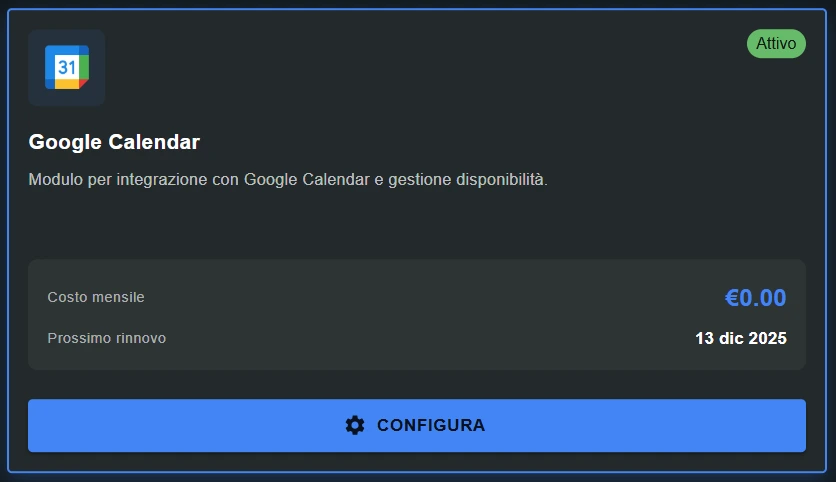
Go to "MARKET" → "Marketplace Plugin" and click Purchase for "Google Calendar" → FREE
Go to "MARKET" → "My Plugins" and click Configure for "Google Calendar"
🚀 Quick Navigation:
⚠️ Third-party services
The integrations described refer to third-party services.
Rate limits, authentication methods, technical configurations, costs, and policies are defined exclusively by the respective providers and may change over time.
Costs for external services are borne directly by the end user to the service providers themselves and are in no way managed or mediated by our portal (e.g., Meta or other providers for WhatsApp, Zapier, Calendly, etc.).
📖 What is Google Calendar integration and how it works
Google Calendar integration allows the AI4CALL assistant to interact directly with Google Calendars: create appointments, check availability, delete events, all during the call.
→ create new appointment on Google Calendar
→ specify: title, start/end date/time, location, participants
→ Google sends automatic email invites to participants
→ event appears immediately in Google Calendar web/app/mobile
2. Availability check (calendar_check_availability):
→ check if a time slot is free or busy
→ query date range: "from March 15 to 20, 9am-6pm"
→ returns: busy (occupied) or free (available) for each slot
→ use to propose available times to the customer
3. Event list (calendar_list):
→ retrieve existing events in a time range
→ filter by: dates, title, location, participants
→ use for: appointment summary, search for specific event
4. Conditional creation (calendar_create_if_free):
→ create event ONLY if slot is free
→ automatically avoids overlaps
→ if busy: returns error, AI proposes alternative slots
5. Event deletion (calendar_delete):
→ delete existing appointment
→ Google sends cancellation email to participants
→ event removed from all calendars
[Customer calls agency/office]
   ↓
[AI4CALL Assistant responds]
   ↓
[Customer: "I'd like to book an appointment"]
   ↓
[AI asks: "Which day do you prefer?"]
   ↓
[Customer: "Next Tuesday morning"]
   ↓
[AI invokes: calendar_check_availability]
   ↓
[Range: Tuesday 9:00-13:00, 30 min intervals]
   ↓
[Google Calendar returns: 10:00 FREE, 10:30 BUSY, 11:00 FREE...]
   ↓
[AI: "Available Tuesday at 10:00 or 11:00"]
   ↓
[Customer: "10:00 is fine"]
   ↓
[AI invokes: calendar_create_if_free]
   ↓
[Google creates event, sends email invite to customer]
   ↓
[AI confirms: "Appointment confirmed Tuesday March 15 at 10:00"]
   ↓
[AI (optional): sends WhatsApp/SMS confirmation]
Advantage: customer books appointment instantly via phone without waiting for human operator or accessing web booking.
- ❌ NO modification of existing events (you must delete + recreate)
- ❌ NO native recurring events (must create series manually)
- ❌ NO automatic buffer time management between appointments (implement in prompt)
- ❌ NO automatic max appointments/day limits (implement custom logic)
- ❌ NO automatic round-robin team assignment (use Calendly for this)
Workaround: these limitations can be overcome with intelligent prompt engineering. Example buffer time: instruct AI to search for slots with +15min before/after busy.
🔐 Authorize Google account via OAuth
To allow AI4CALL to access Google Calendar, you need to authorize a Google account via a secure OAuth procedure.
- Select "Google Calendar" from your Plugin list:
→ see red banner: "No authorized Google emails" - Add Google email to authorize:
- "Participants" field: enter Google account email (e.g., agency@gmail.com)
- Click "+" (plus) button
- Email appears below with grey badge + "AUTH" button
- Start OAuth authorization:
- Click "AUTH" next to email
- Orange banner appears: "Some emails require OAuth authorization"
- System sends email to specified address
- Email subject: like "Authorize AI4CALL for Google Calendar"
- Complete authorization (user side):
- Open received email (check spam if not arriving)
- Click authorization link in email
- Google OAuth popup/page opens
- Select Google account to authorize
- Google shows requested permissions: "Manage your Google Calendar"
- Click "Allow"
- Confirmation page: "Authorization completed"
- Verify authorization (return to AI4CALL):
- AI4CALL panel: click "VERIFY"
- System checks if Google confirmed authorization
- If OK: email turns GREEN with ✅
- Green banner: "Google emails available for calendar: [email]"
- Click "SAVE TOOL" to finalize
- ✅ Authorization completed - Google Calendar tools now functional!
- ✅ AI4CALL has full access to Google Calendar
- ✅ can create/read/delete events
- ✅ permanent authorization (until manual revocation)
- ✅ tools available for assistant use
Important: authorization is for the specific Google account. To manage multiple calendars (team): authorize owner account of shared calendars.
- → check spam/junk folder
- → verify correct Google email (no typo)
- → wait 5-10 minutes (email sending delay)
- → retry: remove email + re-add + AUTH
OAuth popup doesn't open:
- → browser blocks popup - enable popups for AI4CALL
- → right-click link in email → "Open in new tab"
Google denies authorization:
- → Google Workspace account: admin must authorize third-party apps
- → 2FA issues: complete two-factor verification
- → verify Google account not suspended/limited
VERIFY fails (email stays grey):
- → OAuth authorization not completed - repeat clicking email link
- → wait 30 seconds after Google "Allow", then VERIFY
- → email link expired (>24h) - request new AUTH
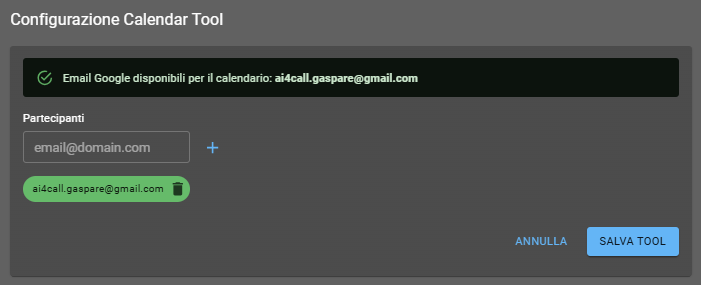
👥 Add authorized participant emails
Configure which Google accounts can be used by the assistant to manage calendars.
→ list of authorized Google accounts to operate on calendars
→ each email = a Google account with accessible calendars
→ AI4CALL can use ONLY present and authorized emails (green)
Typical use cases:
1. Single business calendar:
→ add 1 email: agency@gmail.com
→ all appointments on primary calendar of this account
→ simplest setup - recommended for start
2. Multiple team calendars:
→ add team members emails: doctor1@clinic.com, doctor2@clinic.com
→ AI can create appointments on specific doctor calendar
→ instruct prompt: "if customer asks for Dr. Rossi, use doctor1@clinic.com"
3. Google Workspace shared calendars:
→ add shared calendar owner email: booking@company.com
→ account has access to team@..., meeting-room@... etc. calendars
→ specify calendarId in tool to select which calendar
Adding email:
- Field "email@domain.com": enter Gmail or Google Workspace address
- Click "+" (plus) → email appears below in grey list
- Click "AUTH" → follow OAuth procedure (step 2)
- After authorization: email turns green ✅
- Repeat for each Google account to authorize
Removing email:
→ click trash icon next to email
→ confirm removal
→ authorization revoked, tools can no longer use this account
OPTION A - Centralized calendar (simple):
→ create dedicated Google account: booking@youragency.com
→ use primary calendar for all appointments
→ share calendar with team (Google Calendar sharing)
→ authorize only this account in AI4CALL
✅ pro: simple management, single account
⚠️ con: all events on same calendar
OPTION B - Individual team calendars (flexible):
→ each team member has personal Google account
→ authorize all accounts in AI4CALL
→ instruct AI to select correct calendar based on request
→ example: "appointment with Dr. Rossi" → use doctor1@clinic.com
✅ pro: separate calendars, maximum flexibility
⚠️ con: multiple management, more complex
Choice depends on: team size, business type, required scheduling complexity
- ✅ Google account emails added
- ✅ GREEN badge for authorized emails
- ✅ green banner: "Google emails available for calendar"
- ✅ "SAVE TOOL" button enabled
Now you can proceed with selecting calendar tools to enable!
🛠️ Select Google Calendar tools to enable
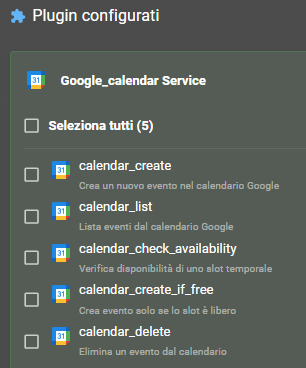
Choose which calendar operations to make available to the assistant via "Configured Plugins" checkboxes.
→ creates a new event in Google Calendar
→ parameters: email, calendarId, summary, description, startTime, endTime, location, attendees
→ ALWAYS creates event even if slot occupied (possible overlaps)
→ use for: multi-participant events, flexible meetings, appointments where overlap OK
2. calendar_list ☑️
→ lists events from Google Calendar
→ parameters: email, calendarId, timeMin, timeMax, maxResults, search (filter by title/description/location)
→ returns: array of events with all details (id, title, date, participants, etc.)
→ use for: customer appointment summary, search for specific event, weekly list
3. calendar_check_availability ☑️
→ checks availability of a time slot
→ parameters: email, calendarId, startTime, endTime
→ returns: busy (occupied) or free (available)
→ use for: finding available slots before proposing to customer
→ recommendation: ALWAYS enabled - fundamental to avoid conflicts
4. calendar_create_if_free ☑️
→ creates event only if slot is free
→ parameters: identical to calendar_create
→ workflow: (1) internal check availability, (2) if free: create, (3) if busy: error
→ use for: exclusive appointments (doctor, hairdresser, 1-to-1 consultations)
→ recommendation: PREFER this vs calendar_create to avoid double bookings
5. calendar_delete ☑️
→ deletes an event from the calendar
→ parameters: email, calendarId, eventId
→ Google sends cancellation email to all participants
→ use for: canceling appointments upon customer request
→ attention: irreversible action - instruct AI to ask for confirmation
✅ calendar_create
✅ calendar_list
✅ calendar_check_availability
✅ calendar_create_if_free
✅ calendar_delete
→ complete autonomous assistant: creates, consults, deletes intelligently
BOOKING ONLY setup (only bookings):
❌ calendar_create (disabled for safety)
✅ calendar_list
✅ calendar_check_availability
✅ calendar_create_if_free (ONLY creation tool enabled)
❌ calendar_delete (requires human operator)
→ only safe bookings without risk of conflicts/accidental cancellations
READ-ONLY setup (only consultation):
❌ calendar_create
✅ calendar_list
✅ calendar_check_availability
❌ calendar_create_if_free
❌ calendar_delete
→ assistant provides only appointment info, no calendar modifications
Use calendar_create_if_free when:
- ✅ exclusive 1-to-1 appointments (doctor, consultant, hairdresser)
- ✅ non-overlapping slots (single resource: room, technician, etc.)
- ✅ customer expects immediate confirmation or alternative proposal
- ✅ business penalized by double bookings
Use calendar_create when:
- ✅ multi-participant events (meetings, team meetings)
- ✅ personal reminders (no conflicts)
- ✅ informational events (webinars, public events)
- ✅ want maximum flexibility (accept controlled overlaps)
Best practice: for 99% of customer booking use cases, use calendar_create_if_free. Disable calendar_create if possible for safety.
🤖 Instruct the assistant for Google Calendar workflow
Configure the assistant prompt to correctly use Google Calendar tools and manage bookings intelligently.
"When customer requests appointment: (1) ask day/time preference, (2) use calendar_check_availability for range (e.g., morning = 9-13), (3) identify first 2-3 free slots, (4) propose: 'Available Tuesday 10:00, 11:00 or Wednesday 9:30', (5) customer chooses, (6) calendar_create_if_free, (7) if success: verbal confirmation + send WhatsApp/Email with details, (8) if slot occupied in meantime: propose next available slot."
2. Customer appointment summary:
"If customer asks 'what appointments do I have?': (1) calendar_list from today to +30 days, (2) filter events with customer email/name in attendees, (3) list chronologically: 'You have 3 appointments: Tuesday 15 at 10, Thursday 20 at 15, Monday 25 at 11'. If no appointments: 'I have no registered appointments for you'. DO NOT mention other customers' events (privacy)."
3. Safe appointment cancellation:
"For cancellation: (1) calendar_list to find event, (2) confirm with customer: 'Do you want to cancel appointment [day] at [time]?', (3) if confirmed: calendar_delete(eventId), (4) confirm cancellation: 'Appointment canceled, you will receive confirmation email from Google', (5) optional: notify operator via Telegram. ALWAYS ask for confirmation before delete - irreversible action."
4. Occupied slot management (intelligent fallback):
"If calendar_create_if_free fails (slot occupied): (1) 'I'm sorry, that slot is already booked', (2) calendar_check_availability range +/- 2 hours, (3) propose alternatives: 'Available 1 hour later at [time] or tomorrow same time', (4) DO NOT communicate previous customer - privacy. Continue until customer finds OK slot or gives up."
- Call assistant: "I'd like to book an appointment"
- Follow conversation providing: day (e.g., "tomorrow"), time (e.g., "morning"), name, email
- Verify AI proposes available slots (check_availability)
- Choose slot, verify creation (create_if_free)
- Check Google Calendar web: event appears correctly
- Verify receipt of Google invite email
Test 2 - Occupied slot (fallback):
- Manually create event on Google Calendar (e.g., tomorrow 10:00)
- Call AI requesting appointment "tomorrow at 10"
- Verify AI detects occupied slot
- Verify proposes alternatives automatically
Test 3 - Cancellation:
- After test 1, call: "I need to cancel appointment"
- Verify AI finds correct event (calendar_list)
- Confirm cancellation
- Check Google Calendar: event deleted
- Verify cancellation email from Google
🛠️ Google Calendar Tool Reference
Technical specifications of the 5 Google Calendar MCP tools.
calendar_create
Parameters:
email(required): authorized Google accountcalendarId(default: "primary"): calendar IDsummary(required): event titledescription(optional): detailed descriptionstartTime(required): start date/time ISO 8601endTime(required): end date/time ISO 8601location(optional): address locationattendees(optional): array of participant emails
Example:
calendar_create({
  email: "booking@studio.com",
  summary: "Visit Mario Rossi",
  startTime: "2025-03-15T10:00:00+01:00",
  endTime: "2025-03-15T10:30:00+01:00",
  location: "Via Roma 1, Milan",
  attendees: ["mario.rossi@email.com"]
})
calendar_list
Parameters:
email(required): authorized Google accountcalendarId(default: "primary"): calendar IDtimeMin(required): minimum date/time ISO 8601timeMax(required): maximum date/time ISO 8601maxResults(default: 50): max events returnedsearch(optional): text to search (title/description/location)
Response: array of events
[
  {
    eventId: "abc123",
    summary: "Mario Visit",
    start: "2025-03-15T10:00:00+01:00",
    end: "2025-03-15T10:30:00+01:00",
    attendees: [...]
  },
  ...
]
calendar_check_availability
Parameters:
email(required): authorized Google accountcalendarId(default: "primary"): calendar IDstartTime(required): start date/time ISO 8601endTime(required): end date/time ISO 8601
Response:
{
  status: "free"  // or "busy"
}
Typical use: loop checking multiple slots to find available ones
calendar_create_if_free
Parameters: identical to calendar_create
Behavior:
→ verifies slot availability internally
→ if FREE: creates event, response success
→ if BUSY: does NOT create, response error "slot occupied"
Advantage: prevents race conditions - verification and creation in single atomic operation
Recommendation: prefer this vs calendar_create for exclusive appointments
calendar_delete
Parameters:
email(required): authorized Google accountcalendarId(default: "primary"): calendar IDeventId(required): event ID to delete (from calendar_list)
Behavior:
→ permanently deletes event
→ Google sends cancellation email to all attendees
→ irreversible action - event not recoverable
Best practice: ALWAYS ask customer confirmation before delete
Workflow example:
// 1. Find event
events = calendar_list(...)
eventId = events[0].eventId

// 2. Confirm with customer
"Confirm cancellation?"

// 3. Delete
calendar_delete(eventId="abc123")
❓ Frequently Asked Questions
Answers to the most common questions about Google Calendar integration
OAuth procedure: (1) AI4CALL panel → Google Calendar Tool → Participants, (2) enter Google account email (e.g., agency@gmail.com), (3) click "+", (4) click "AUTH" next to email, (5) system sends email with authorization link, (6) open email, click link, (7) Google OAuth popup: select account, (8) accept "Manage calendar" permissions, (9) return to AI4CALL, click "VERIFY", (10) email turns green = authorized. One-time authorization - valid until revocation.
calendar_create: creates event ALWAYS, even if slot already occupied → can generate overlaps/conflicts. Use for: multi-participant events, flexible appointments. calendar_create_if_free: checks availability FIRST → creates ONLY if free, otherwise error. Use for: exclusive appointments (doctor, hairdresser) where overlaps unacceptable. calendar_create_if_free workflow: (1) check_availability, (2) if free: create event, (3) if busy: propose alternative slots.
Google Calendar uses ISO 8601 format with timezone. Examples: "2025-03-15T10:00:00+01:00" (CET Italy), "2025-03-15T10:00:00Z" (UTC). startTime/endTime parameters require explicit timezone. Best practice: (1) use local business timezone (Europe/Rome for Italy), (2) AI4CALL automatically converts local customer times → ISO 8601, (3) Google Calendar shows events in user timezone automatically. Avoid confusion: always specify timezone in prompt ("10:00 CET").
Yes. "attendees" parameter in calendar_create accepts email array: ["customer@email.com", "doctor@clinic.com"]. Google automatically sends invite email with: "Add to calendar" link, event details, Accept/Decline/Maybe options. Participants receive notifications for modifications/cancellations. Privacy: use only if you have participant consent. Alternative: create event without attendees, send manual confirmation via Email SMTP tool.
Yes. "calendarId" parameter specifies which calendar to use. Options: (1) "primary" (default): primary calendar of Google account, (2) specific calendarId (e.g., "team@group.calendar.google.com"): shared/secondary calendar. To use multiple calendars: (1) authorize Google account owner of calendars, (2) find calendarId: Google Calendar web → Settings → calendar → Calendar ID, (3) specify in tool: calendar_create(calendarId="team@...", ...). Account must have write permissions on calendar.
Depends on tool used. calendar_create: creates event ANYWAY → overlap/conflict visible in calendar (overlapping events). calendar_create_if_free: (1) checks first with calendar_check_availability, (2) if busy: returns error "slot not available", (3) AI must handle: propose alternative times. Instruct prompt: "if slot occupied, search next 3 free slots and propose to customer". Avoid conflicts: ALWAYS use calendar_create_if_free for exclusive appointments.
Privacy depends on: (1) calendar used: "primary" = private to account owner, "shared calendar" = visible to team members, (2) event visibility: "private" (default) = only owner/invited attendees, "public" = everyone with calendar link. AI4CALL events: default private, visible only to authorized Google account + invited attendees. To share with team: (1) use shared Google calendar (team@...), (2) all members see events, or (3) invite team via attendees parameter.
Tool calendar_delete(email, calendarId, eventId). Workflow: (1) customer calls requesting cancellation, (2) AI uses calendar_list to find event (search by summary/date), (3) identify correct eventId, (4) calendar_delete(eventId=...), (5) Google deletes event, (6) if it had attendees: Google sends automatic cancellation email.
There is no calendar_update tool. In case of modification, the assistant automatically handles the operation by deleting the existing event and creating a new one with updated data. Participants receive a cancellation and a new invite.
Tool calendar_check_availability checks availability of a time range. Intelligent workflow: (1) customer asks "appointment this week", (2) AI defines range (e.g., today → +7 days, Mon-Fri 9-18), (3) loop: check_availability every hour/slot, (4) identify first 3-5 free slots, (5) propose to customer: "available Tuesday 10:00, Wednesday 14:00, Thursday 11:00", (6) customer chooses, (7) calendar_create_if_free. Efficient: searches only working hours, automatically avoids weekends/holidays.
Personal calendar (primary): private to single user, events visible only to him + invited attendees. Shared calendar (team@group.calendar.google.com): shared among Google Workspace user group, all members see events. For AI4CALL team: (1) create shared Google calendar "AI4CALL Appointments", (2) add team members as editors, (3) use shared calendarId in tool, (4) all see appointments created by AI. Advantage: centralization, human backup if AI fails.
Troubleshooting: (1) verify valid and accessible Google email, (2) check spam for authorization email, (3) click authorization link within 24h (expires), (4) browser: enable popups (OAuth opens popup), (5) Google account: verify no blocking 2FA or restrictive admin policy, (6) Google Cloud: verify OAuth consent screen approved (if production app), (7) retry: AI4CALL panel → remove email → re-add → AUTH. Persistent error: contact AI4CALL support.
Mandatory format: ISO 8601 with timezone. Valid examples: "2025-03-15T10:00:00+01:00" (CET), "2025-03-15T09:00:00Z" (UTC), "2025-03-15T10:00:00" (floating - not recommended). Components: YYYY-MM-DDTHH:MM:SS+TZ. AI4CALL automatically converts from natural language: "tomorrow at 10" → correct ISO 8601. Common mistake: forgetting timezone → event appears at wrong time. Best practice: instruct AI to always confirm time verbally: "confirm appointment Tuesday March 15 at 10:00".
Safe anti-conflict workflow: (1) ALWAYS use calendar_create_if_free (not calendar_create) for exclusive appointments, (2) check availability BEFORE confirming to customer: "one moment, checking availability...", (3) if slot occupied: automatically propose alternatives, (4) after creation: verbal confirmation "appointment confirmed Tuesday 15 at 10", (5) send multi-channel written confirmation (email + WhatsApp), (6) shared team calendar: all see real-time occupancies. Avoid race conditions: single centralized calendar, not multiple disconnected calendars.