
🔄 n8n MCP Server Configuration
Complete guide to integrate n8n with AI4CALL: connect your assistant to the powerful open-source workflow automation platform via webhook
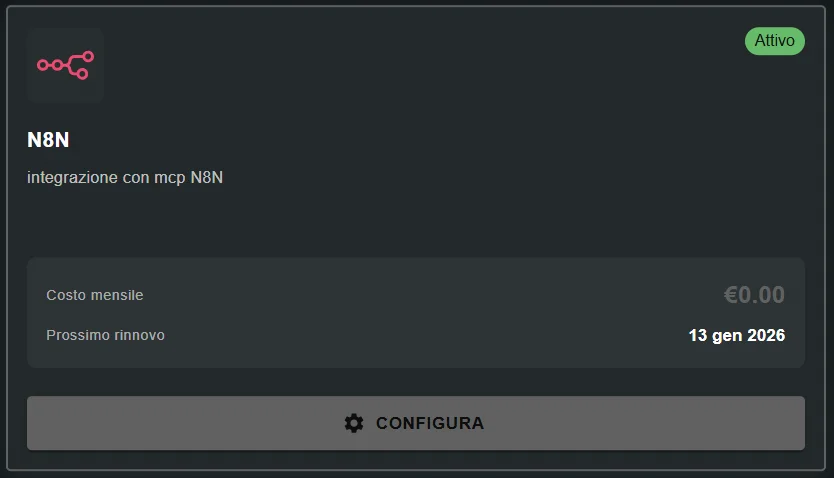
Go to "MARKET" → "Marketplace Plugin" and click Purchase for "n8n" → FREE
Go to "MARKET" → "My Plugins" and click Configure for "n8n"
🚀 Quick Navigation:
⚠️ Third-party services
The integrations described refer to third-party services.
Rate limits, authentication methods, technical configurations, costs, and policies are defined exclusively by the respective providers and may change over time.
Costs for external services are borne directly by the end user to the service providers themselves and are in no way managed or mediated by our portal (e.g., Meta or other providers for WhatsApp, Zapier, Calendly, etc.).
Advantages:
- ✅ no monthly task/execution limits
- ✅ complete data control (privacy, GDPR)
- ✅ complex workflow logic with JavaScript
- ✅ direct connection to SQL databases
- ✅ predictable costs (only server hosting)
- ✅ unlimited customization
Disadvantages:
- ⚠️ requires server setup (Docker, cloud VM, or n8n.cloud)
- ⚠️ fewer pre-integrated apps vs Zapier (but HTTP Request covers 90%)
- ⚠️ steeper learning curve
When to use n8n: high call volume, complex logic, data control, limited long-term budget
When to use Zapier: quick setup, many pre-integrated apps, no server management
What is n8n and how the integration works
n8n (node to node) is an open-source workflow automation platform that allows connecting apps and services via visual drag-and-drop interface.
→ each node = an operation (read file, call API, send email, query database)
Trigger:
→ timer (cron), HTTP webhook, file/database monitoring, external events
Action Nodes:
→ HTTP Request, Database Query, Email, Slack, Google Sheets, IF/Switch logic
Execution:
→ visible in real time with detailed debugging for each node
[Customer calls AI4CALL]
   ↓
[AI Assistant collects data]
   ↓
[AI formats data into JSON]
   ↓
[POST to n8n webhook]
   ↓
[n8n Workflow activates]
   ↓
[n8n Nodes process data]
   ↓
[Actions executed (CRM, Email, DB, etc.)]
   ↓
[n8n returns response (optional)]
Key difference vs Zapier: n8n gives you total control over workflow logic - you can write custom JavaScript, make direct SQL queries, implement complex retry logic, all visually debuggable.
- ✅ immediate setup, no server management
- ✅ free plan available (5,000 workflow executions/month)
- ✅ webhook URL already configured:
https://[instance].app.n8n.cloud/webhook/[path] - ⚠️ costs grow with executions (similar to Zapier)
2. Self-hosted Docker (recommended):
- ✅ complete control, no execution limits
- ✅ fixed costs (only server: $5-20/month VPS)
- ✅ total data privacy
- ⚠️ requires Linux server with Docker installed
3. Cloud providers (AWS, Azure, GCP):
- ✅ enterprise scalability
- ✅ high reliability
- ⚠️ more complex setup, variable costs
To start: use n8n.cloud free plan. For production: consider self-hosted on economical VPS.
Create n8n workflow with Webhook node
To receive data from AI4CALL, you need to create an n8n workflow that starts with a correctly configured Webhook node.
- Access your n8n instance (n8n.cloud or self-hosted)
- Click "New workflow" (or "+" at top)
- In the node palette on left, search for "Webhook"
- Drag the "Webhook" node onto the canvas
- Click on the Webhook node to configure it:
- HTTP Method: select
POST - Path: enter custom path (e.g.,
ai4call-integration) - Authentication: choose type (None, Basic Auth, Header Auth)
- Response Mode: "On last node" for synchronous response, "Webhook node" for immediate
- HTTP Method: select
- n8n will show the generated webhook URL:
https://your-n8n-instance.com/webhook/ai4call-integration - Copy this URL (you will use it in AI4CALL)
- Add subsequent nodes to the workflow to process received data
- SAVE the workflow (Ctrl+S or Save button)
- ACTIVATE the workflow (toggle ON top right)
- Webhook: receives data from AI4CALL (POST /webhook/ai4call)
→ payload: {name, email, phone, notes} - Google Sheets: add row to sheet
- Map fields:
{{$json.name}}→ Name column - Map fields:
{{$json.email}}→ Email column - etc.
- Map fields:
- Respond to Webhook: confirm success
→ response: {"status": "success", "row_id": "..."}
Save, activate, and the workflow is ready to receive data from AI4CALL! 🎉
n8n generates TWO URLs for each webhook:
Test URL:
https://.../webhook-test/...
- ❌ temporary - deactivates after timeout
- ❌ only for manual testing in n8n
- ❌ NOT for persistent integrations
Production URL:
https://.../webhook/...
- ✅ permanent as long as workflow is active
- ✅ use this for AI4CALL
- ✅ requires workflow saved and activated (toggle ON)
Always copy the Production URL into the "Webhook URL" field in AI4CALL!
Configure the webhook in AI4CALL
Insert the n8n webhook URL in the AI4CALL configuration to allow the assistant to send data to your workflows.
- Select "n8n" from your Plugin list
- In the "Webhook URL" field, paste the complete Production URL copied from n8n
- Verify the URL is complete:
- Must start with
https:// - Must contain
/webhook/(NOT/webhook-test/) - Must include the path configured in n8n
- Must start with
- Proceed with authentication configuration (see next step)
- Click "SAVE CONFIGURATION"
https://[your-instance].app.n8n.cloud/webhook/[your-path]
Example: https://johndoe.app.n8n.cloud/webhook/ai4call-integration n8n self-hosted:
https://[your-domain-or-ip]/webhook/[your-path]
Example: https://n8n.mycompany.com/webhook/ai4call-integration or:
http://123.45.67.89:5678/webhook/ai4call-integration (if HTTP) ⚠️ Self-hosted: if using HTTP (no HTTPS), ensure AI4CALL accepts insecure connections, or better configure HTTPS with Let's Encrypt/Cloudflare.
Test with curl:
curl -X POST https://your-n8n-instance.com/webhook/ai4call-integration \
  -H "Content-Type: application/json" \
  -d '{"test": "data"}'
Expected response: HTTP 200 OK with JSON response
If you get an error:
- ❌ 404 Not Found → verify URL and webhook path
- ❌ 401/403 Unauthorized → authentication problem
- ❌ Connection refused → workflow not active or server unreachable
- ❌ Timeout → firewall blocks traffic or n8n server down
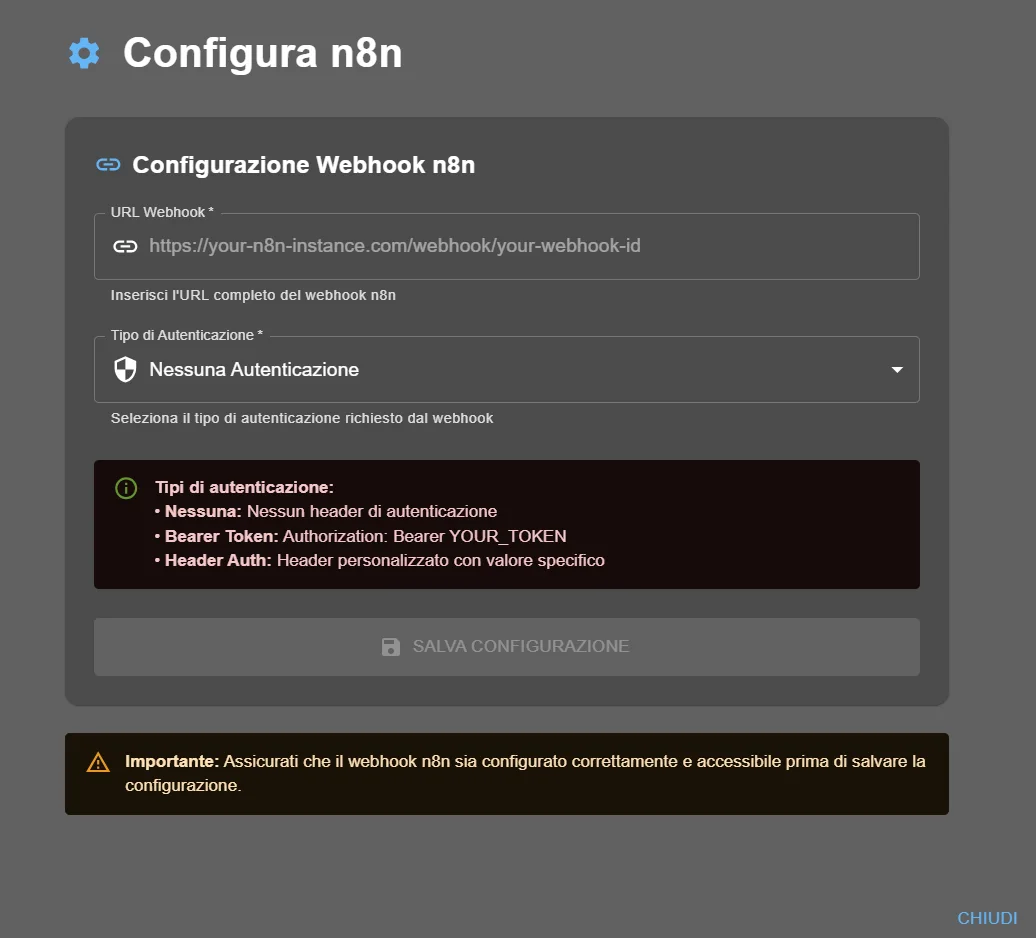
Configure webhook authentication
Protect the n8n webhook by configuring the appropriate authentication type both in n8n and in AI4CALL.
- When to use: public webhook, testing, demo
- Security: ❌ anyone with the URL can send data
- n8n configuration: Authentication = None
- AI4CALL configuration: Authentication Type = "No Authentication"
2. Bearer Token
- When to use: standard authentication, common REST APIs
- Security: ✅ requires secret token in Authorization header
- n8n configuration: Authentication = Header Auth
→ Header Name:Authorization
→ Header Value:Bearer YOUR_SECRET_TOKEN - AI4CALL configuration: Authentication Type = "Bearer Token"
→ Token:YOUR_SECRET_TOKEN(without "Bearer " prefix)
3. Header Auth (custom)
- When to use: custom authentication, legacy API
- Security: ✅ custom HTTP header with secret value
- n8n configuration: Authentication = Header Auth
→ Header Name:X-API-Key(or custom name)
→ Header Value:your-secret-api-key - AI4CALL configuration: Authentication Type = "Header Auth"
→ Header Name:X-API-Key
→ Header Value:your-secret-api-key
Steps on n8n:
- In the Webhook node, Authentication = Header Auth
- Header Name:
Authorization - Header Value:
Bearer sk_live_abc123xyz789(generate long random token) - Save workflow
Steps on AI4CALL:
- Authentication Type: select "Bearer Token"
- Token: enter
sk_live_abc123xyz789(WITHOUT "Bearer " prefix) - Save configuration
AI4CALL will automatically send:
Authorization: Bearer sk_live_abc123xyz789 Generate long random tokens (32+ characters) with:
Method 1 - Online:
https://randomkeygen.com → 504-bit WPA Key
Method 2 - Linux/Mac:
openssl rand -hex 32
Method 3 - Node.js:
require('crypto').randomBytes(32).toString('hex')
Example secure token:
7f3a9b2c8d1e4f5g6h7i8j9k0l1m2n3o4p5q6r7s8t9u0v1w2x3y4z5 Store the token securely (password manager) and do NOT commit it to Git!
Instruct the assistant to use n8n
Configure the assistant prompt to correctly use n8n webhooks in automatic workflows.
"When customer provides new contact data (email, phone, address), immediately update CRM using n8n webhook. Send: {customer_id, field_name, new_value, timestamp}. n8n workflow will update HubSpot/Salesforce with validation."
2. Automatic support ticket:
"If customer reports technical problem or assistance request, automatically create Jira/Zendesk ticket via n8n. Send: {customer_name, email, issue_type, description, priority}. Confirm to customer the ticket number received from n8n response."
3. Real-time team notifications:
"For qualified lead or critical urgency, send immediate notification to Slack/Teams via n8n. Use dedicated n8n webhook for notifications. Format: {alert_type, customer_info, urgency_level, action_required}."
4. Database synchronization:
"After each booked appointment, synchronize with company database via n8n. n8n workflow will execute SQL INSERT/UPDATE queries. Handle error if database unavailable and inform customer."
- Call the AI4CALL assistant
- Trigger a workflow that should invoke n8n (e.g., "update my email")
- The assistant should send data to the n8n webhook
- On n8n, go to Executions and verify the workflow executed
- Check received payload and output of each node
- Verify on final system (CRM, DB, etc.) that data arrived
Debugging:
- n8n Executions Log shows received payload, node outputs, detailed errors
- If workflow doesn't activate: verify URL, authentication, workflow ON
- If workflow fails: check error message in red node
- Use "Edit Fields" node in n8n for data transformation debugging
🛠️ n8n Webhook System
Technical specifications on how the AI assistant communicates with n8n via HTTP POST webhook and JSON data format.
Communication architecture
The AI assistant sends data to n8n via HTTP POST request with JSON payload and authentication header.
POST https://your-n8n.com/webhook/ai4call-integration
Content-Type: application/json
Authorization: Bearer sk_live_abc123xyz789

{
  "customer_name": "Mario Rossi",
  "email": "mario.rossi@example.com",
  "phone": "+393331234567",
  "action": "update_contact",
  "timestamp": "2025-01-03T14:30:00Z"
}
HTTP/1.1 200 OK
Content-Type: application/json

{
  "status": "success",
  "workflow_id": "wf_12345",
  "execution_id": "exec_67890",
  "result": {
    "crm_updated": true,
    "record_id": "contact_999"
  }
}
Note: the response depends on how you configured the n8n workflow. With "Respond to Webhook" node you can completely customize the JSON response that the assistant will receive.
Common n8n workflow examples
1. Webhook (receives data from AI4CALL)
2. HubSpot node: Update Contact
- Email:
{{$json.email}} - Phone:
{{$json.phone}} - Last Updated:
{{$json.timestamp}}
1. Webhook (receives data from AI4CALL)
2. IF node: check priority
3a. Priority HIGH: Jira Create Issue + Slack Alert
3b. Priority NORMAL: Jira Create Issue
4. Respond to Webhook: {"ticket_id": "PROJ-123"}
1. Webhook (receives data from AI4CALL)
2. Postgres node: INSERT INTO calls
INSERT INTO calls (customer, phone, notes)
VALUES ('{{$json.name}}', '{{$json.phone}}', '{{$json.notes}}')
3. Respond to Webhook: {"inserted": true} 1. Webhook (receives data from AI4CALL)
2. Function node: generate HTML email template
3. Send Email node (SMTP/Gmail)
- To:
{{$json.customer_email}} - Subject:
Confirmation {{$json.request_type}} - Body: HTML template with merge fields
❓ Frequently Asked Questions
Answers to the most common questions about n8n MCP Server integration
n8n is an open-source self-hosted workflow automation platform, similar to Zapier but with complete control over infrastructure. Unlike Zapier (cloud SaaS), n8n can be installed on your own server, offering greater privacy, unlimited customization, no monthly task limits, and predictable costs. Integration with AI4CALL works via HTTP webhook.
In n8n, create a new workflow, add a "Webhook" node, configure HTTP method (POST), set the webhook path (e.g., /ai4call-webhook). n8n will automatically generate the complete URL in the format https://your-n8n-instance.com/webhook/ai4call-webhook. If using n8n.cloud, the URL will be https://[your-instance].app.n8n.cloud/webhook/[path].
Three types: (1) No Authentication - public webhook without protection, (2) Bearer Token - Authorization: Bearer YOUR_TOKEN header for standard authentication, (3) Header Auth - custom HTTP header with specific name and value for custom authentication. Choose the type corresponding to the n8n webhook configuration.
Both options work with AI4CALL. n8n.cloud is the official hosted version (free plan available with limits), ideal to start quickly. Self-hosted n8n requires your own server (Docker, npm, or cloud provider) but offers total control, no task limits, and fixed costs. The webhook integration works identically in both cases.
Method 1: use the integrated "Test Webhook" in n8n - activate test mode in the Webhook node, manually send a POST request with example JSON payload using Postman/curl. Method 2: configure the URL in AI4CALL and make a test call to the assistant asking it to send test data. Verify in n8n Execution Log that the workflow executed and check the received payload.
Yes. n8n webhooks in "Test" mode are temporary and deactivate after timeout. For permanent AI4CALL integration, the workflow must be: (1) saved and activated (toggle ON top right), (2) the webhook set to "Production URL" not "Test URL". Otherwise AI4CALL won't be able to reach the webhook after a few minutes.
n8n has integrated error handling: (1) add "Error Trigger" node in workflow to catch errors and handle them (e.g., retry, notification, logging), (2) configure webhook response to return HTTP 4xx/5xx error that AI4CALL can interpret, (3) use n8n Execution Log for detailed debugging, (4) set automatic email/Slack notifications in n8n for failed workflows.
n8n webhook: self-hosted, complete control over workflow logic, unlimited nodes, real-time visible execution, detailed debugging, advanced data transformation with JavaScript, direct database connections. Zapier webhook: cloud managed, simpler to configure, 6000+ pre-integrated apps, no server management, but limited to monthly tasks and variable costs. n8n offers more flexibility, Zapier more speed.
Not directly in the JSON payload. For files: (1) upload file to cloud storage (Google Drive, S3, etc.) using another MCP tool, (2) obtain public/temporary URL of the file, (3) pass the URL via n8n webhook, (4) in n8n workflow use HTTP Request node to download file from URL, (5) process file with specific nodes (PDF, Excel, Image, etc.).
n8n Execution Log shows all executions in real time: see received payload, output of each node, errors, duration. Access from Executions menu in n8n. You can filter by workflow, status (success/error/running), time period. For advanced monitoring: export execution data, integrate with Prometheus/Grafana, configure custom alerting via n8n webhook itself.
Both. The n8n Webhook node can respond synchronously: the workflow processes data and returns an immediate HTTP response with custom JSON payload. The AI4CALL assistant can receive this response and use it in conversation (e.g., "The system confirmed order #12345"). For long processes, use asynchronous mode: webhook immediately responds 200 OK, workflow continues in background.
Yes, use "Header Auth" in AI4CALL. Configure a custom HTTP header (e.g., X-API-Key: your-secret-key). In the n8n workflow, add an "If" node after Webhook to validate the header: read $request.headers["x-api-key"], compare with expected value, if no match return 401 Unauthorized. You can also implement more complex validation with JavaScript code node.
n8n has integrated database nodes: PostgreSQL, MySQL, MongoDB, SQLite, MSSQL. In workflow after Webhook: (1) add corresponding database node, (2) configure connection (host, port, user, password, database), (3) write SQL query or use visual query builder, (4) use data from webhook in WHERE/VALUES: {{$json.customer_id}}, (5) return query results in webhook response if needed.
Absolutely. Example workflow: (1) Webhook receives data from AI4CALL, (2) HTTP Request node searches customer on CRM API, (3) Switch node validates if customer exists, (4a) if exists: MySQL update database, (4b) if not exists: HTTP POST create customer, (5) Slack node sends notification, (6) Email confirmation node. n8n excels in multi-step orchestration with conditional branching.
Self-hosted n8n has no intrinsic rate limit (depends on server resources). To handle high volume: (1) scale n8n horizontally with queue mode + Redis, (2) use custom "Rate Limiter" node with JavaScript code, (3) implement caching with Redis/database to reduce downstream load, (4) monitor n8n CPU/memory and scale container/VM if needed.
Yes, it's a key feature. n8n Credentials centrally manages API keys, OAuth tokens, database passwords securely (encrypted). In workflow: (1) configure credentials for service (e.g., Google, Slack, custom API), (2) in HTTP Request nodes select saved credential instead of hardcoding token, (3) n8n automatically injects correct header/auth. Improves security and maintenance.
Verify checklist: (1) is workflow activated (toggle ON)? (2) is webhook Production not Test? (3) correct HTTP method (POST)? (4) webhook path exactly matches? (5) check Execution Log for errors, (6) verify firewall/network if self-hosted, (7) test webhook manually with curl/Postman, (8) check n8n system logs (Docker logs or PM2 logs if self-hosted).
Yes. However, in phone flows it is not recommended to exceed a few seconds of synchronous execution.
Use:
- Webhook with immediate response (ack) to the phone system
- Asynchronous workflows (Execute Workflow, code, events) for long processing
- Wait node only for short, controlled pauses
The call must never wait for the workflow.
There is no automatic direct import, but you can recreate logic manually: (1) map Zapier triggers → n8n Webhook, (2) map Zapier actions → corresponding n8n nodes (e.g., Google Sheets Zapier action → Google Sheets n8n node), (3) transform Zapier filters → n8n If/Switch nodes, (4) multi-step Zaps → n8n workflow with sequential nodes. n8n is more flexible but requires initial manual configuration.