
💬 WhatsApp Business API Configuration
Complete guide to integrate WhatsApp Business with AI4CALL: send automatic messages to customers via Meta approved templates during or after calls
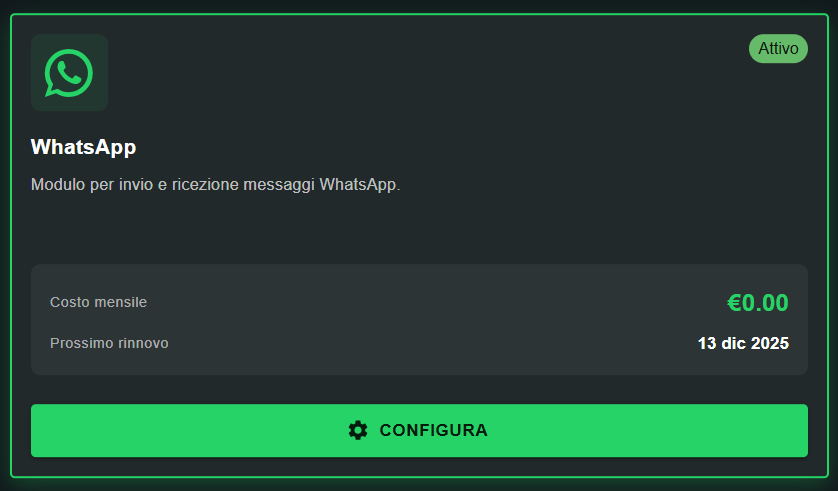
Go to "MARKET" → "Marketplace Plugin" and click Buy on "WhatsApp" → FREE
Go to "MARKET" → "My Plugins" and click Configure on "WhatsApp"
🚀 Quick Navigation:
⚠️ Third-party services
The integrations described refer to third-party services.
Rate limits, authentication methods, technical configurations, costs, and policies are defined exclusively by the respective providers and may change over time.
Costs for external services are borne directly by the end user to the service providers themselves and are in no way managed or mediated by our portal (e.g., Meta or other providers for WhatsApp, Zapier, Calendly, etc.).
You can send ONLY messages based on Meta pre-approved templates:
- ❌ You CANNOT write free WhatsApp messages like in the normal app
- ❌ You CANNOT generate completely free dynamic text
- ✅ You MUST create templates in Meta Business Manager
- ✅ You MUST wait for Meta approval (24-48 hours)
- ✅ You CAN customize templates with dynamic parameters (name, date, etc.)
Exception: if the customer messages you first, you can reply freely within 24h (session message). But AI4CALL sends proactive messages - so approved templates are needed.
What is WhatsApp Business API and how it works
WhatsApp Business API is a Meta (Facebook) enterprise platform to send automatic and programmable WhatsApp messages to customers at scale.
- 📱 mobile/desktop app interface
- 💬 manual person-to-person chats
- 🆓 completely free
- 👤 personal use or small businesses
- ✍️ write messages freely as you want
WhatsApp Business API (platform):
- 🔌 no interface - only programmable API
- 🤖 automatic messages from software/AI
- 💰 paid per conversation (~€0.005-0.05)
- 🏢 enterprise - requires Meta business verification
- 📝 ONLY Meta pre-approved templates
[Customer calls AI4CALL]
   ↓
[AI assistant handles call]
   ↓
[Collects: name, WhatsApp number, relevant data]
   ↓
[End of call]
   ↓
[Assistant invokes send_whatsapp_message]
   ↓
[Selects approved template: e.g. "appointment_confirmation"]
   ↓
[Fills template parameters: {{name}}, {{date}}, {{time}}]
   ↓
[POST to WhatsApp Business API with Meta credentials]
   ↓
[Meta validates template + parameters]
   ↓
[Meta sends WhatsApp message to customer]
   ↓
[Customer receives WhatsApp notification on smartphone]
Advantage: customer receives immediate confirmation on app they already use daily (98% read rate vs 20% email).
Pricing by country (Italy examples):
- Service-initiated (business contacts customer first): ~€0.0286 per conversation
- User-initiated (customer contacts business first): ~€0.0048 per conversation
- Authentication (OTP, 2FA): ~€0.0270 per conversation
Free tier: first 1,000 conversations/month FREE
Conversation: 24h window - you can send multiple messages in same period without additional costs
AI4CALL adds NO costs - you pay ONLY to Meta. Meta billing on business credit card.
Verify updated prices: WhatsApp Pricing
Setup Meta Business Manager and API credentials
To use WhatsApp Business API you must create and verify a Meta Business Manager account and obtain necessary credentials.
- Go to business.facebook.com
- Click "Create Account" → enter business name, your name, business email
- Confirm email and complete initial setup
PHASE 2 - Business verification (mandatory for production):
- Meta Business Manager → Settings → Business Info
- Click "Verify your business"
- Provide: legal company name, address, VAT/tax code, official document
- Wait for Meta review: 1-3 business days
- Status: verified ✅ or rejected ❌ (if rejected, correct and resubmit)
PHASE 3 - Add WhatsApp to Business Manager:
- Meta Business Manager → menu ☰ → WhatsApp
- Click "Get Started" or "Start"
- Follow wizard: select "Use WhatsApp Business API"
- Accept WhatsApp Business Terms of Service
PHASE 4 - Add WhatsApp phone number:
- WhatsApp Manager → Phone Numbers → Add Phone Number
- Enter dedicated phone number (CANNOT be used on normal WhatsApp app!)
- Choose verification method: SMS or voice call
- Enter received verification code
- ✅ Number verified and registered on WhatsApp Business API
- Copy and save "Phone Number ID" - you will need it for AI4CALL
PHASE 5 - Generate permanent Access Token:
- Meta Business Manager → Settings → Users → System Users
- Click "Add" → name: "AI4CALL API User"
- Click on created user → "Generate New Token"
- Select WhatsApp app from list
- Permissions: select
whatsapp_business_messagingandwhatsapp_business_management - Expiry: select "Never" for permanent token
- Generate token → COPY IMMEDIATELY (starts with EAAG... ~200 characters long)
- ⚠️ Token will not be visible again - save it in secure password manager!
- ✅ Access Token: long string starting with
EAAG... - ✅ Phone Number ID: 15-digit number (e.g.
123456789012345) - ✅ WhatsApp number: verified and dedicated to API
- ✅ Business verified: badge ✅ in Meta Business Manager
Keep Access Token and Phone Number ID - you will use them in AI4CALL configuration!
Protection:
- 🔒 DO NOT share token with unauthorized third parties
- 🔒 DO NOT commit token to public Git repositories
- 🔒 store in secure company password manager
- 🔒 use permanent token only for production - temporary tokens for testing
- 🔒 regenerate token if you suspect compromise
If token compromised: Meta Business Manager → System Users → delete user → recreate with new token.
Create and approve WhatsApp message templates
Before you can send messages, you must create templates and have them approved by Meta (24-48 hours).
- Meta Business Manager → WhatsApp → Message Templates
- Click "Create Template"
- Template category: choose type
- Utility: confirmations, account updates, transactions (e.g. appointment confirmation)
- Marketing: promotions, offers, newsletters
- Authentication: OTP, 2FA verification codes
- Template name: unique identifier
→ e.g.appointment_confirmation,order_summary
→ only lowercase, numbers, underscore (no spaces, special characters) - Language: select template language (e.g. Italian)
- Header (optional):
- Text: fixed text or with variable {{1}}
- Image: upload image or provide URL (max 5MB)
- Video: upload video (max 16MB)
- Document: PDF/doc (max 100MB)
- Body (mandatory): main message text
→ use dynamic placeholders:{{1}},{{2}},{{3}}
→ formatting:*bold*,_italic_,~strikethrough~
→ max 1,024 characters
Example body:Dear *{{1}}*, we confirm appointment for {{2}} at {{3}}. Thank you! - Footer (optional): small text at bottom of message
→ e.g.Powered by AI4CALL,Do not reply to this message - Buttons (optional): up to 3 buttons
- Call to Action: opens URL or calls number
- Quick Reply: quick reply (predefined text)
- Preview: check message preview
- Click "Submit" to send to Meta review
- Wait 24-48h for approval
Name:
appointment_confirmation Category: Utility
Body:
Dear *{{1}}*,

We confirm your appointment:
📅 Date: {{2}}
🕐 Time: {{3}}
📍 Location: {{4}}

See you soon!
Template 2 - Call summary:
Name:
call_summary Category: Utility
Body:
Hi {{1}},

Thanks for calling! 📞

_Summary:_
{{2}}

For assistance: support@company.com
Template 3 - Reminder:
Name:
reminder_24h Category: Utility
Body:
⏰ *Reminder*

{{1}}, we remind you of tomorrow's appointment {{2}} at {{3}}.

Confirm attendance by replying to this message.
- ❌ contain spam, prohibited content, misleading information
- ❌ request sensitive information (passwords, credit card data)
- ❌ wrong category (e.g. marketing disguised as utility)
- ❌ incorrect grammar/spelling
- ❌ too generic or ambiguous
- ❌ violate privacy or copyright
Best practice:
- ✅ be specific and clear about message purpose
- ✅ use correct category
- ✅ avoid spam terms ("FREE!!!", "CLICK NOW")
- ✅ respect privacy - no sensitive data requests
- ✅ provide real value to recipient
If rejected: modify template according to Meta feedback and resubmit.
Configure WhatsApp in AI4CALL
Enter Meta Business Manager credentials in AI4CALL to enable sending WhatsApp messages.
→ long token starting with
EAAG... → copied from Meta Business Manager → System Users → Generate Token
→ permissions:
whatsapp_business_messaging Phone Number ID:
→ 15-digit number identifying WhatsApp Business number
→ copied from WhatsApp Manager → Phone Numbers → number ID
→ e.g.
123456789012345 Template Name:
→ name of Meta approved template you want to use
→ e.g.
appointment_confirmation, call_summary → must have Approved status in Meta Business Manager
- Verify all fields are correct
- Access Token valid and not expired
- Phone Number ID correct (15 digits)
- Template Name exists and status=Approved
Test: make test call and ask assistant to send WhatsApp to your number. You should receive message based on configured template!
1. Access Token:
- → token copied completely (very long ~200 characters)
- → correct permissions: whatsapp_business_messaging
- → token not expired (if temporary)
2. Phone Number ID:
- → exact 15 digits
- → matches registered WhatsApp Business number
3. Template:
- → exact name (case-sensitive)
- → status = Approved (not Pending/Rejected)
- → template language matches message language
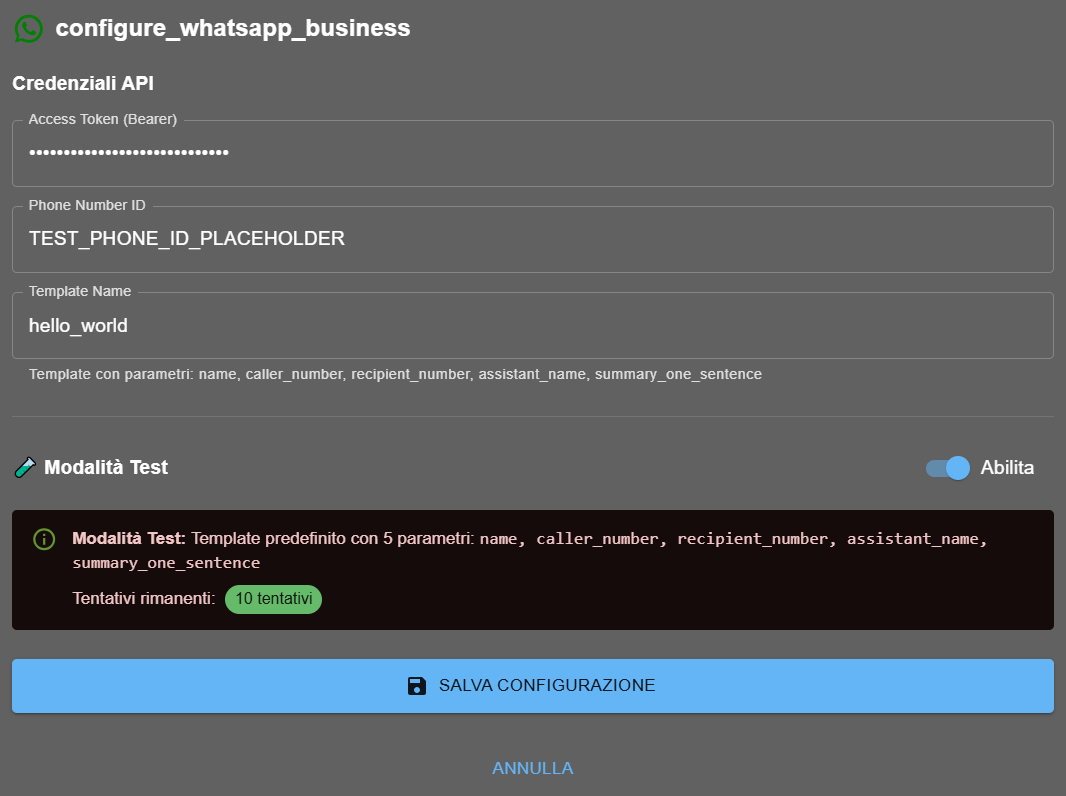
Instruct the assistant for WhatsApp workflow
Configure the assistant prompt to correctly use send_whatsapp_message with approved templates.
"At the end of booking, send WhatsApp confirmation using template 'appointment_confirmation'. Parameters: {{1}}=customer name, {{2}}=appointment date, {{3}}=time, {{4}}=location address. Recipient number: caller number."
2. Concise call summary:
"If call >3 minutes with important information, ask: 'Do you want WhatsApp summary?'. If yes, use template 'call_summary'. Parameters: {{1}}=name, {{2}}=summary ONE SENTENCE (max 150 characters) like 'Appointment scheduled March 15 at 10' or 'Quote request sent via email'."
3. Multi-channel fallback:
"Notification priority: 1.WhatsApp (if valid number), 2.Email (fallback if WhatsApp fails), 3.SMS (last resort). Try in order until success. Do not inform customer of fallbacks - simply use successful method."
4. Graceful error handling:
"If send_whatsapp_message fails (non-WhatsApp number, template not approved, API error), do NOT tell customer 'technical error'. Instead use silent fallback: try Email. Only if EVERYTHING fails, inform: 'I will send you confirmation as soon as possible via SMS'."
- Call AI4CALL assistant from your WhatsApp number
- Simulate appointment booking: provide name, date, time
- Assistant should invoke send_whatsapp_message at the end
- Verify receipt of WhatsApp message on your smartphone
- Check: correct template, parameters filled, formatting OK
Test fallback:
- Call from NON-WhatsApp number (e.g. landline)
- Assistant should fail WhatsApp and use Email automatically
- Verify it does not communicate error to customer - only "I will send you confirmation via email"
🛠️ Tool send_whatsapp_message
Technical specifications of the MCP tool for sending WhatsApp Business messages via templates.
send_whatsapp_message
Parameters:
to(required, string): recipient number in international format (e.g. +393331234567)template_name(required, string): Meta approved template nameparameters(optional, array): values for template placeholders [{{1}}, {{2}}, ...]language_code(optional, string): template language code (default: "it" for Italian)
Example 1 - Appointment confirmation:
send_whatsapp_message({
  to: "+393331234567",
  template_name: "appointment_confirmation",
  parameters: ["Mario Rossi", "March 15, 2025", "10:00", "Via Roma 1, Milan"]
})
Example 2 - Call summary:
send_whatsapp_message({
  to: "+393331234567",
  template_name: "call_summary",
  parameters: ["Mario", "€500 quote sent, response within 3 days"]
})
Expected response:
- ✅ Success:
{"status": "sent", "message_id": "wamid.xxx..."} - ❌ Error:
{"error": "template not found"}→ template not approved - ❌ Error:
{"error": "invalid phone number"}→ non-WhatsApp number
❓ Frequently Asked Questions
Answers to the most common questions about WhatsApp Business API
Normal WhatsApp: app for personal/small business communications, free, mobile/desktop interface. WhatsApp Business API: enterprise platform for automation, requires Meta approval, programmable integration, costs per conversation, NO app interface (API only). AI4CALL uses Business API to send automatic messages during calls - you cannot use normal WhatsApp.
NO. WhatsApp Business API requires pre-approved templates from Meta for service-initiated messages (business → customer). Templates must be created in Meta Business Manager, submitted for review, approved (24-48h). Only after approval can you use them. This prevents spam. Exception: if the customer has messaged in the last 24h, you can reply freely (session message).
Procedure: (1) Meta Business Manager → WhatsApp → Message Templates → Create Template, (2) choose category (Utility, Marketing, Authentication), (3) write text with placeholders {{1}}, {{2}}, (4) add optional header/footer/buttons, (5) Submit for Review. Meta review in 24-48h. If approved: status=Approved, usable. If rejected: modify and resubmit. Template must respect Meta policies (no spam, no prohibited content).
WhatsApp template contains dynamic placeholders: {{1}}, {{2}}, {{3}} etc. Example template "appointment_reminder": "Dear {{1}}, appointment confirmed for {{2}} at {{3}}". When you send a message, provide parameter array: ["Mario Rossi", "March 15", "10:00"]. WhatsApp substitutes: "Dear Mario Rossi, appointment confirmed for March 15 at 10:00". Parameter order must match placeholder order.
Procedure: (1) create Meta Business Manager account at business.facebook.com, (2) complete business verification, (3) go to WhatsApp → Getting Started, (4) add business phone number (verify via SMS), (5) copy Phone Number ID from dashboard, (6) go to System Users → create user → Generate Access Token with whatsapp_business_messaging permissions, (7) copy token (starts with EAAG...). Token expires - use permanent token for production.
Yes, mandatory. WhatsApp Business API number cannot be used simultaneously on the normal WhatsApp app. You must dedicate an exclusive phone number to the Business API. Options: (1) purchase new dedicated SIM, (2) use existing company landline number, (3) use virtual number from VoIP provider. After registration in Meta Business Manager, the number is locked to API - no WhatsApp app.
Yes, partially. Meta provides test number and pre-approved templates in sandbox mode: (1) use test Meta Business Manager account, (2) test number provided by Meta (not yours), (3) "hello_world" template already approved, (4) you can send to max 5 whitelisted numbers. Sandbox FREE but limited. For production: Meta business verification required (company ID, documents, review 1-3 days).
WhatsApp supports simplified Markdown: *bold* becomes bold, _italic_ becomes italic, ~strikethrough~ becomes strikethrough. Example template: "Confirm *appointment* for _{{1}}_" renders "appointment" bold and parameter italic. NO HTML, NO custom emoji. Standard Unicode emojis supported: 👍✅📧. Avoid excessive formatting - templates with too much formatting may be rejected by Meta review.
API returns error: number not registered on WhatsApp. Message is NOT delivered, conversation is NOT charged. The AI4CALL assistant should handle error gracefully: "cannot send WhatsApp, using alternative method (SMS/Email)". Best practice: before sending WhatsApp, verify number is WhatsApp-enabled or implement automatic fallback to SMS if WhatsApp fails.
The assistant can orchestrate multi-channel: (1) primary workflow: send WhatsApp confirmation, (2) if fails (non-WhatsApp number / delivery failed): automatic fallback to Email SMTP, (3) if Email fails: fallback to SMS. Instruct in prompt: "communication priority: 1.WhatsApp, 2.Email, 3.SMS. Try in order until success". For urgent notifications: send simultaneous WhatsApp + Email for redundancy.
Yes. Business name appears above messages in customer WhatsApp chat. Configuration: Meta Business Manager → WhatsApp → Settings → Display Name. Must be legal business name or recognizable brand. Meta reviews the name (1-3 days) - avoid generic/misleading names. After approval, all messages show this name. Green verified badge appears only after Meta Official Business Account verification (additional requirements).
WhatsApp Business API is one-directional in AI4CALL: assistant SENDS messages but does NOT read replies in real-time during call. To handle replies: (1) configure webhook in Meta Business Manager to receive incoming messages, (2) integrate with n8n/Zapier to process replies, (3) save to CRM or send team notification. Alternative: instruct template not to require reply ("Informative message, no reply needed").
WhatsApp supports all Unicode languages, but templates must be created for specific language. Example: English template "appointment_reminder_en", Italian template "appointment_reminder_it". Meta requires separate translations - does not auto-translate. For multilingual business: create template for each language, AI4CALL assistant selects template based on customer language (detected from conversation or number prefix).
Technology and people:
together, zero waiting and a thousand solutions.
Ready to transform
your calls?
Request a free demo and discover how AI4CALL can revolutionize your business