
📄 Custom CSV Configuration (Search on CSV)
Complete guide to configure searches on custom CSV files with AI4CALL: upload your CSV database and allow assistant to query it in real time
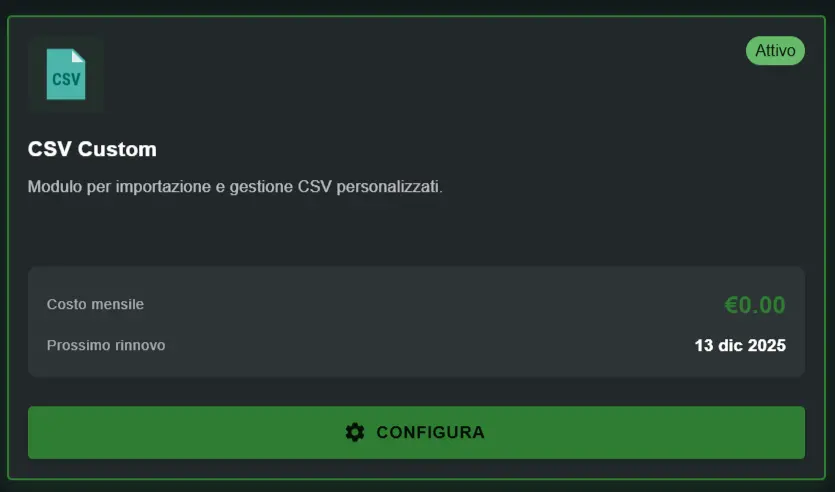
Go to "MARKET" → "Marketplace Plugin" and click Purchase on "CSV Custom" → FREE
Go to "MARKET" → "My Plugins" and click Configure on "CSV Custom"
🚀 Quick navigation:
⚠️ Third-party services
The integrations described refer to third-party services.
Rate limits, authentication methods, technical configurations, costs, and policies are defined exclusively by the respective providers and may change over time.
Costs for external services are borne directly by the end user to the service providers themselves and are in no way managed or mediated by our portal (e.g., Meta or other providers for WhatsApp, Zapier, Calendly, etc.).
The assistant can:
- ✅ search rows in CSV using filters
- ✅ read and communicate found data
- ✅ combine searches with AND logic
The assistant CANNOT:
- ❌ modify values in cells
- ❌ add new rows
- ❌ delete existing rows
- ❌ modify column structure
To update data: manually modify CSV and reupload to system.
What is CSV Custom and when to use it
CSV Custom is an MCP module to upload CSV (Comma-Separated Values) files and allow AI assistant to query them via structured searches.
- ✅ only .csv files (plain text separated by commas/semicolons)
- ✅ faster for large datasets (100K+ rows)
- ✅ lighter in memory
- ✅ compatible with export from any database/system
- ❌ no formulas, no formatting, no multi-sheet
- ❌ only flat tables (rectangular)
Excel Custom MCP:
- ✅ .xlsx/.xls files with formulas and formatting
- ✅ multi-sheet support
- ✅ automatic calculations
- ⚠️ heavier, slower on large files
1. Exported databases: export from CRM, ERP, SQL databases in CSV format
→ e.g. customers, products, orders, inventory, logs
2. Structured lists: tabular data without formulas
→ e.g. SIM cards, IMEI codes, catalogs, price lists
3. Large datasets: thousands of rows to query quickly
→ better performance vs Excel for high volumes
4. Legacy integration: systems exporting only CSV
→ universal compatibility
1. Mandatory header row:
First row = column names separated by comma/semicolon
numero,imei,idsim2. Consistent separator:
Always use same separator throughout file (comma or semicolon)
3. UTF-8 encoding:
To support accented characters (à, è, ì, ò, ù)
4. Rectangular structure:
All rows must have same number of columns
5. No empty rows:
Remove completely empty rows before upload
Upload the CSV file
Upload your CSV file to AI4CALL system to make it available for assistant searches.
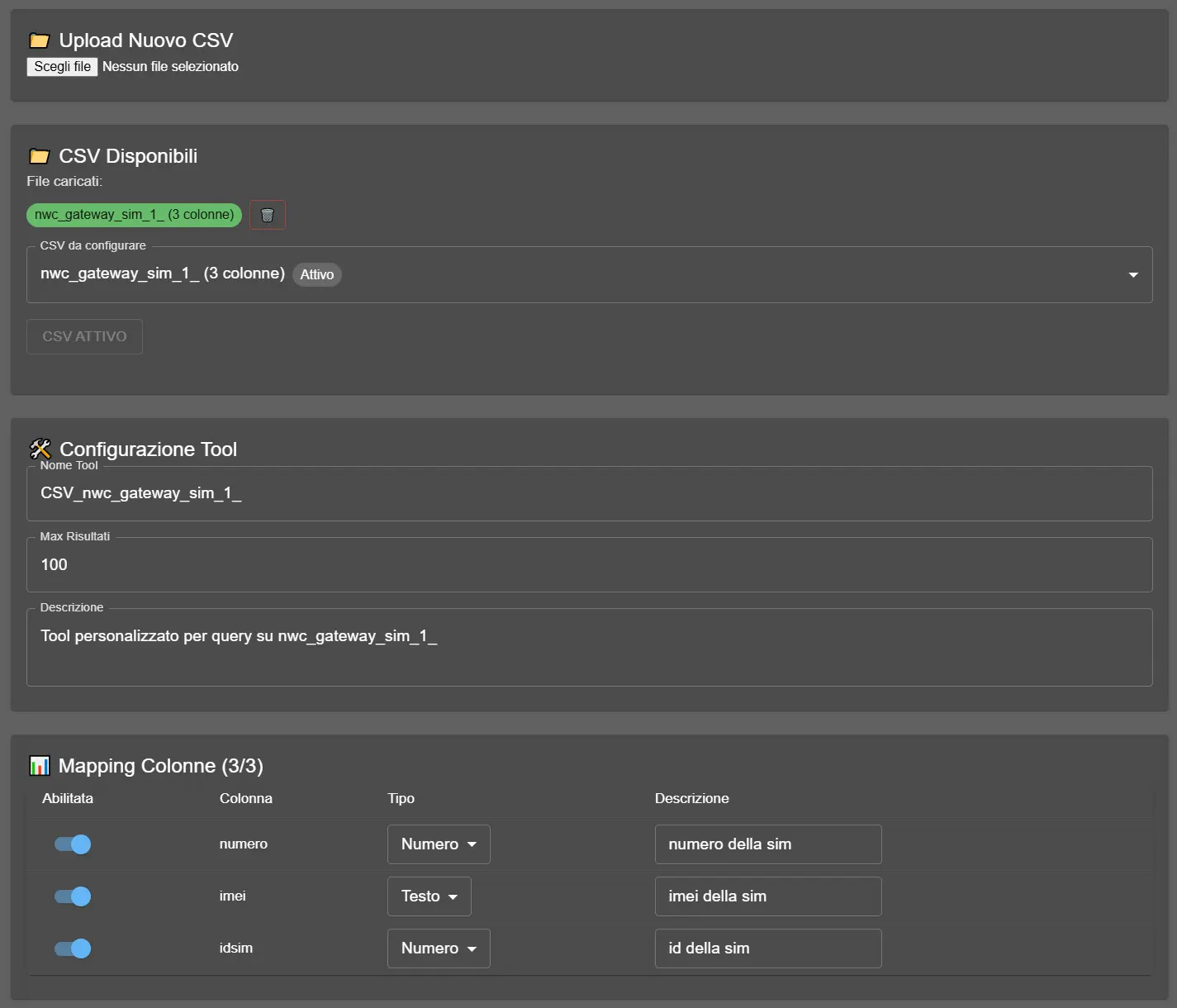
- Select "CSV Custom" from the list of your Plugins
- In the "Upload New CSV" section, click "Choose file"
- Select the .csv file from your computer
- The system analyzes file and shows:
- File name (e.g.
nwc_gateway_sim_1_) - Number of detected columns (e.g.
3 columns)
- File name (e.g.
- The file appears in "Available CSVs"
- Select the file to configure it (section "CSV to configure")
- Verify status is "CSV ACTIVE" (green badge)
- Green badge: file name with column count (e.g. "nwc_gateway_sim_1_ (3 columns)")
- Active Status: "CSV ACTIVE" button visible
- Configuration section: tool and column mapping available
You can now proceed with search tool configuration!
1. Non-UTF-8 encoding:
- Solution: open CSV in text editor, save as UTF-8
2. Rows with different column count:
- Solution: open in Excel, check each row has same number of cells, remove malformed rows
3. Special characters in file name:
- Solution: rename file without spaces, accents, special characters (use underscore: data_clienti.csv)
4. File too large (>10MB):
- Solution: split into multiple thematic CSVs or filter unnecessary rows
Configure the search tool
Define parameters of the tool the assistant will use to query CSV.
→ e.g.
CSV_nwc_gateway_sim_1_, CSV_customers, CSV_products→ auto-generated but you can modify it
→ use descriptive names if you have multiple CSVs
Max Results: limit of rows returned per search
→ e.g.
100 (recommended)→ prevents conversation overload with thousands of results
→ typical values: 50-200
Description: explains to AI what CSV contains
→ e.g. "Custom tool for queries on SIM cards database"
→ helps AI understand when to use this tool vs others
→ be specific and concise
nwc_gateway_sim_1_.csv (3 columns: number, imei, idsim)Tool Name:
CSV_database_sim→ clear and descriptive
Max Results:
100→ even with 10,000 SIMs, returns max 100 results per search
Description:
Search in company SIM cards database by number, IMEI or SIM ID→ AI understands: this tool is for finding SIMs, available parameters are number/IMEI/ID
50-100: specific searches (e.g. search by unique ID)
→ typically 1-10 expected results
→ excellent for quick conversations
100-200: generic searches (e.g. search by city)
→ 10-100 expected results
→ AI can summarize or ask additional filters
200+: only if necessary for specific use cases
→ attention: too many results slow response and confuse user
General rule: start with 100, increase only if needed. If searches always return Max Results (e.g. always 100/100), means filter is too generic - instruct assistant to ask more specific parameters.
Map searchable columns
Define which CSV columns are searchable by assistant and how to interpret them.
1. Enabled (toggle ON/OFF):
→ if ON: column is searchable by AI
→ if OFF: column exists in CSV but invisible to AI
2. Column (name):
→ exact name from CSV header row
→ e.g.
numero, imei, idsim→ auto-detected by system, do not modify
3. Type (Text/Number):
→ Text: partial case-insensitive search (names, descriptions, alphanumeric codes)
→ Number: exact numeric match (ID, quantity, prices, numeric codes)
4. Description:
→ explains to AI what this column contains
→ e.g. "sim number", "sim imei", "sim id"
→ AI uses this description to understand which parameter to use
numero,imei,idsimColumn 1:
- Enabled: ✅ ON
- Column:
numero - Type: Number (exact match)
- Description:
sim number
Column 2:
- Enabled: ✅ ON
- Column:
imei - Type: Text (partial search - IMEIs can have prefixes)
- Description:
sim imei
Column 3:
- Enabled: ✅ ON
- Column:
idsim - Type: Number (unique ID)
- Description:
sim id
With this mapping, assistant can search by exact number, partial IMEI, or SIM ID.
- ✅ numeric IDs (e.g. customer_id: 12345)
- ✅ pure numeric codes (e.g. idsim: 789)
- ✅ quantities, prices, numeric metrics
- ✅ you want ONLY exact match (search 123 finds only 123, not 1234)
Use TEXT when:
- ✅ names, surnames, descriptions
- ✅ emails, addresses, notes
- ✅ alphanumeric codes (e.g. IMEI: "899910...", SKU: "PROD-123")
- ✅ you want partial search (search "Mario" finds "Mario Rossi")
Doubtful case - very long numeric codes:
IMEI (15 digits), numeric tax codes, phone numbers → use TEXT for partial search
Otherwise user must provide EXACT complete code
Instruct the assistant to use CSV Custom
Configure the assistant prompt to correctly use CSV search tool.
"If customer provides a phone number, search in SIM database using 'number' parameter. Show: number, associated IMEI, SIM ID. If not found, communicate 'number not present in database'."
2. Search by IMEI:
"If customer provides IMEI code, search using 'imei' parameter. Even if provides only part of code (e.g. first 8 digits), search will work (Text type). Show: associated SIM, number, ID."
3. Multiple search with filters:
"If customer searches with multiple criteria (e.g. number AND idsim), use both parameters in same search. Return only rows matching ALL criteria."
4. Multiple results management:
"If search returns more than 10 results, show first 5 and ask customer if they want more specific filter or see all. If returns Max Results (100/100), warn there are more results not shown."
- Call assistant and ask to search a value present in CSV (e.g. "Search number 333-1234567")
- The assistant should invoke
search_csvwith correct parameter - Verify it returns correct data from found row
- Try search with value NOT present → assistant should say "not found"
- Try search with multiple parameters → verify AND logic functions
Debugging: if doesn't find expected results, verify column mapping (exact name, correct type, toggle ON).
🛠️ search_csv Tool
Technical specifications of configured CSV search tool.
search_csv
Dynamic parameters (example SIM database):
numero(optional, Number): SIM phone number for exact matchimei(optional, Text): device IMEI code for partial searchidsim(optional, Number): unique SIM ID for exact match
Search behavior:
- Multiple parameters: AND logic (must match all)
- Number Type: exact match (123 finds only 123, not 1234)
- Text Type: substring case-insensitive ("mario" finds "Mario Rossi")
- Limit: configured Max Results (e.g. 100 rows max)
Response: array of CSV rows matching filters, with all values of mapped columns
Invocation example:
search_csv(numero=3331234567)→ returns rows where "numero" column = 3331234567search_csv(imei="89991012")→ returns rows where "imei" column contains "89991012"search_csv(numero=3331234567, idsim=42)→ returns rows where numero=3331234567 AND idsim=42 ❓ Frequently asked questions
Answers to the most common questions about CSV Custom (Search on CSV)
Excel Custom supports .xlsx/.xls files with formulas, formatting, multi-sheet. CSV Custom supports only .csv files (text separated by commas) but is faster and lighter for large datasets. CSV Custom is optimized for searches on simple structured data (pure tables) without formulas or formatting. Use CSV Custom for performance, Excel Custom for advanced features.
No. CSV Custom is a READ-ONLY module designed exclusively for searches (queries). The assistant can search and read data but cannot modify, add or delete rows/columns in CSV file. For modifications, you need to manually update CSV and reupload it.
Limits maximum number of rows returned by a single search (e.g. 100 rows). Prevents assistant returning thousands of results that would overload conversation. If a search would match 500 rows but Max Results=100, only first 100 will be returned. Use values 50-200 for optimal performance.
Mapping defines which CSV columns are searchable and how. Each mapped column becomes a parameter of search_csv tool. You must specify: (1) Exact column name from CSV, (2) Data type (Text or Number) for optimized search, (3) Description explaining to AI what it contains. Only mapped columns are usable - unmapped columns remain invisible to AI.
Text type: search with partial case-insensitive match (e.g. search "mario" finds "Mario Rossi"). Number type: search with exact numeric match (e.g. search 12345 finds only 12345, not 123456). Use Number for IDs, numeric codes, quantities. Use Text for names, descriptions, emails, alphanumeric codes.
No. The MCP server can expose only one CSV file at a time as "search_csv" tool. You can upload and configure multiple files, but only the one activated with "ACTIVATE CSV" button will be usable by assistant. Others remain saved but not exposed.
Yes, mandatory. First CSV row must contain column names separated by comma. These names will be used in mapping. Example first row: numero,imei,idsim. If CSV has no header, add it manually before upload, otherwise system will interpret first data row as column names.
There's no strict limit, but for optimal performance keep CSV under 10MB (~100,000 rows). Larger files slow searches and loading. For huge datasets: (1) split into multiple thematic CSVs, (2) upload only active/recent data, (3) pre-filter unnecessary data. System loads CSV in memory - gigantic files can cause timeout.
There's no automatic update. To update: (1) delete old CSV from "Available CSVs" list (trash icon), (2) upload new updated CSV with "Upload New CSV", (3) reconfigure mapping if column names changed. Recommended workflow: export updated data from source system → upload new CSV → delete old. No automatic merge.
Yes. The assistant can use multiple parameters in same search_csv. Example: search rows with numero=3331234567 AND imei="899910...". All specified parameters must match (AND logic). For OR searches (e.g. numero=X OR numero=Y), assistant must do separate searches and combine results. Instruct appropriate logic in prompt.
Don't map all columns - map only those relevant for searches (5-15 columns typically). Unmapped columns remain in CSV but invisible to AI. Priority: (1) key search columns (ID, codes), (2) common filter columns, (3) informative columns to show in results. Too many parameters confuse AI - better multiple thematic CSVs than one giant CSV with 50 parameters.
Checklist: (1) verify column is mapped and enabled (toggle ON), (2) check correct data type (Text vs Number), (3) verify exact spelling of column names in CSV header, (4) test with very generic search first, then specific, (5) check AI4CALL log (Tool Responses) for parameters actually sent.
Yes, there's no automatic deduplication. If CSV contains duplicate rows, search will return them all (up to Max Results). If you want unique rows: clean duplicates in source CSV before upload, or instruct assistant to mention only unique results if detects duplicates. Excel/LibreOffice have "Remove duplicates" function.
Absolutely. The assistant can combine CSV Custom with other tools. Example workflow: (1) search customer in CSV_customers, (2) verify appointment availability with Calendly MCP, (3) book via Google Calendar MCP, (4) save interaction on Google Sheets via Zapier, (5) send confirmation via Email SMTP. MCP tools are composable - LLM automatically orchestrates optimal sequence.