
✈️ Telegram Bot Configuration
Complete guide to integrate Telegram with AI4CALL: send notifications and automatic messages to team or specific users via Telegram bot during or after calls
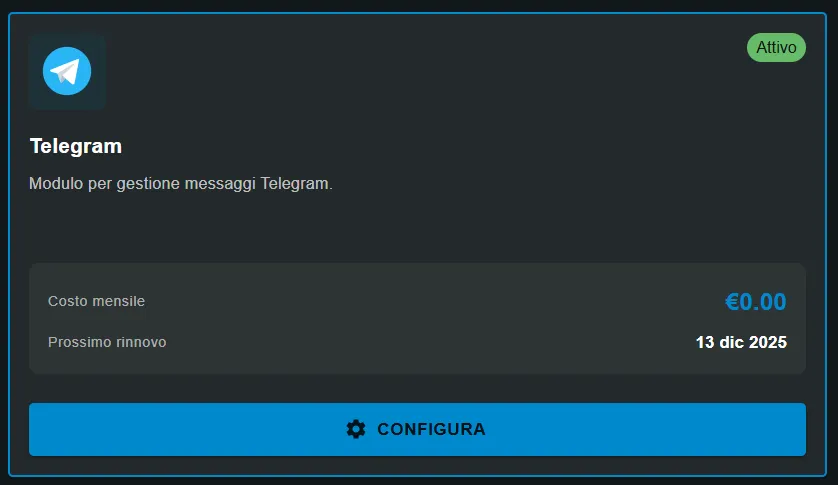
Go to "MARKET" → "Marketplace Plugin" and click Buy on "Telegram" → FREE
Go to "MARKET" → "My Plugins" and click Configure on "Telegram"
🚀 Quick navigation:
⚠️ Third-party services
The integrations described refer to third-party services.
Rate limits, authentication methods, technical configurations, costs, and policies are defined exclusively by the respective providers and may change over time.
Costs for external services are borne directly by the end user to the service providers themselves and are in no way managed or mediated by our portal (e.g., Meta or other providers for WhatsApp, Zapier, Calendly, etc.).
Advantages:
- ✅ completely FREE - no cost per message
- ✅ no daily/monthly message limits
- ✅ free messages - NO pre-approved templates
- ✅ very quick setup (5 minutes with @BotFather)
- ✅ native Markdown/HTML formatting support
- ✅ send photos, documents, files up to 50MB
- ✅ developer-friendly with open APIs
Disadvantages:
- ⚠️ less widespread among consumer customers (vs WhatsApp)
- ⚠️ some users don't have Telegram installed
When to use Telegram: internal team notifications, urgency alerts, supervisor summaries, B2B communications
When to use WhatsApp: end consumer customer communications (appointment confirmations, orders)
What is a Telegram Bot and how it works
A Telegram Bot is an automated account controlled via software through Telegram Bot API that can send/receive messages, manage groups and provide services to users.
→ username ends with "bot" (e.g., @ai4call_assistant_bot)
→ appears as normal contact in Telegram chat
→ can send text messages, photos, files, location, etc.
→ can receive messages from users (if configured)
Programmable control:
→ controlled via HTTP API (Telegram Bot API)
→ no app interface - only code/software
→ authentication via unique Bot Token
→ asynchronous operations - no persistent connection required
Free and unlimited:
→ bot creation: free
→ message sending: free, no cost
→ rate limit: 30 msg/sec global, 1 msg/sec per user
→ no monthly quota, no approval required
[Customer calls AI4CALL]
   ↓
[AI Assistant handles call]
   ↓
[Detects important event: critical problem, urgent request]
   ↓
[Assistant invokes send_telegram or send_telegram_bulk]
   ↓
[POST to Telegram Bot API with Bot Token]
   ↓
[Telegram validates token and recipient]
   ↓
[Telegram delivers message]
   ↓
[Users receive push notification on smartphone/desktop]
   ↓
[Team sees real-time alert on Telegram]
Common use cases:
- 🚨 urgency alerts to technical team
- 📊 call summaries to supervisor
- ✅ operation confirmations to manager
- 📢 broadcast announcements to work group
- ❌ send messages to users who haven't started the bot (never sent /start)
- ❌ see messages in groups where it's not a member
- ❌ access private conversations of other users
- ❌ bypass user block (if user blocks bot, bot cannot contact them)
Key rule: user MUST start conversation with bot (send /start) before bot can send messages. Solution: "Email Invite" system in AI4CALL sends direct link that opens Telegram and starts bot automatically.
Create Telegram bot with BotFather
BotFather is the official Telegram bot to create and manage other bots. Creation takes only 5 minutes.
- Open Telegram (mobile app, desktop or web.telegram.org)
- Search for @BotFather in Telegram search bar
- Start conversation: click "START" or send
/start - Create new bot: send command
/newbot - Choose bot name: BotFather asks for display name
→ example:AI4CALL Assistant
→ can contain spaces, emoji, any character
→ this is the name users will see - Choose bot username: BotFather asks for unique username
→ MUST end with "bot" (mandatory)
→ example:ai4call_assistant_bot
→ only letters, numbers, underscore (no spaces, special characters)
→ username becomes Telegram handle: @ai4call_assistant_bot - Receive Bot Token: BotFather confirms creation and provides token
→ format:123456789:ABCdefGHIjklMNOpqrsTUVwxyz
→ length ~45 characters
→ COPY IMMEDIATELY - it's the bot API credential
→ keep in safe place (password manager) - Configure bot (optional):
/setdescription- description shown when user searches for bot/setabouttext- info in bot profile/setuserpic- bot profile photo (square image min 512x512px)
- ✅ Bot name: e.g., "AI4CALL Assistant"
- ✅ Bot username: e.g., @ai4call_assistant_bot
- ✅ Bot Token: long string like
123456789:ABC-DEF... - ✅ Bot visible on Telegram - you can search it and start it with /start
Quick test: search for your bot on Telegram, send /start, you should receive confirmation message from BotFather. Bot is ready to be configured in AI4CALL!
Protection:
- 🔒 DO NOT share publicly (forums, chats, social)
- 🔒 DO NOT commit to public Git repositories
- 🔒 keep in company password manager
- 🔒 if sharing screenshot, censor token
If token compromised:
- Open @BotFather
- Send
/revoke→ select compromised bot - Old token gets invalidated
- Send
/token→ select bot → receive new token - Update token in AI4CALL configuration
Configure bot in AI4CALL
Insert the Bot Token in AI4CALL to allow the assistant to send Telegram messages.
- Access your assistant's AI4CALL panel
- Go to "MCP Integrations" or "MCP Servers" section
- Select "Telegram" from the list
- In "Telegram Bot" section:
- Field "Bot Token": paste the complete token received from @BotFather
- Format:
123456789:ABCdefGHIjklMNOpqrsTUVwxyz - Verify no extra spaces at beginning/end
- Format:
- Click "SAVE CONFIGURATION"
- System validates token with Telegram API
- If valid: ✅ configuration saved
Verification: in AI4CALL dashboard you should see:
- ✅ Bot Token inserted (masked with asterisks: ************)
- ✅ Status: "Active configuration" or similar
Next step: add authorized users to allow them to receive messages!
Method 1 - Manual test:
- Open Telegram and search for your bot (@ai4call_assistant_bot)
- Send
/startto the bot - Bot should respond (if you configured responses) or remain silent (normal)
Method 2 - Test from AI4CALL:
- Call AI4CALL assistant
- Ask: "Send me a test Telegram message"
- Assistant should invoke send_telegram
- Verify reception on Telegram
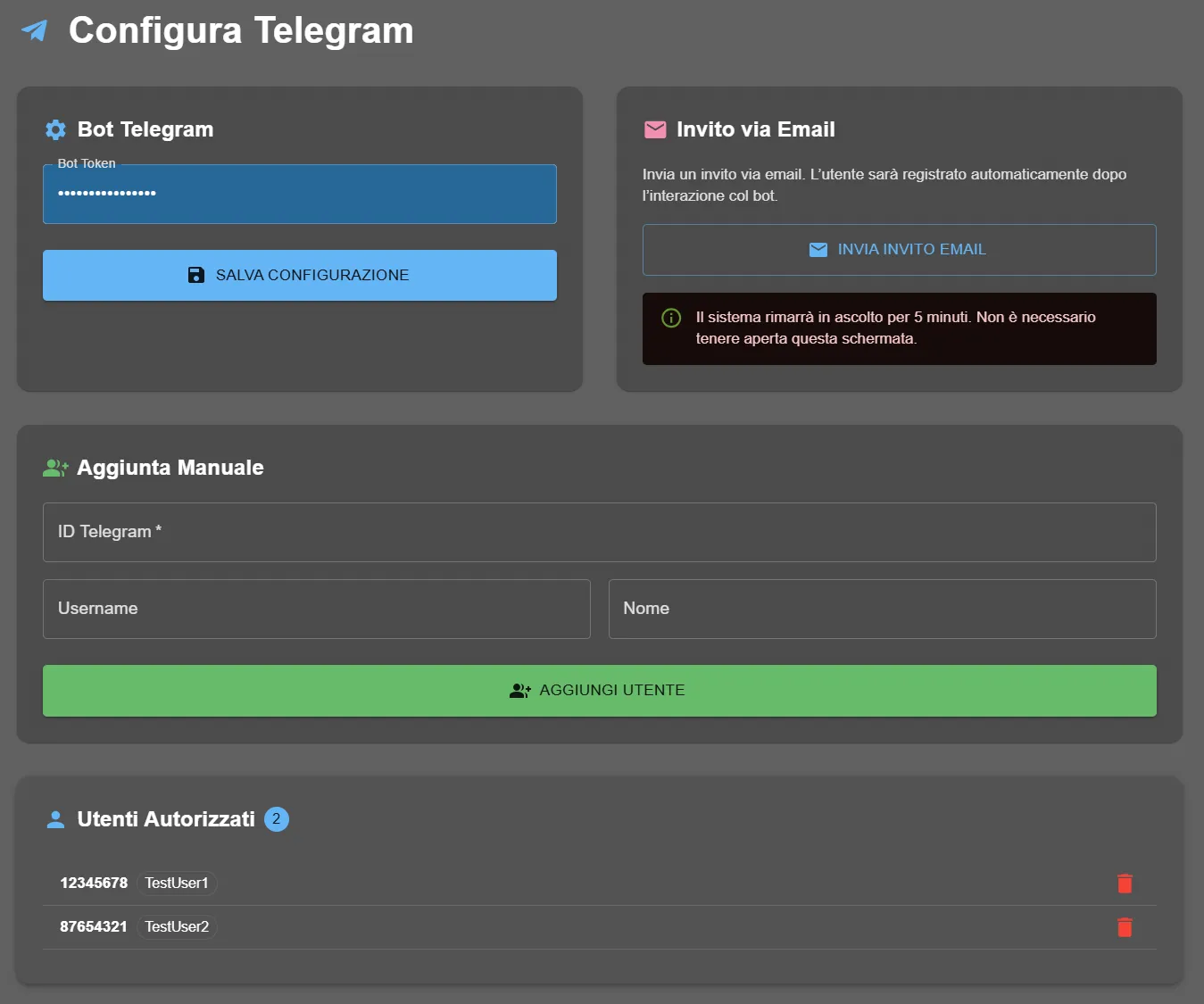
Manage authorized users
Configure the list of users who can receive messages from the bot, especially for send_telegram_bulk.
Ideal when you already know Telegram ID or username.
Procedure:
- Open Telegram, search for
@userinfobot - Send
/start- Telegram ID: unique numeric ID (e.g., 123456789)
→ find ID with @userinfobot or @getidsbot on Telegram
→ permanent, never changes - Username: Telegram handle (e.g., @mario_rossi)
→ optional if providing ID
→ can change - better to use ID - Name: descriptive name for your reference
→ e.g., "Mario Rossi - Technician"
→ internal only, not visible in Telegram
- Telegram ID: unique numeric ID (e.g., 123456789)
- Bot responds with your ID:
Id: 123456789 - User appears in "Authorized Users" list below
METHOD 2 - Email Invitation:
Ideal when user doesn't know their own Telegram ID.
Procedure:
- Search for
@getidsboton Telegram - Send any message
- Bot responds with ID and other info
- User clicks link → Telegram opens automatically
- User sees bot, sends /start
- System automatically registers user in authorized list
- User receives registration confirmation
Note: system listens for 5 minutes after sending email - no need to keep page open.
Method 1 - @userinfobot:
- Open Telegram, search for
@userinfobot - Send
/start - Bot responds with your ID:
Id: 123456789
Method 2 - @getidsbot:
- Search for
@getidsboton Telegram - Send any message
- Bot responds with ID and other info
Method 3 - Telegram Web:
- Go to
web.telegram.org - Click on your profile
- URL contains ID:
web.telegram.org/#/im?p=u123456789
- 📊 Total user count (e.g., badge "2" next to "Authorized Users")
- 👤 Numeric Telegram ID of each user
- ✏️ Descriptive name/username
- 🗑️ Trash icon to remove user from list
Usage:
- send_telegram: can send to ANY Telegram user (not limited to list)
- send_telegram_bulk: sends ONLY to users in this list
Best practice: add team members who need to receive regular alerts/notifications.
Instruct the assistant for Telegram workflows
Configure the assistant prompt to correctly use send_telegram and send_telegram_bulk.
"If customer reports CRITICAL or URGENT problem (keywords: 'emergency', 'not working', 'blocked'), send IMMEDIATELY Telegram alert to entire technical team using send_telegram_bulk. Message format: '🚨 URGENCY: [brief problem description], Customer: [name], Tel: [number]'."
2. Supervisor summary (single user):
"At end of each call >3 minutes, send concise summary to supervisor Mario (Telegram ID: 123456789) using send_telegram. Format: 'Call completed - Customer: [name], Duration: [X] min, Outcome: [brief action/decision summary]'. Use parse_mode='Markdown' for formatting."
3. Critical action confirmations:
"When customer confirms important order/booking (>€500 or special request), notify sales manager (@manager_sales) on Telegram with details: amount, customer, special notes. Use send_telegram with *bold* formatting for amount."
4. Automatic escalation:
"If unable to resolve customer request after 2 attempts, automatic escalation: send Telegram message to technical supervisor (ID: 987654321) with: reported problem, attempts made, customer data for callback. Tool: send_telegram."
- Make sure you've done /start to the bot on Telegram
- Call AI4CALL assistant
- Ask: "Send me a test Telegram message"
- Assistant should invoke send_telegram with your ID
- Verify message reception on Telegram smartphone/desktop
Test 2 - Team broadcast:
- Add at least 2 users to "Authorized Users" list
- Both must have done /start to the bot
- Call assistant, simulate urgency: "There is a critical emergency"
- Assistant should invoke send_telegram_bulk
- Verify ALL authorized users receive message
Test 3 - Formatting:
- Ask: "Send formatted message with bold and emoji"
- Verify message contains correct Markdown formatting
- Example:
*Urgent*appears bold, 🚨 emoji visible
🛠️ Telegram Tool Reference
Technical specifications of the 2 MCP tools for sending Telegram messages.
send_telegram
Parameters:
user_id(mandatory, string): numeric ID (e.g., "123456789") OR username (e.g., "@mario")text(mandatory, string): message textphoto_url(optional, string): HTTPS image URL (becomes caption if provided)parse_mode(optional, string): "Markdown" or "HTML" for formatting
Example:
send_telegram({
  user_id: "123456789",
  text: "*Urgency*: customer requires support",
  parse_mode: "Markdown"
})
send_telegram_bulk
Parameters:
text(mandatory, string): message text to send to all
Note: automatically sends to ALL users in "Authorized Users" configured list. NO user_id required.
Example:
send_telegram_bulk({
  text: "🚨 Alert: system maintenance hours 22-24"
})
Use case: team alerts, announcements, emergencies requiring broadcast notification
❓ Frequently Asked Questions
Answers to most common questions about Telegram Bot integration
Procedure: (1) open Telegram and search for @BotFather, (2) send command /newbot, (3) choose bot name (e.g., "AI4CALL Assistant"), (4) choose bot username (must end with "bot", e.g., "ai4call_assistant_bot"), (5) BotFather generates Bot Token (string like 123456:ABC-DEF1234ghIkl...), (6) COPY token immediately and save it - it's the bot API credential, (7) configure bot: /setdescription, /setabouttext, /setuserpic optional.
send_telegram: sends to SINGLE specific user using user_id (numeric ID or @username). Use for personal notifications, individual summaries, private messages. send_telegram_bulk: sends SAME message to ALL users in "Authorized Users" list (broadcast). Use for team alerts, emergency alerts, general announcements. send_telegram_bulk does NOT require user_id - automatically sends to configured list.
Method 1: use bot @userinfobot - send /start and it responds with ID. Method 2: use bot @getidsbot - send any message. Method 3: open Telegram Web (web.telegram.org), click profile, URL contains ID after #id. Numeric ID is string like 123456789 (9 digits typically). Username (@mario) can change, ID is permanent - better to use ID for reliability.
Yes, use parse_mode parameter. Options: (1) parse_mode="Markdown": *bold*, _italic_, [link](url), `code`, ```code block```. (2) parse_mode="HTML": bold, italic, link, code. Example: send_telegram with text="*Urgent*: customer requires support" and parse_mode="Markdown" makes "Urgent" bold. Default without parse_mode: plain text.
Yes, send_telegram tool supports photo_url parameter. Provide public HTTPS URL of image (e.g., https://example.com/photo.jpg). Telegram downloads and sends image. Supported formats: JPG, PNG, GIF, WebP. Max size: 10MB for photos, 50MB for files. If photo_url provided, text becomes image caption. To send only photo without text: use text="" or omit. Example: photo_url="https://cdn.com/alert.png".
Bot CAN receive messages (if user writes to bot), but AI4CALL currently uses Telegram in SEND-ONLY mode (sending only). Bot does NOT read user replies in real-time during call. To handle replies: configure separate Telegram webhook with n8n/Zapier that processes incoming messages, saves to database/CRM, notifies team. AI4CALL use case: outbound notifications, not bidirectional conversations.
Bot Token grants full control of bot. Protection: (1) DO NOT share token publicly, (2) DO NOT commit to public Git repositories, (3) keep in secure password manager, (4) if compromised: revoke token via @BotFather command /revoke and generate new with /token, (5) use HTTPS for API communications, (6) limit authorized users to receive messages. If token leaked: anyone can send messages on behalf of your bot.
Yes, but requires additional setup. Procedure: (1) create Telegram group, (2) add bot to group as member, (3) get group_id (negative, e.g., -123456789) using @getidsbot in group, (4) use send_telegram with user_id=group_id (negative number). All group members see message. Alternative: use Telegram channel (one-way broadcast), add bot as admin, send to channel_id.
Troubleshooting checklist: (1) verify correct Bot Token (format 123456:ABC-DEF...), (2) test token with @BotFather command /mybots, (3) verify correct user_id (numeric ID or existing @username), (4) check user has started bot (sent /start) - Telegram blocks bots that haven't been started by user, (5) verify bot not blocked by user, (6) check AI4CALL logs for API errors, (7) test manually with curl/Postman Telegram API.
Currently send_telegram supports text and photo_url. For documents: workaround (1) upload file to cloud storage (Google Drive, Dropbox), (2) generate public/temporary link, (3) send link via Telegram text with message "Document available: [link]". Alternative: extend send_telegram tool with document_url parameter (requires backend modification) that uses Telegram sendDocument API. Max document size: 50MB.
Configuration via @BotFather: (1) Bot name: set during creation with /newbot, modifiable with /setname, (2) Bot username: set with /newbot (fixed, not modifiable after), (3) Profile photo: /setuserpic upload square image min 512x512px, (4) Description: /setdescription text shown when user searches for bot, (5) About: /setabouttext info shown in bot profile. Display name appears above messages sent by bot.
Telegram Bot API has no native scheduling - sends immediately. For scheduling: (1) integrate with n8n/Zapier which supports delay/cron, (2) assistant saves data + timestamp, (3) n8n waits or executes daily cron, (4) n8n invokes send_telegram at desired time. Example: daily reminder at 9:00 AM to team via send_telegram_bulk - n8n cron job at 9:00 calls tool automatically. AI4CALL workflow: immediate sending during/after call.
Technology and people:
together, zero waiting and a thousand solutions.
Ready to transform
your calls?
Request a free demo and discover how AI4CALL can revolutionize your business