
Download AI4CALL for FreePBX
Technical documentation and installation guides
Download the appropriate module for your FreePBX version and follow our complete guide for installation and configuration.
FreePBX 15/16
For FreePBX 15 and 16 installations
Free DownloadFreePBX 17
For the new generation FreePBX 17
Free Download
AI4CALL module installation on FreePBX
Follow these 3 simple steps to install AI4CALL
Download Module
Download the appropriate AI4CALL file for your FreePBX version
Download the appropriate module for your FreePBX version and follow our complete guide for installation and configuration.
FreePBX 15/16
For FreePBX 15 and 16 installations
Free DownloadFreePBX 17
For the new generation FreePBX 17
Free DownloadModule Installation
Upload and install the module through the FreePBX interface
Access the FreePBX Admin panel and upload the module through the web interface.
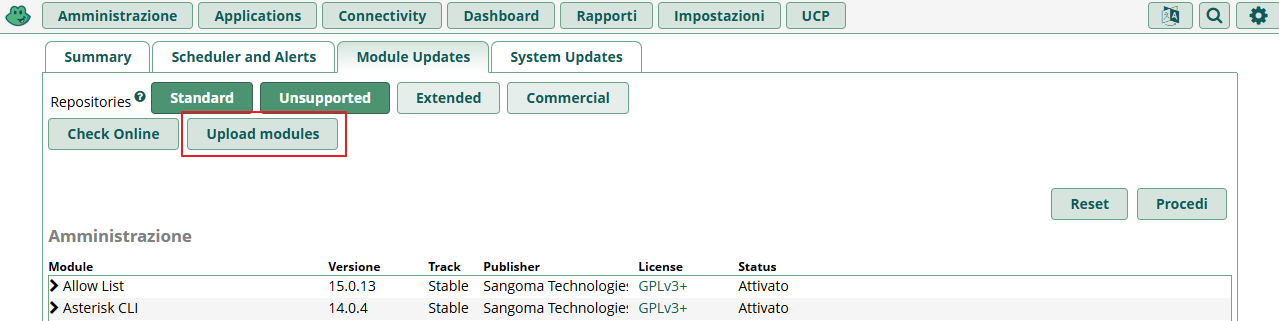
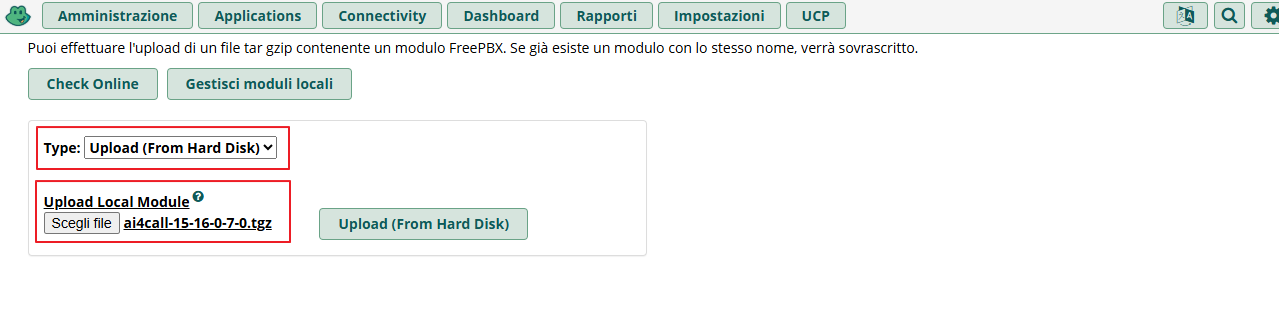
- Admin → Module Admin → Upload Modules
- Select the downloaded .tgz file
- Click "Upload & Install"
Module Activation
Activate and configure the module to start using AI4CALL
Still in FreePBX module management, find the "AI4CALL Assistants" module. Select it and click "Install" and proceed.
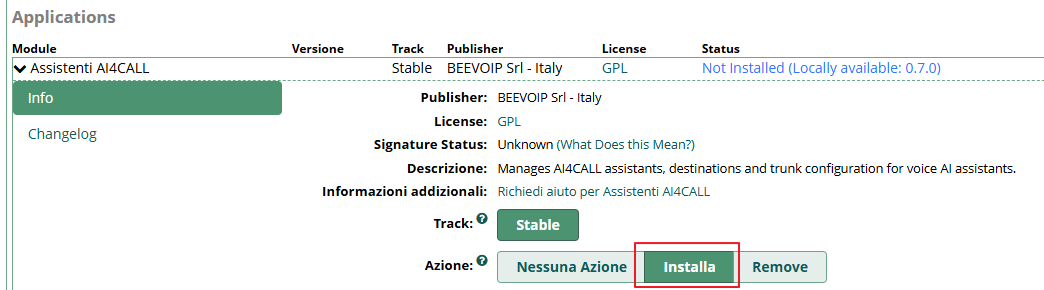
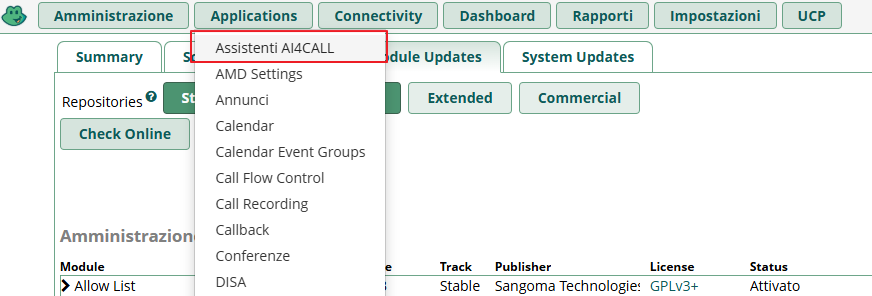
Once done, you will find the "AI4CALL Assistants" module in the menu
Configuration
Configure and customize AI4CALL and FreePBX according to your needs
Portal Registration
Register on the AI4CALL portal to create your assistants
Before configuring the module on FreePBX it is necessary to register on the AI4CALL portal.
- Go to freepbx.ai4call.com
- "Register" with a GOOGLE account or fill out the form
- "Enable" your FreePBX IP from the "IPs" menu
- Create your first assistant and get the associated apikey
Welcome Offer
Trunk Configuration
Create (with one click) the PJSIP trunk to the AI4CALL platform
- FreePBX → Applications → AI4CALL Assistants
- Click on the "Trunk Settings" tab
- Click on the "Create AI4CALL Trunk" button
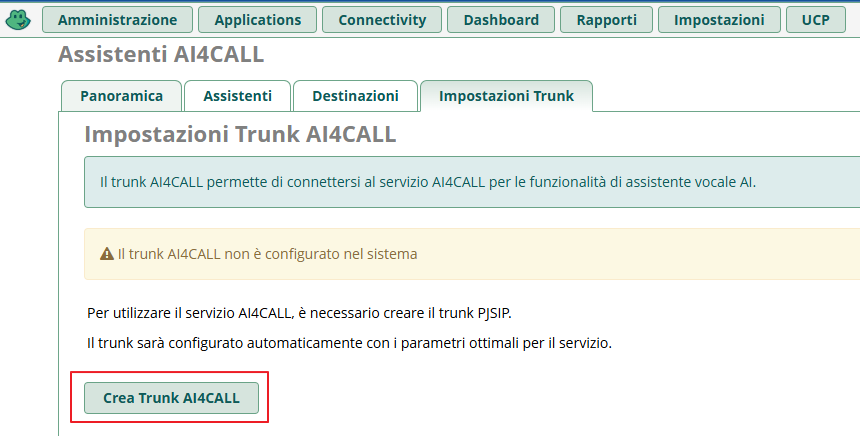
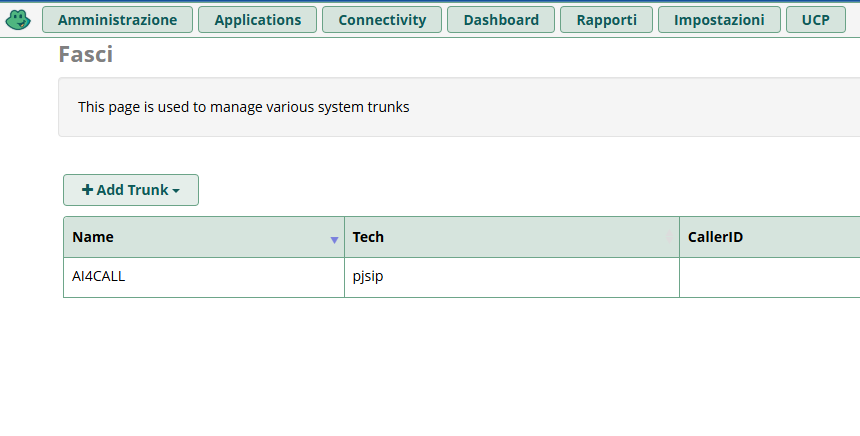
The AI4CALL Trunk is created automatically and will be present in: FreePBX → Connectivity → Trunks/Channels.
SIP Parameters
The AI4CALL trunk uses the following settings:
Name: AI4CALL
Technology: PJSIP
Server: sip.freepbx.ai4call.com
Port: 5060
Context: from-internal
Codec: alaw
Assistants Connection
Create assistants on FreePBX and connect them to AI4CALL
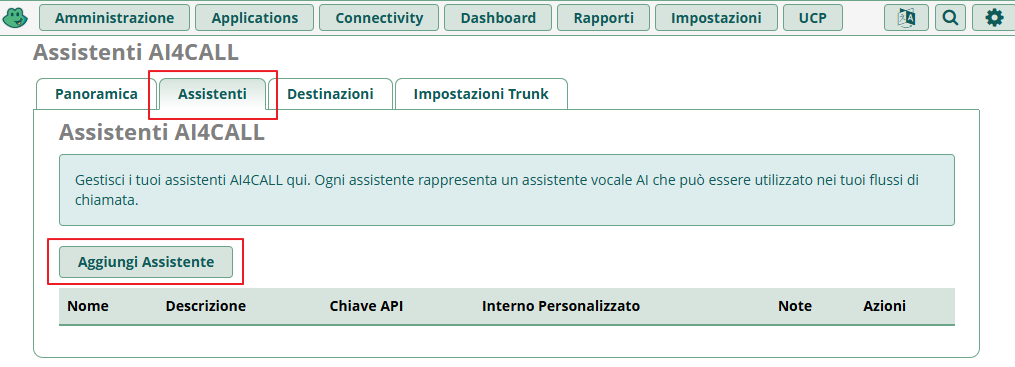
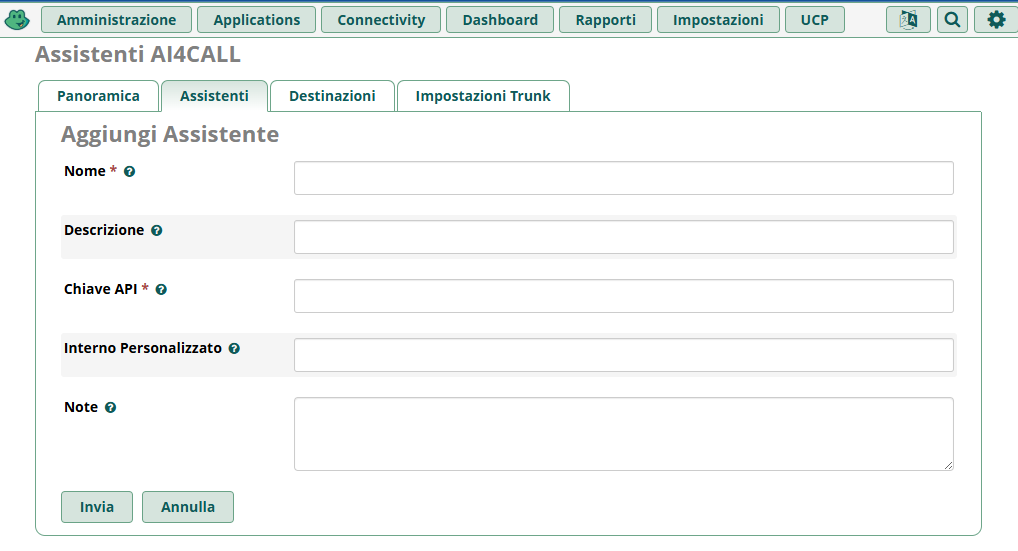
- FreePBX → Applications → AI4CALL Assistants
- Click on the "Assistants" tab
- Click on "Add Assistant"
- Enter the required data including the apikey of the AI4CALL assistant to connect
Destinations Creation
Create Destinations for Assistants and use them in any FreePBX module
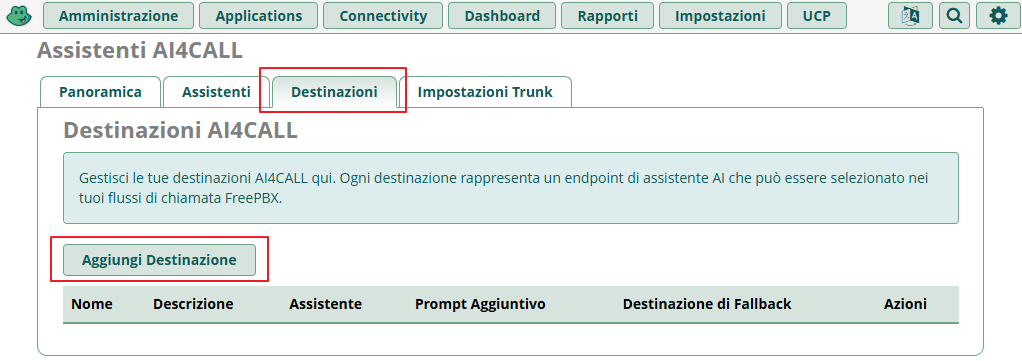
- FreePBX → Applications → AI4CALL Assistants
- Click on the "Destinations" tab
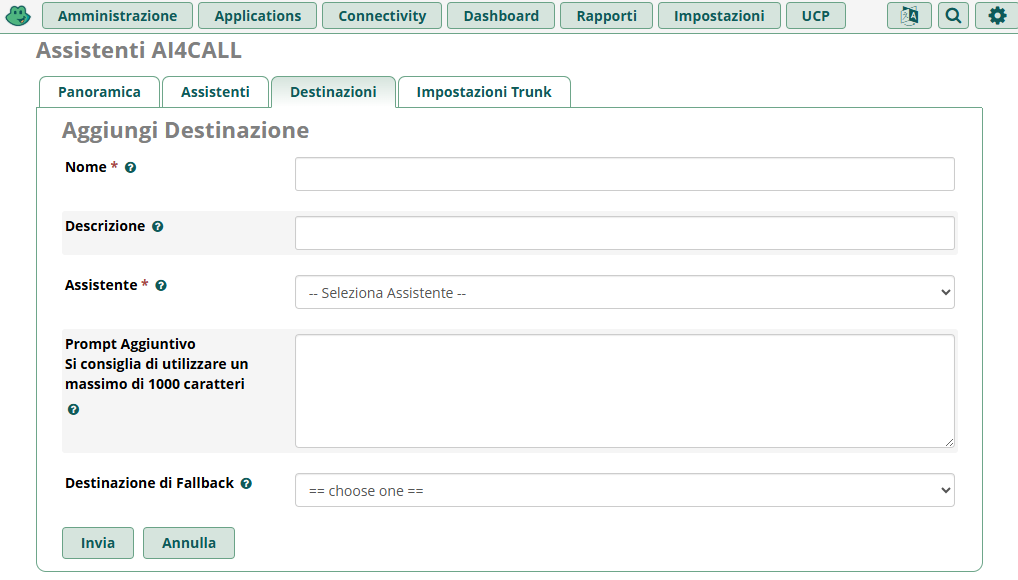
- Click on "Add Destination"
- Enter the required data
AI4CALL for FreePBX is an open source module that allows integrating intelligent voice assistants based on artificial intelligence directly into your FreePBX PBX. With AI4CALL you can create voice assistants that automatically answer calls, provide information, manage appointments and much more.
AI4CALL supports the following FreePBX versions:
FreePBX 15 and 16: Stable and widely used versions, compatible with module ai4call-15-16-0-7-1.tgz
FreePBX 17: The latest generation of FreePBX, compatible with module ai4call-17-0-7-1.tgz
Both versions use PJSIP trunk for connection to the AI4CALL platform.
Minimum requirements to install and use AI4CALL on FreePBX are:
FreePBX: Version 15, 16 or 17 installed and functioning
Operating System: Linux (compatible with Debian/CentOS based distributions)
Access: FreePBX administrator credentials
Internet Connection: Required to communicate with AI4CALL platform
PJSIP Trunk: Support for PJSIP trunk (included in FreePBX)
Public IP/NAT: Correct configuration for SIP communications
Yes, the module is completely free! Download and installation of the AI4CALL module for FreePBX are free. Additionally, you get:
✅ First month free subscription (1 channel)
✅ €5 credit included for tests and trial calls
✅ No payment data required for registration
After the trial period, you can choose a paid plan based on the number of channels and traffic needed.
Installation is simple and requires only 3 steps:
1. Download: Download the appropriate .tgz file for your FreePBX version
2. Upload: Go to FreePBX → Admin → Module Admin → Upload Modules and upload the file
3. Installation: Select the "AI4CALL Assistants" module and click "Install"
The entire process takes less than 5 minutes. You find the complete step-by-step guide in the "Installation" section of this page.
Yes, it is necessary to register for free on the AI4CALL portal (freepbx.ai4call.com) to:
• Create and configure voice AI assistants
• Obtain the apikeys needed to connect FreePBX to the platform
• Enable your FreePBX server IP
• Manage settings and monitor calls
Registration is quick: you can use your Google account or fill out a simple form. No credit card is required.
Main differences concern compatibility with FreePBX internal architecture:
ai4call-15-16-0-7-1.tgz: Optimized for FreePBX 15 and 16, compatible with APIs and libraries of these versions
ai4call-17-0-7-1.tgz: Updated for FreePBX 17 with support for new features and improvements
Important: Always download the correct module for your FreePBX version to ensure maximum compatibility and stability.
It's automatic! The AI4CALL module includes a function that creates the trunk with one click:
1. Go to FreePBX → Applications → AI4CALL Assistants
2. Click on the "Trunk Settings" tab
3. Click on the "Create AI4CALL Trunk" button
The trunk will be created automatically with the following parameters:
• Name: AI4CALL
• Server: sip.freepbx.ai4call.com
• Port: 5060
• Codec: alaw
Yes, absolutely! With AI4CALL you can create multiple voice assistants, each with:
• Customized prompts and instructions
• Different voice and language
• Specific functionalities (information, bookings, support, etc.)
• Unique apikey for each assistant
Each assistant can be connected to different destinations in FreePBX (internal numbers, IVR, queues, etc.) to manage different use scenarios.
The module downloadable from this page is specifically designed for FreePBX, which includes a graphical interface for easier management.
However, AI4CALL can also work with standard Asterisk by manually configuring:
• The PJSIP trunk to sip.freepbx.ai4call.com
• The dial rules to route calls
• The contexts and destinations in dialplan
For pure Asterisk, we recommend contacting technical support for assistance with manual configuration.
AI4CALL supports multilingual voice assistants. Main languages include:
IT Italian (optimized synthesis and recognition)
EN English
🇪🇸 Spanish
FR French
and many other languages available
You can configure the desired language when creating the assistant in the AI4CALL portal.
You can configure different fallback behaviors in the assistant:
• Repetition: The assistant asks to repeat the request
• Transfer: The call is transferred to a human operator
• Default message: Plays an informational message
• Recording: Records a voice message for callback
These behaviors are customizable in the assistant prompt via the AI4CALL portal.
To update the module:
1. Download the new version of the .tgz file from this page
2. Go to FreePBX → Admin → Module Admin
3. Search for the "AI4CALL Assistants" module and uninstall it (configurations are maintained)
4. Upload and install the new version via "Upload Modules"
5. Verify that configurations are still present
Note: Before updating, we always recommend making a backup of the FreePBX configuration.
Technical support for AI4CALL is available through different channels:
📧 Email: supporto@beevoip.it
📚 Documentation: detailed guides on the website
📞 Phone: available for customers with support contracts
For installation issues, first consult the documentation on this page and the FAQs. For complex technical problems, the support team is available on working days.
Absolutely yes! In fact, we recommend it:
✅ First month free with 1 channel included
✅ €5 credit to test real calls
✅ No commitment or credit card required
✅ Full access to all functionalities
This allows you to fully evaluate the platform, create test assistants and verify integration with your FreePBX before any financial commitment.
Technology and people:
together, zero waiting and a thousand solutions.
Ready to transform
your calls?
Request a free demo and discover how AI4CALL can revolutionize your business