
Apple iCloud Calendar plugin for AI4CALL
Connect the Apple iCloud calendar to your AI4CALL AI assistants. During a phone call the agent checks availability, proposes time slots and books appointments straight into the calendar, keeping everything in sync across Apple devices.
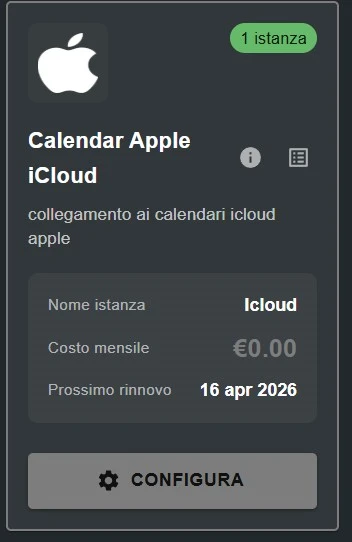
Configuration screen of the Apple iCloud Calendar plugin in the AI4CALL portal: an Apple ID and an app-specific password are all you need to enable the integration.
In this guide
⚠️ Third-party services
The integrations described refer to third-party services.
Rate limits, authentication methods, technical configurations, costs, and policies are defined exclusively by the respective providers and may change over time.
Costs for external services are borne directly by the end user to the service providers themselves and are in no way managed or mediated by our portal (e.g., Meta or other providers for WhatsApp, Zapier, Calendly, etc.).
- Real-time availability checks
- Proposes free slots to the caller
- Inserts new events into the iCloud calendar
- Updates existing appointments
- Automatic sync with iPhone, iPad and Mac
Designed for professionals, firms and companies that use the Apple ecosystem as their main agenda and want to turn phone calls into a real operational workflow.
What the Apple iCloud Calendar plugin does
The Apple iCloud Calendar plugin gives AI4CALL's AI Agents the ability to interact with the user's iCloud calendar, look up events and manage appointments straight from the phone conversation.
- Read calendar — The assistant checks the events in the calendar over a given time range (today, week, custom range).
- Slot proposals — The assistant finds free windows matching duration and rules and proposes them to the caller.
- Create appointments — The assistant creates a new event with title, attendees, notes and duration captured during the conversation.
- Edit appointments — The assistant updates an existing event (reschedule, rename, cancel) confirming the change with the caller.
- Professional firms (lawyers, accountants, consultants) running their schedule on Apple Calendar
- Service centers and businesses operating on appointments
- Freelancers with an all-Apple workflow
- Companies already sharing iCloud calendars across devices and team members
Generate the Apple app-specific password
For security reasons, Apple does not allow third-party applications to access the iCloud calendar using the main Apple ID password. You need to generate a dedicated app-specific password, which you can revoke at any time from the Apple ID portal.
The app-specific password works only for the application it is associated with, does not grant access to other Apple services, and can be revoked at any time without changing your account's main password.
- Open the Apple ID portal: https://appleid.apple.com/
- Sign in with your Apple ID and complete two-factor authentication if prompted
- Go to "Sign-In and Security" → "App-Specific Passwords"
- Click "Generate password..." and give it a recognizable label (e.g. "AI4CALL")
- Copy the password shown: it is displayed only once
- Store the password securely: you will use it once when setting up the plugin in AI4CALL
https://appleid.apple.com/ → Sign-In and Security → App-Specific Passwords → Generate password...
Configure the plugin in the AI4CALL portal
After purchasing the Apple iCloud Calendar plugin from the AI4CALL Marketplace you will find it among your integrations. The setup needs only two pieces of data and takes less than a minute.
The email address tied to your Apple account, the same one you use to sign into iCloud.
App-specific password
The password generated in the previous step on the Apple ID portal. Do not enter the main Apple ID password.
- The app-specific password was copied correctly (no spaces)
- The Apple ID is active and has iCloud Calendar enabled
- Two-factor authentication is configured on your Apple ID
Recommended best practices:
- Use a different app-specific password for each external service
- Revoke from the Apple portal the passwords you no longer use
- Rotate the app-specific password if you change platform
Using the integration in your AI assistants
Once configured, the plugin becomes a tool available to AI Agents. You bind it to the assistant that handles appointments, and the agent will know how to use it conversationally during phone calls.
"Are you available on Thursday morning?" → the assistant reads the iCloud agenda and replies with free slots.
Slot proposal
"When can I get a one-hour slot next week?" → the assistant proposes 2-3 alternatives.
Event creation
"Tuesday at 3pm works." → the assistant confirms and books the new appointment in the iCloud calendar.
Event reschedule
"I need to move tomorrow's 10am appointment." → the assistant locates the event and updates it.
- Switchboard for a professional firm taking appointments without a receptionist
- Service centers handling 24/7 bookings via AI agent
- Consultants rescheduling appointments by phone while keeping their Apple agenda
- Businesses receiving booking requests outside front-desk hours
- Buy the Apple iCloud Calendar plugin from the AI4CALL Marketplace
- Generate the app-specific password from the Apple ID portal
- Enter Apple ID and password into the AI4CALL plugin and save
- Bind the plugin to the AI Agent that should manage the calendar
Frequently asked questions
Answers to the most common questions about the AI4CALL ↔ Apple iCloud Calendar integration.
It lets AI4CALL's AI assistants browse the iCloud calendar and create, edit or move appointments during a phone call, while keeping everything in sync with the user's Apple devices.
No. Apple requires an app-specific password for third-party apps. It is more secure than the main password and can be revoked at any time without affecting your account.
On the Apple ID portal (https://appleid.apple.com/), under "Sign-In and Security" → "App-Specific Passwords". Two-factor authentication on your Apple ID is required.
Yes, at any time. Just open the Apple ID portal, go to "App-Specific Passwords" and revoke the one issued for AI4CALL. From that moment the plugin can no longer access the calendar.
Yes. By writing directly to the iCloud calendar, every event created or modified propagates to your Apple devices through standard iCloud sync, usually within seconds.
The plugin connects to the configured iCloud account. The handling of individual calendars (work, family, …) inside that account is done in the AI4CALL configuration step.
Yes, as long as the shared calendars are visible from your iCloud account. From AI4CALL you can pick which calendars the assistant should use to check availability or create events.
AI4CALL reads events from the iCloud calendar at the time of the request and writes only the changes the user authorizes during the call. Credentials are stored encrypted.
The assistant says the slot is not free and proposes alternatives. The whole conversational logic is handled by AI4CALL: the plugin only answers calendar queries.
Yes. Once configured, the plugin is a tool you can bind individually to one or more AI Agents. Assistants without the binding cannot use it.
Yes — in fact 2FA is what enables app-specific passwords on Apple ID. Without 2FA you cannot generate the password the plugin needs.
Directly from the AI4CALL Plugin Marketplace. Once purchased it appears in your integrations and can be configured following the steps in this guide.