
AI Assistant Configuration - Complete Guide
Configure every aspect of your intelligent voice assistant: from speech recognition to the AI model, from tools to integrations. Each setting influences the assistant's behavior and performance.
Assistant Information
Configure your assistant's name, identifiers, and phone numbers. Here you find the API Key, Virtual Number, and the free demo number to immediately test the functionality.
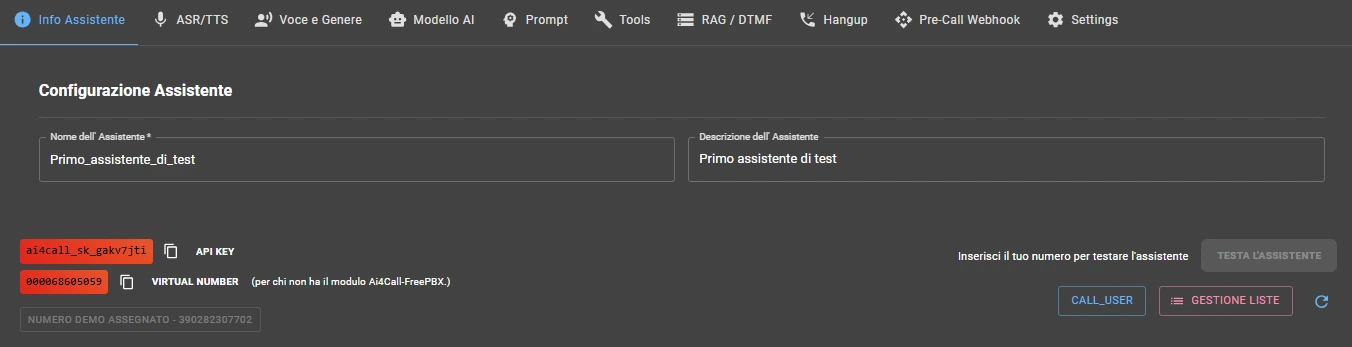
Assistant Name
Assign an identifying name to your assistant. This name will be used in the interface to easily recognize it among other assistants.
Example: Sales_Assistant_Milan
API KEY
The API Key is the unique identifier of your AI assistant. This key is essential if you use the FreePBX module "AI4CALL" to integrate the assistant with your PBX.
The API Key corresponds to the TO (destination) field of the SIP message that your PBX sends to the AI4CALL platform.
How to use the API Key:
- Copy the API Key by clicking the copy icon
- Access your FreePBX and open the AI4CALL module configuration
- Paste the API Key in the appropriate field of the module
VIRTUAL NUMBER (for those without the AI4CALL-FreePBX module)
If you do not use the FreePBX module "AI4CALL", you can still manually configure your telephone PBX to route calls to AI4CALL.
Configure your PBX to use this Virtual Number as the destination (TO) of the SIP message. Works with any SIP-compatible PBX (Asterisk, FreeSwitch, 3CX, etc.).
Note: Virtual Number and API Key identify the same assistant, choose the method most convenient for your configuration.
Assigned Demo Number (test your assistant immediately)
Each AI4CALL account receives FREE an Italian telephone number to immediately test the assistant without needing to configure your own PBX right away.
The demo number allows receiving real calls and verifying the assistant's behavior under operational conditions.
How to use the demo number:
- Go to the "AI4CALL NUMBERS" menu
- Select the "Routing" section
- Assign the demo number to this assistant
IMPORTANT:
The demo number will be automatically deleted at the end of the demo period (1 month).
Frequently Asked Questions
If using the "AI4CALL" FreePBX module → use API Key (simpler). If manually configuring any other PBX → use Virtual Number as SIP destination. Both identify the same assistant.
No, the free demo number is only valid for the trial period (1 month). It expires automatically afterwards. For production use, purchase a dedicated AI4CALL number from the "Numbers" section.
Depends on your plan: Start = no list limitation (upload), Boost = unlimited massive campaigns with lists up to 10,000 numbers, Scale = everything included + priority SLA.
Yes! Go to "AI4CALL NUMBERS" → "Routing" and assign the same assistant to multiple phone numbers. Useful for managing multiple locations or campaigns with the same configuration.
Click "LIST MANAGEMENT", upload a CSV or Excel file with one number per row. The system accepts up to 10,000 numbers per list. Then from "CALL_USER" you select the list and start the campaign.
ASR / TTS - Speech Recognition and Synthesis
Configure the speech recognition (ASR) and speech synthesis (TTS) engines. The choice of provider influences audio quality, latency, and conversation costs.
NOTE FOR "PACKAGE" PLANS (Boost and Scale)
This TAB is disabled for Boost and Scale plans. Providers are preconfigured: Azure ASR and Google TTS Chirp 3 HD, both "provided by us".
ASR Configuration (Automatic Speech Recognition)
The ASR engine converts the caller's voice into text that the artificial intelligence can process.
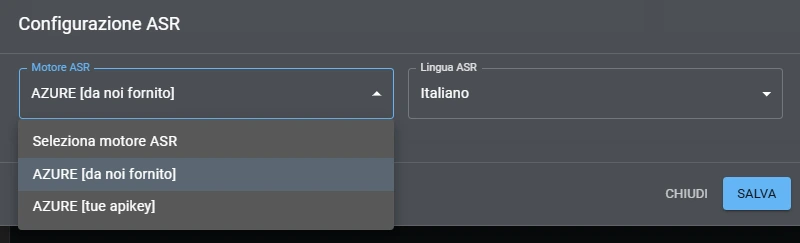
ASR Engine
Select the speech recognition engine provider from the dropdown menu.
Available providers:
- AZURE [provided by us] - ASR with Azure (prices visible on "Profiles" - Start Plan)
- AZURE [your apikey] - ASR with Azure (with your personal API keys - you pay Microsoft directly)
Your API Key
Enter your API keys to pay the provider directly and avoid AI4CALL top-up costs.
ASR Language
Select the main language of conversations.
TTS Configuration (Text-to-Speech)
The TTS engine transforms the AI's textual responses into natural audio with realistic human voice.
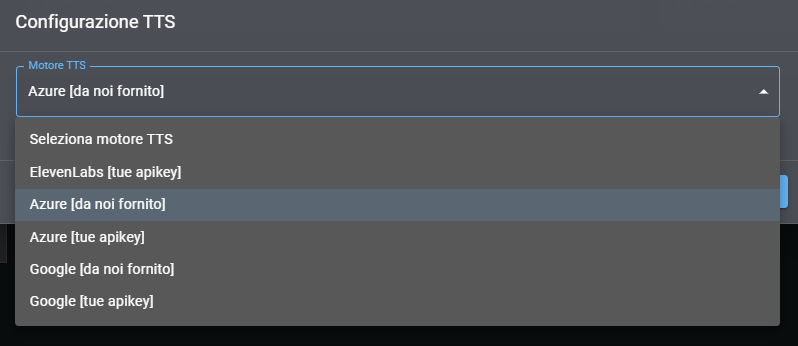
TTS Engine
Select the speech synthesis engine provider. The quality, naturalness, and speed of voices vary significantly between providers.
Available providers:
- Azure [provided by us] - Professional Azure voices (prices visible on "Profiles" - Start Plan)
- Google Chirp 3 HD [provided by us] - Latest generation Google Chirp 3 HD voices (prices visible on "Profiles")
- Azure [your apikey] - Professional Azure voices (you pay Microsoft directly)
- Google Chirp 3 HD [your apikey] - Google Chirp 3 HD voices (you pay Google directly)
- ElevenLabs [your apikey] - Ultra-realistic voices with natural emotions (you pay ElevenLabs directly)
Your API Key
Enter your API keys to pay the provider directly and avoid AI4CALL top-up costs.
Note on quality: Google Chirp 3 HD offers the best quality/price ratio. Azure has excellent performance. ElevenLabs is top for emotional naturalness.
Frequently Asked Questions
Google Chirp 3 HD offers the best quality/price ratio for Italian. Azure is great for professional voices. ElevenLabs is the absolute top for emotional naturalness but more expensive.
Depends on volume. For low usage (< 10,000 minutes/month) our prices are competitive. For high volumes, with your own API keys you pay the provider directly and avoid markup.
Yes, instant change. Select new TTS provider, choose the voice and save. Future conversations will immediately use the new configuration. No downtime.
Yes, Azure ASR is optimized for standard Italian and also recognizes strong regional accents well (Neapolitan, Sicilian, Venetian). Performance above 90% even with imperfect audio.
Total latency (ASR + LLM + TTS) typically 800ms-1.5s. Azure ASR ~ 200-300ms, Google TTS Chirp 3 ~ 150-250ms. The rest is LLM processing. Well below conversational naturalness threshold.
Voice and Gender Configuration
Personalize the assistant's voice by choosing timbre, gender, and background sounds. Each voice has unique characteristics of tone and naturalness.
NOTE FOR "PACKAGE" PLANS (Boost and Scale)
For Boost and Scale plans you will see the default Google Chirp 3 HD voices.
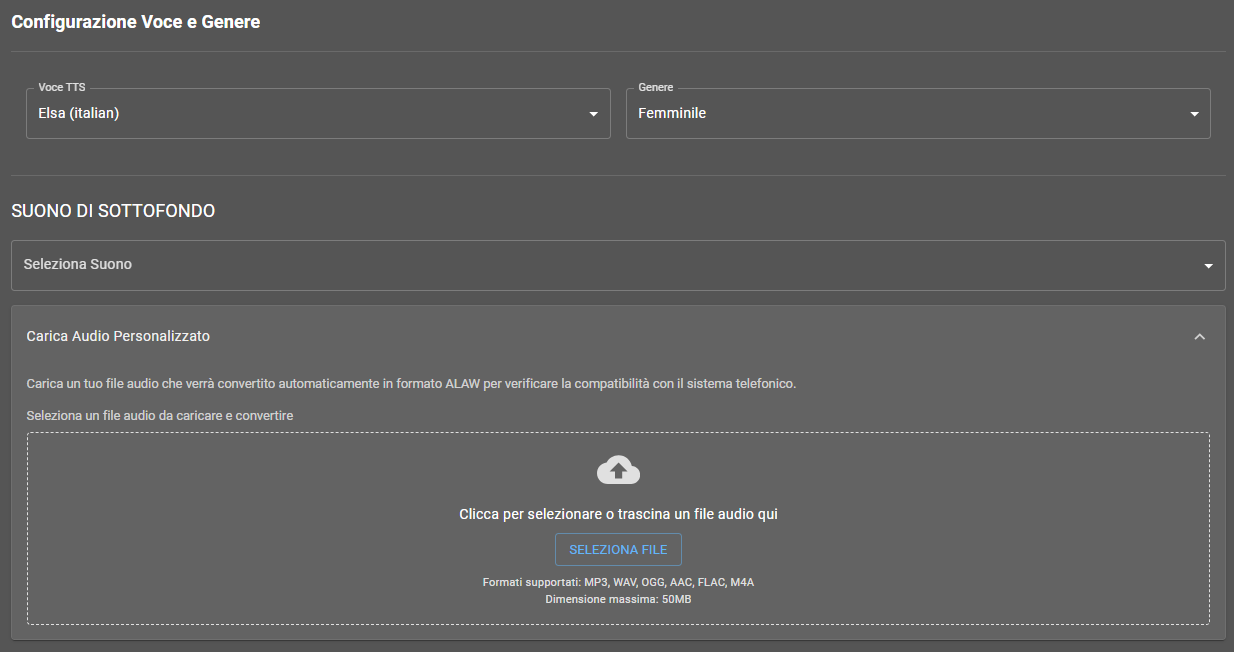
TTS Voice
Select the specific voice from the dropdown menu. The available voices depend on the TTS provider chosen in the previous tab. Each voice has unique characteristics of timbre, tone, and naturalness.
Example available voice:
Azure - Elsa (italian) - Italian female voice with professional and clear tone
Gender
Select the gender of the assistant's voice. This choice influences user perception and can be optimized based on the application sector.
Female
Male
Background Sound
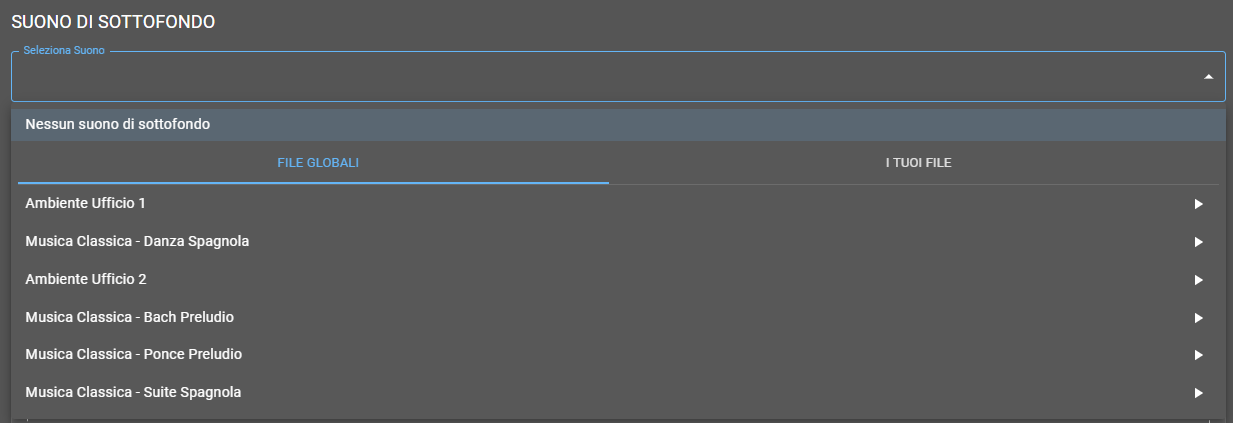
Sound Selection
Add a background sound during conversations to create a more natural atmosphere or simulate specific environments.
The sound is played at reduced volume under the assistant's voice without interfering with comprehensibility.
Available predefined sounds:
- No background sound - Complete silence (recommended for maximum clarity)
- Office Environment 1 - Moderate office sounds (keyboard, distant voices)
- Office Environment 2 - Office with medium activity
- Classical Music - Spanish Dance - Relaxing musical background
- Classical Music - Bach Prelude - Elegant classical music
- Classical Music - Ponce Prelude - Delicate musical background
- Classical Music - Spanish Suite - Lively classical music
NOTE: the volume of these files is not adjustable.
Upload custom audio
Upload your own custom audio file that will be used as background sound during conversations.
The file will be automatically converted to ALAW format to ensure compatibility with the telephone system.
Supported formats:
MP3, WAV, OGG, AAC, FLAC, M4A
Maximum size: 50MB
Automatic conversion:
The system automatically converts the uploaded file to ALAW format to ensure compatibility with the telephone system.
After uploading your audio files you can listen to them and adjust the volume (when adjusting the volume remember to "save"). Playing the file you will hear it at the defined volume.
Frequently Asked Questions
Studies show it depends on the sector: female voice more effective for healthcare, customer care, education. Male voice for finance, automotive, tech. Do A/B testing!
No if used correctly. The volume is pre-optimized not to interfere with the voice. Makes the conversation "warmer" and less artificial. Avoid only for technical support where maximum clarity is needed.
TTS providers (ElevenLabs, Azure Custom Neural Voice) support voice cloning, but requires external setup. You can use the cloned voice by providing the custom voice ID/name in the "TTS Voice" field.
Any common format (MP3, WAV, OGG). The system automatically converts to ALAW for phone compatibility. Max 50MB. After uploading you can adjust volume and listen to a preview.
Absolutely! Each assistant has independent voice configuration. You can have Sales_Assistant with a young female voice and Support_Assistant with a mature male voice.
AI Model Configuration
Select the artificial intelligence model that will handle conversations. Each model has different characteristics of intelligence, speed, and cost.
NOTE FOR "PACKAGE" PLANS (Boost and Scale)
This TAB is disabled for Boost and Scale plans. The model is preconfigured: OpenAI GPT-4o "provided by us".
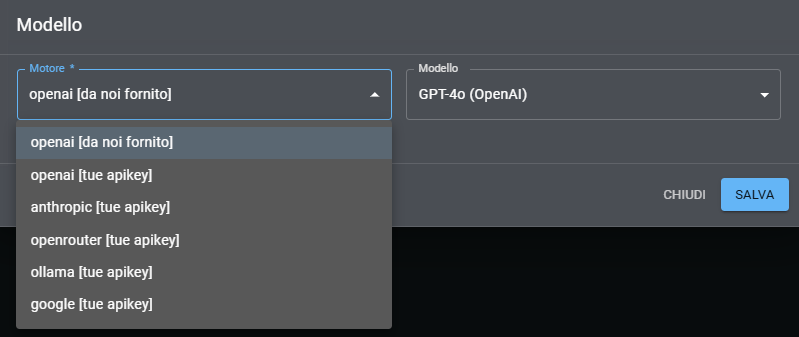
Engine (AI Provider)
Select the provider hosting the artificial intelligence models. Each provider offers different characteristics of speed, quality, cost, and conversational capabilities.
The choice of provider determines which specific models will be available in the "Model" dropdown menu.
Available providers:
- openai [da noi fornito] - OpenAI with our API keys (included) - GPT-4o, GPT-4o-mini
- openai [tue apikey] - OpenAI with your personal API keys
- anthropic [tue apikey] - Anthropic Claude (requires your API keys) - Claude Sonnet 3.7, Claude Opus 3, Claude Haiku 3.5
- openrouter [tue apikey] - OpenRouter (requires your API keys) - Access to multiple models (hundreds of options)
- ollama [tue apikey] - Ollama (requires configuration) - Open source local models
- google [tue apikey] - Google (requires your API keys) - Gemini various versions, Gemma various versions
Model
Select the specific artificial intelligence model to use. The available models depend on the chosen provider.
Each model has different characteristics of intelligence, response speed, context understanding capability, and usage cost.
Model examples:
- OpenAI: GPT-4o (excellent quality), GPT-4o-mini (fast and economical)
- Anthropic: Claude Sonnet (balanced), Claude Opus (maximum quality)
- Google: Gemini Pro, Gemini Ultra
Advanced Model Settings
Le impostazioni avanzate del modello sono configurabili dal TAB "Setting" => "Impostazioni avanzate"
Frequently Asked Questions
GPT-4o-mini is 60% cheaper and 2x faster, great for simple FAQ, receptionist, screening. GPT-4o for complex conversations, consultative sales, technical troubleshooting. Start with mini, scale to 4o if needed.
Depends: Claude Sonnet excels in empathetic conversations, understanding long contexts, following complex instructions. GPT-4o is faster and costs less. For delicate customer care → Claude. For volume → GPT-4o.
Yes, but you must host Ollama on your own server with GPU and provide API endpoint. Models like Llama 3.1, Mistral work well. Pros: zero API costs. Cons: you must manage infrastructure.
System Prompt Configuration
The prompt is the heart of your AI assistant. Here you define personality, behavior, knowledge, goals, and tone of voice. A well-written prompt determines the quality and effectiveness of conversations.
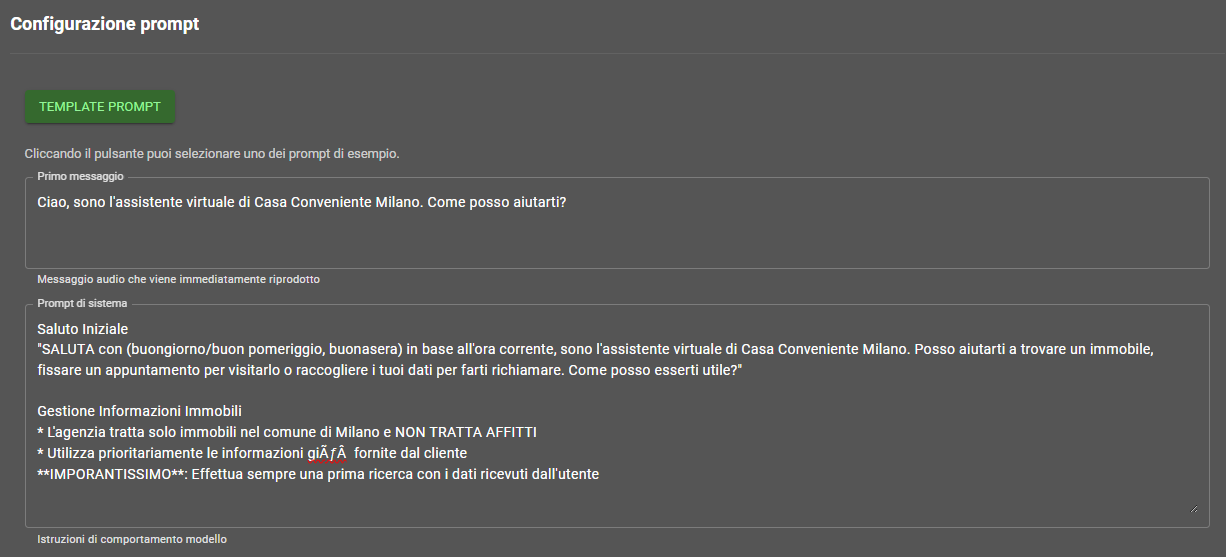
Template Prompt
Click the green "TEMPLATE PROMPT" button to view a library of preconfigured prompts for common use cases.
Templates cover scenarios such as: real estate assistant, technical support, virtual receptionist, sales assistant, and many others. Each template can be personalized.
Click "TEMPLATE PROMPT" → Choose template → Personalize text
First Message
The message the assistant automatically speaks as soon as the call is answered, before listening to the user. Must be brief, clear, and welcoming.
Example:
"Hello, I am the virtual assistant of Convenient House Milan. How can I help you?"
System Prompt - Model Behavior Instructions
Section where you define how the assistant should behave: formal/informal tone, handling objections, when to transfer to a human operator, competence limits, etc.
Best Practices for Effective Prompts
1. Clearly define the role
Specify who the assistant is, which company they work for, what their main responsibilities are. Example: "You are the virtual assistant of XYZ S.r.l., a leading company in the sale of..."
2. Provide concrete examples
Include examples of ideal conversations, frequent questions and relative answers. The AI learns better from examples than from abstract descriptions.
3. Define tone and communication style
Specify if the tone should be formal, informal, friendly, technical, professional. Define whether to use "tu" or "lei", whether to make jokes or remain serious.
4. Establish clear limits
Explicitly indicate what the assistant CAN and CANNOT do. When they must transfer to a human operator. What to do in case of inappropriate requests.
5. Hierarchical structure of information
Order instructions by priority: first the fundamental rules, then specific cases, finally exceptions. Use bullet points and bold to highlight key points.
Frequently Asked Questions
Between 500-2000 words. Too short (< 300 words) = unpredictable behavior. Too long (> 3000) = AI loses focus. Include: role, tone, examples, edge cases. Quality over quantity.
ALWAYS start from a template! They are already optimized for telephone conversations. Personalize: company name, services, FAQ, tone. Reinventing the wheel leads to poor prompts.
Yes but better to use RAG! Prices in prompt = you must update manually each time. Prices in RAG knowledge base = update the file and it works everywhere. However, for 5-10 products, prompt is fine.
Clear instructions in the prompt: "If you don't know the answer, say 'I don't have this information, I'll transfer you to an operator.' DO NOT invent prices, hours, policies." + RAG for factual info + Intensive testing.
Yes, a lot! A long/confusing first message = disoriented user. Better short, clear, action-oriented: "Hi, I'm the [Company] assistant. I can help you with [X, Y, Z]. What do you need?"
Tools and Integrations Configuration
Tools extend your assistant's capabilities allowing it to interact with external services: calendar, email, SMS, database, webhook, and much more.
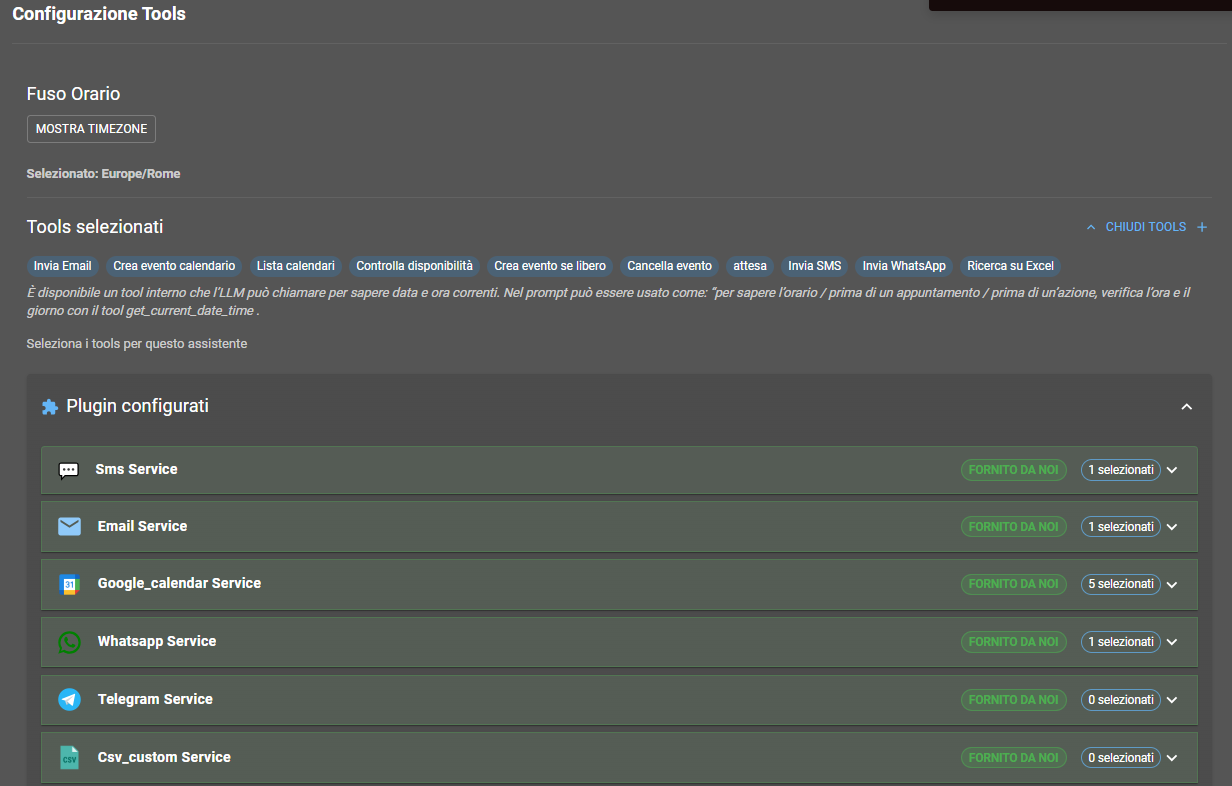
Timezone
Set the assistant's timezone. This setting is fundamental for the correct functioning of all tools handling dates, times, and appointments.
The timezone influences: calendar appointment creation, scheduled email sending, temporal logs, availability calculations.
Example: Europe/Rome (for Italy), Europe/Paris (for France), America/New_York (for USA EST)
Available internal tool: The system includes a get_current_date_time tool that the LLM can call to know the current date and time in the configured timezone.
Tools selected for the Assistant
List of tools the assistant can use during conversations. These tools are automatically invoked by the AI when necessary.

Tools are automatically called by the AI based on the conversation context. The user does not notice that the assistant is using external tools.
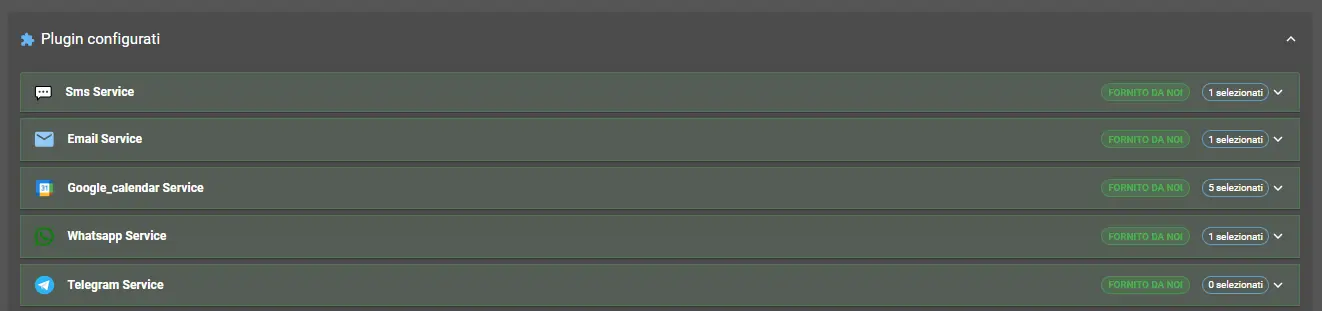
Configured plugins
List of plugins activated for this assistant.
Clicking on "SELECT TOOL" displays the "Configured plugins" select; clicking on it displays the list of configured Plugins that can be selected for the assistant.
Frequently Asked Questions
Most are FREE: Google Calendar, SMTP Email, Webhook, Zapier, n8n, HTTP Request. Only specific enterprise plugins (e.g., Salesforce Premium) may have additional costs.
No technical limit, but we recommend max 5-7 tools per assistant. Too many tools = AI gets confused and performance degrades. Better specialized assistants with few targeted tools.
The AI receives an error and decides what to do: "I'm sorry, I can't connect to the calendar now. Can I take your details and have someone call you back?" Graceful fallback, no crash.
Yes! Use the "HTTP Request" or "Webhook" tool to call your own REST APIs. Define URL, parameters, headers. The AI calls your endpoint and processes the JSON response. Full documentation in the marketplace.
Absolutely! If you set the wrong time zone, Google Calendar appointments are off. Always set Europe/Rome for Italy. The get_current_date_time tool uses this time zone to give the correct time to the AI.
RAG (Knowledge Base) and DTMF (Telephone Keypad)
Configure access to the document knowledge base (RAG) and DTMF tone detection for telephone keypad input. Two advanced functionalities for smarter assistants.
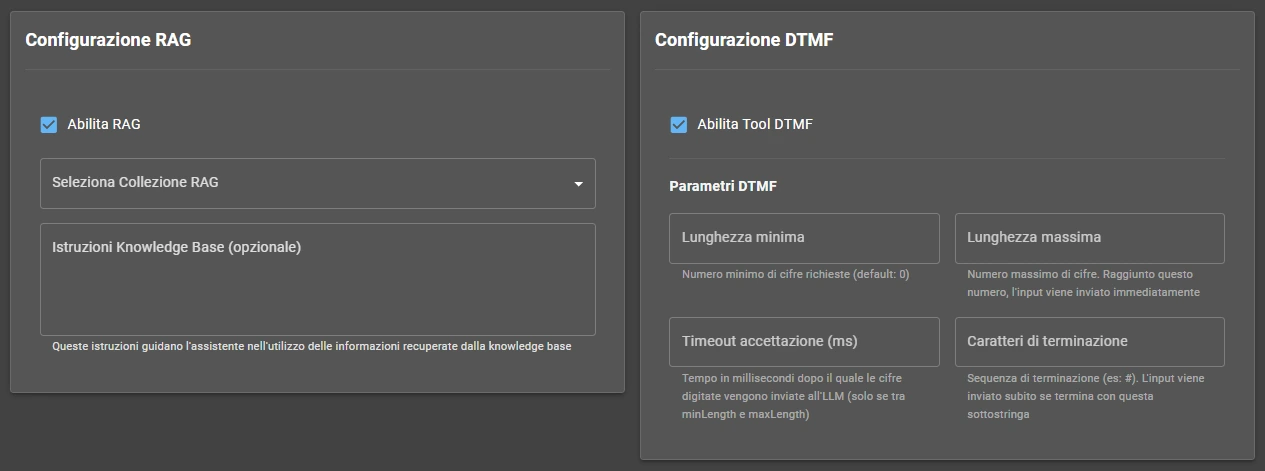
RAG - Retrieval-Augmented Generation
RAG allows the assistant to access a document knowledge base to respond with precise information extracted from your company documents.
Enable RAG
Check this box to activate the RAG functionality. The assistant will be able to search for information in the documents uploaded to the selected collection.
Select RAG Collection
Choose which document collection to use. Collections are created and managed in the dedicated "RAG" section of the portal, where you can upload PDF, DOCX, TXT.
Knowledge Base Instructions (optional)
Enter specific instructions that guide the assistant in using the information retrieved from the knowledge base. E.g.: "Use only information from the knowledge base to answer about prices and products".
How RAG works:
- User asks the assistant a question
- The AI automatically searches the knowledge base for the most relevant documents
- Relevant fragments are extracted from the documents
- The AI formulates the response based on the found information
DTMF - Dual-Tone Multi-Frequency
DTMF allows the assistant to detect keys pressed on the telephone keypad and react accordingly. Useful for advanced IVR menus or code input.
Enable DTMF Tool
Check to allow the assistant to receive DTMF input. The AI can ask the user to press keys and process the received input.
DTMF Parameters
Minimum length
Minimum number of digits required (default: 0). If set to 0, accepts any length.
Maximum length
Maximum number of digits. Reaching this number, the input is immediately sent to the LLM without waiting for timeout or termination character.
Acceptance timeout (ms)
Time in milliseconds after the last pressed digit before considering the input complete and sending it to the LLM. If the user presses #, the input is sent immediately regardless of timeout.
Termination characters
Termination sequence (e.g.: #). If the user presses this character, the input is immediately sent to the LLM ignoring timeout and maximum length.
Usage example:
Assistant: "Enter your customer code" - The AI receives the input and reacts accordingly.
Frequently Asked Questions
Depends on the plan: Start = 50 documents/5MB total, Boost = 500 documents/50MB, Scale = unlimited/500MB. One document = PDF, DOCX, TXT. The system automatically indexes and makes it searchable.
Yes! Every time the AI needs info, it automatically queries the knowledge base in ~200-400ms. Completely transparent to the user. Zero additional setup on your part.
Yes for specific cases: long code input (e.g., case number 18 digits), sensitive confirmations (press 1 to confirm charge), users who prefer keypad, fallback when voice is incomprehensible.
Absolutely! Best practice: RAG for static info (price lists, policies, FAQ), Tools for dynamic data (calendar availability, order status). The AI autonomously decides which to use.
The system intelligently chunks it into fragments of ~500 words and indexes them. When the AI searches, it retrieves only the 3-5 most relevant chunks, not the entire document. Efficient even on huge documents.
Hangup Tool (call closure and transfer)
Configure how the assistant handles the end of the call: autonomous closure, transfer to operators, transcript saving, and data sending to external webhooks.
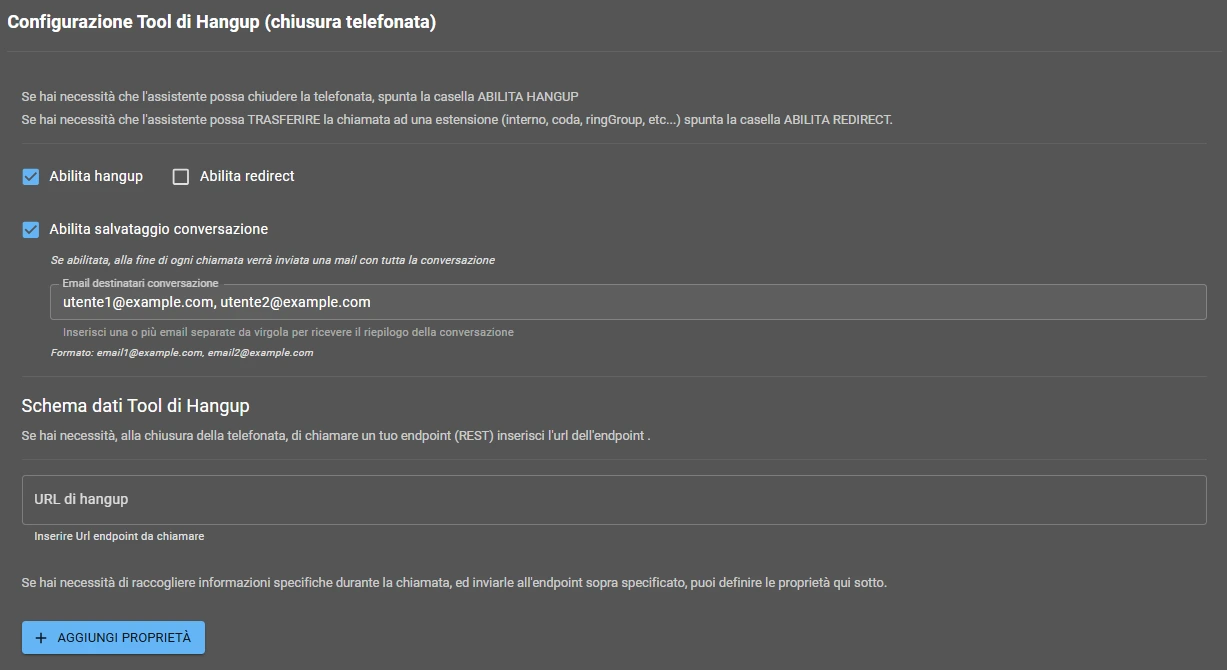
Enable Hangup
Check this box to allow the assistant to autonomously close the phone call when the conversation is completed.
The AI automatically decides when it is appropriate to end the call based on the conversation context and achieved objectives.
When the assistant closes the call:
- The user has obtained all requested information
- The user explicitly says they want to close (e.g., "goodbye", "thank you, that's enough")
- The conversation has reached a natural conclusion
Enable Redirect
Check this box to allow the assistant to TRANSFER the call to an internal extension, queue, ringGroup, or other number.
The AI can autonomously decide when transfer to a human operator or specific department is necessary.
Transfer examples:
- User explicitly requests to speak with an operator
- Request too complex beyond the assistant's competencies
- Need to transfer to specific department (e.g., administration, advanced technical support)
Enable Conversation Saving
At the end of each call an email is automatically sent with the complete transcription of the conversation (audio-to-text transcript).
Useful for archiving, quality analysis, training, legal compliance.
Email recipients format:
user1@example.com, user2@example.com
Email content:
- Complete conversation transcription with timestamp
- Call information (caller number, duration, date/time)
- Tools used during the conversation
- Any extracted data (if webhook data schema configured)
Hangup Tool Data Schema (Webhook)
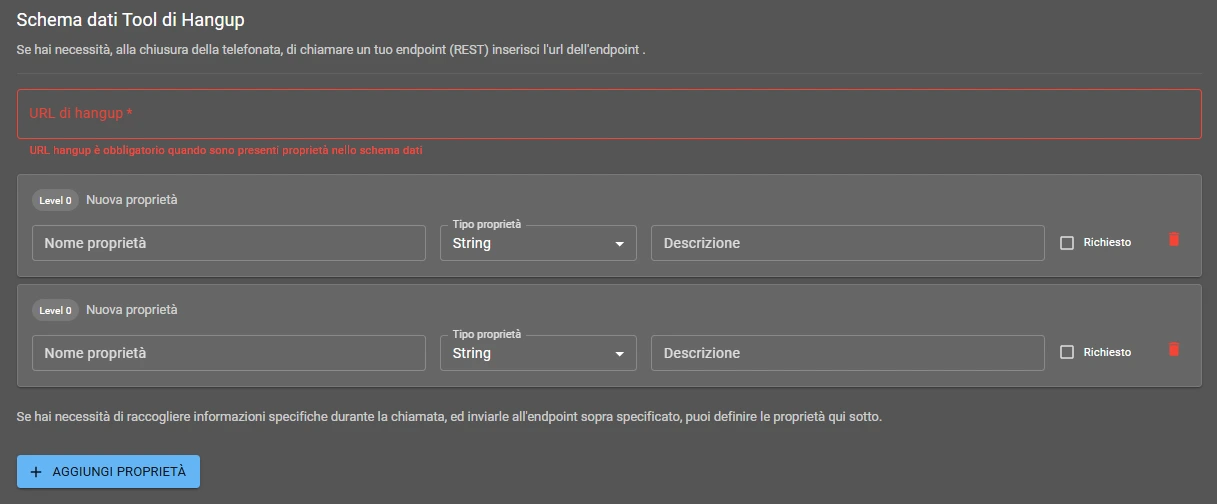
Hangup URL
If you need to call your own REST endpoint at the closure of the phone call, enter the URL here. The system will send an HTTP POST request to your endpoint with all data extracted from the conversation.
This allows integrating AI4CALL with your corporate systems: CRM, database, ticket system, analytics.
Hangup URL:
Enter the complete URL of your endpoint (e.g.: https://yourdomain.com/api/webhook/hangup)
Add custom properties
Define custom properties that the AI must extract from the conversation and send to the webhook.
Click "+ ADD PROPERTY" to define new data fields. Each property has: name, type, description, and required flag.
Available fields for each property:
- Property name - Identifying field name (e.g.: customer_email)
- Property type - String, Number, Boolean, Array, Object
- Description - Explain to the AI what it must extract (e.g.: "The email address provided by the customer")
- Required - If checked, the AI must necessarily obtain this data
Frequently Asked Questions
Only if you enable "Enable Hangup". Otherwise it waits for the user to hang up. With hangup enabled, the AI evaluates goal achieved + user satisfied = polite closure. Saves costs.
Yes, in the prompt write: "If user asks to speak with a real person, transfer IMMEDIATELY to extension 100". With "Enable Redirect" active, the AI performs immediate transfer.
Yes, if you enable "Conversation Saving" with valid emails. Transcripts are encrypted, stored in EU, accessible only to you. Remember to inform users about recording for transparency.
Hangup URL sends to ONE endpoint. If you want multiple: use n8n/Zapier/Make as middleware. AI4CALL → n8n → n8n distributes to CRM + Google Sheets + Slack + etc.
Fields that the AI must extract from the conversation: customer_email, reported_issue, priority, etc. Define name, type, description. AI populates them and sends to webhook. Automatic CRM integration.
Pre-Call Webhook (pre-call actions)
The Pre-Call Webhook is an advanced feature that allows you to execute custom logic BEFORE the call starts. You can block calls, inject contextual data, or modify the assistant's behavior based on the caller.
What is the Pre-Call Webhook?
Before each call is connected to the AI assistant, the system can query your HTTP endpoint and receive instructions on how to handle the call.
Block unwanted calls
Automatically reject calls from blacklisted numbers, unauthorized international numbers, or suspicious patterns.
Inject contextual data
Retrieve caller information from CRM and provide it to the AI before it responds, for personalized conversations.
Improve performance
Avoid repeated queries during the conversation: the AI already has all necessary information from the start.
How It Works
Incoming call
A user calls your AI4CALL number.
AI4CALL queries your webhook
Before connecting the call, AI4CALL sends an HTTP POST request to your endpoint with the call details:
POST https://tuoserver.com/api/verify-caller
Content-Type: application/json

{
  "number": "+393331234567",
  "timestamp": "2025-12-13T10:30:00Z",
  "assistantId": "ast_abc123",
  "callId": "call_xyz789"
}Your server responds
Your endpoint analyzes the number, queries the database/CRM and decides:
{
  "enable": true,
  "callerInfo": {
    "name": "Mario",
    "surname": "Rossi",
    "eta": 35,
    "custom_field_1": "Cliente VIP dal 2020"
  }
}
"enable": false blocks the call immediately. "callerInfo": {...} injects custom data.
AI4CALL injects data into the prompt
If you provided callerInfo, AI4CALL automatically adds this information to the assistant's system prompt:
The assistant starts the conversation
The AI already has all contextual information and can offer personalized service from the first message:
- Greet the customer by name
- Reference previous orders/cases
- Adapt tone (VIP vs new customer)
- Offer personalized promotions
Advantages of the Pre-Call Webhook
Latency reduction
Retrieve data ONCE at the beginning instead of querying during the conversation.
The AI never has to "wait" for responses from external tools - it already has everything.
Greater accuracy
The AI has the full context from the first conversational turn, avoiding unnecessary questions or errors.
Total control
You decide which calls to accept, which to block, and which to handle with special logic.
Frequently Asked Questions
No, the webhook is completely optional. If not configured, the assistant works normally without pre-injected data. It is an advanced feature for those wanting maximum personalization and performance.
Not directly, but you can inject data in callerInfo that influences behavior. For example, a field "customerType": "VIP" can be used by the LLM to adapt tone. For complete prompt change, use the "Conditional Prompts" feature of AI4CALL.
Yes, in your webhook analyze the number field and respond enable: false for any pattern. For example, block all numbers not starting with +39 to accept only Italian calls.
Absolutely yes. You can simply log the call to your system and always respond enable: true without callerInfo. Useful for centralized tracking.
No, currently callerInfo supports only primitive values (string, number, boolean). For lists (e.g., "last 3 orders"), serialize into string: "lastOrders": "ORD-123, ORD-456, ORD-789".
Yes, but beware of timeout. If calling a slow CRM, set a local timeout lower than AI4CALL's (e.g., 3s) and use fallback in case of timeout. Consider cache to reduce dependency on external APIs.
Yes, each AI4CALL assistant can have its own configured webhook endpoint. Useful if you have assistants for different departments (sales, support) that query different databases.
General and advanced settings
Configure technical parameters like timeout, ASR silence, VAD and permissions for number types. Settings that affect conversation fluidity and control.
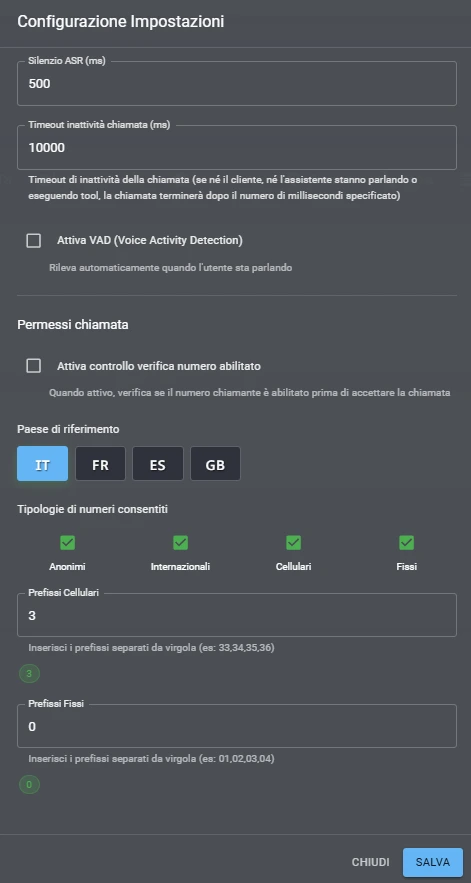
ASR Silence (ms)
Silence time in milliseconds after which the ASR (Automatic Speech Recognition) engine considers the user's vocal input finished and sends the text to the AI for processing.
Higher values give more time for the user to think and take natural pauses. Lower values make the conversation faster but risk cutting off incomplete sentences.
Default: 500ms (half a second)
- 300-400ms: Fast conversations, fluent-speaking users
- 700-1000ms: Elderly or slow-speaking users, allowing time for thought
Call inactivity timeout (ms)
Maximum inactivity timeout for the call. If neither the customer nor the assistant speaks or interacts for this time, the call ends automatically.
Prevents "forgotten open" calls and helps control costs. The assistant warns the user before closing for inactivity.
Default: 10000ms (10 seconds)
Enable VAD (Voice Activity Detection)
VAD (Voice Activity Detection) automatically detects when the user is speaking or is silent.
Enabling VAD, the assistant avoids interrupting the user mid-sentence. Significantly improves conversation naturalness.
Benefits of VAD:
- Avoids inappropriate interruptions by the assistant
- Allows the user to complete their thoughts without rush
- Makes the conversation more natural and fluid
Permissions and Filters
Reference country
Select the reference country for telephone number validation, formats, and routing rules. Also affects automatic recognition of national and international prefixes.
🇮🇹
IT
🇫🇷
FR
🇪🇸
ES
🇬🇧
GB
Allowed number types
Select allowed types
Define which telephone number types the assistant can call (outbound) or receive calls from (inbound). Enable only necessary types for greater control.
🕵️
Anonymous
Private or hidden numbers
🌍
International
Numbers with international prefix (+XX)
📱
Mobile
Mobile numbers configured below
☎️
Landline
Landline numbers configured below
Mobile Prefixes
Enter the national prefixes of mobile numbers separated by comma. The system will automatically recognize numbers starting with these prefixes as mobile.
Example Italy: 33,34,35,36,37,38,39
Landline Prefixes
Enter the national prefixes of landline numbers separated by comma. The system will automatically recognize numbers starting with these prefixes as landline.
Example Italy: 01,02,03,04,05,06,07,08,09
Advanced Model Settings
NOTE FOR "PACKAGE" PLANS (Boost and Scale)
This section is disabled for Boost and Scale plans. Optimized default values apply.
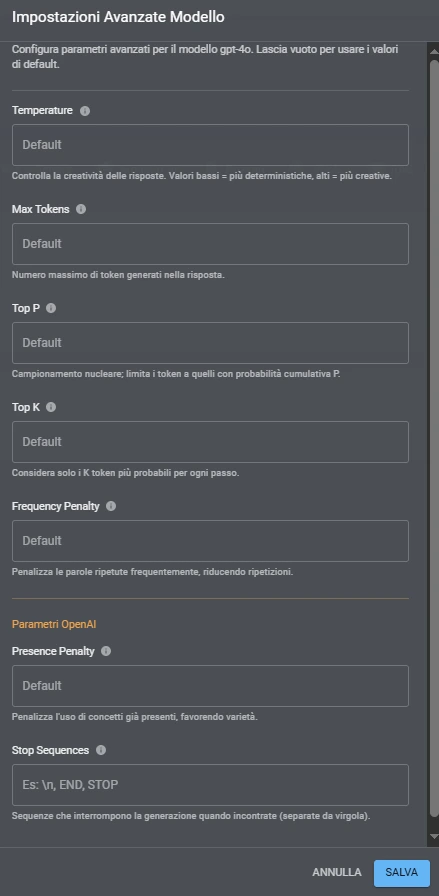
Temperature
Controls the creativity and variability of the AI model's responses. Low values produce more deterministic and coherent responses, high values more creative and varied responses.
Range: 0.0 - 2.0
Max Tokens
Maximum number of tokens (words/fragments) the model can generate in the response. Controls the maximum length of assistant responses.
Top P (Nucleus Sampling)
Limits tokens to those with cumulative probability P. Low values (0.1-0.3) make responses more focused, high values (0.8-1.0) more diverse. Alternative to Temperature.
Top K
Considers only the K most probable tokens for each step. Reduces unexpected responses by limiting the model's choices.
Frequency Penalty
Penalizes frequently repeated words. Positive values reduce repetitions. Typical range: 0.0 - 2.0
Presence Penalty
Penalizes the use of concepts already present in the conversation, favoring variety. Positive values encourage new topics.
Stop Sequences
Termination sequences that stop generation when encountered. Useful for stopping the model at specific points.
Example: \n, END, STOP - The model stops when it encounters these patterns
Frequently Asked Questions
VAD ON = more natural conversation, AI waits for user to finish speaking. VAD OFF = faster responses but risk of interruptions. For customer care → ON. For fast IVR menus → OFF.
No, it's optimal for Italian. 500ms allows natural pauses between sentences. If users speak very fast (internal call center) you can go down to 300-400ms. For elderly/slow users → 700-800ms.
Depends on the use case. 10s is fine for quick FAQ. For consultative sales where user needs to look for documents → increase to 30-45s. The AI warns before closing anyway.
Yes! In "Allowed number types" deselect "International". All calls with non-Italian prefix will be automatically rejected. Useful against international spam.
No, they are optional. They are for advanced statistics (e.g., "How many calls from mobile vs landline?") or to apply differentiated logic (e.g., "From mobile transfer to department A, from landline to department B").
Outbound
Manage assistant outbound calls: quick tests on your number, single calls or massive campaigns to contact lists. Choose whether to use the AI4CALL trunk (with billing) or your personal trunk (no costs).
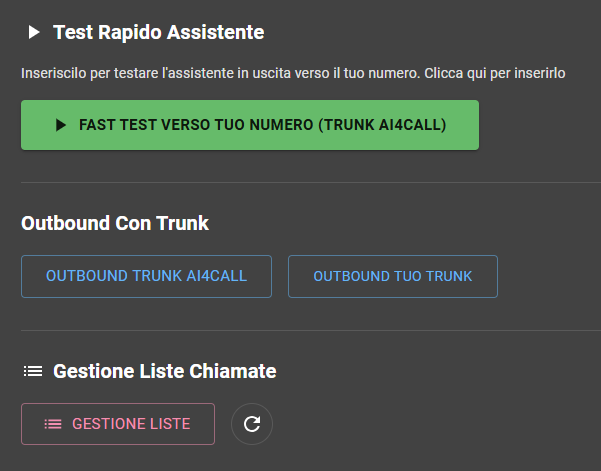
Available Actions
FAST TEST TO YOUR NUMBER
Immediate test: the assistant calls your mobile using the AI4CALL trunk. Active only if the assistant has been assigned an AI4CALL number (demo or purchased).
OUTBOUND with AI4CALL trunk
Manage single or list calls using the AI4CALL trunk. Calls are deducted from your credit at the defined rates.
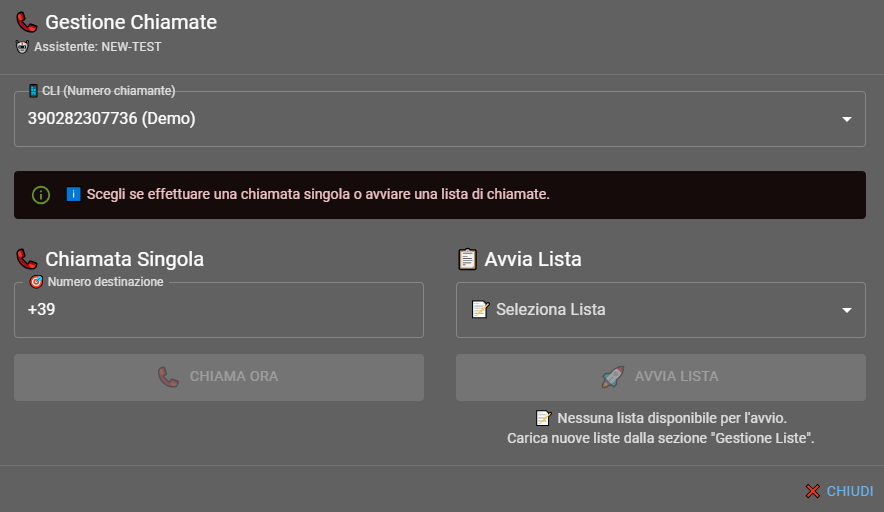
Select the CLI (caller number)
Select the CLI from the demo or purchased AI4CALL numbers
Single Call
Manually enter a number in international format (e.g., +390200000) and start the call.
Start List
Select a preloaded list and start automatic calls to all contacts.
OUTBOUND with your PBX trunk
Manage single or list calls using the trunk to Your PBX without additional costs.
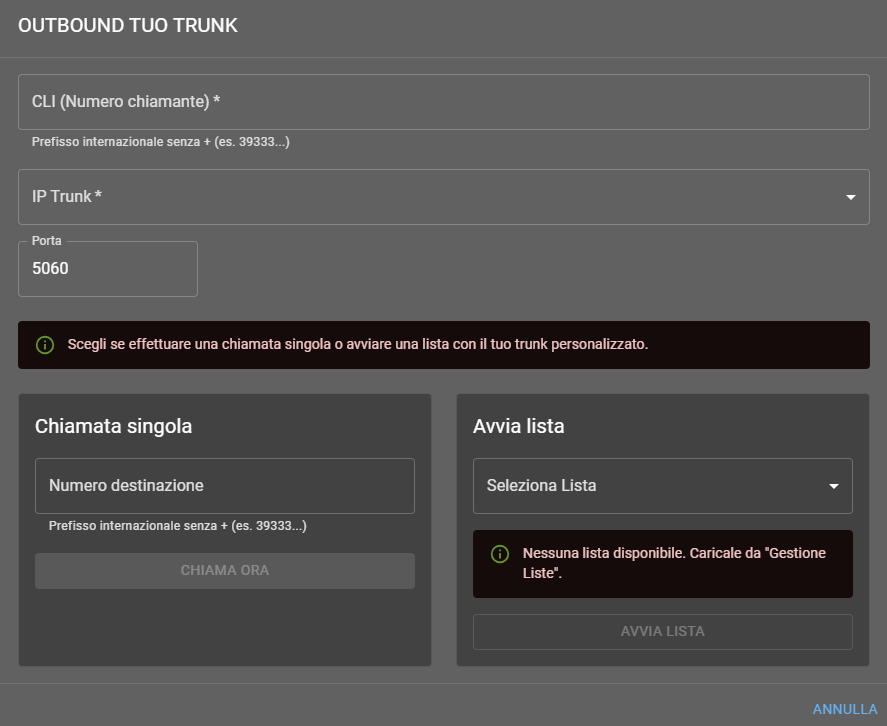
Enter the CLI (caller number)
Manually enter your valid CLI (caller number)
Single Call
Manually enter a number in the format required by your telephone operator and start the call.
Start List
Select a preloaded list and start automatic calls to all contacts.
LIST MANAGEMENT (file upload)
Upload CSV or Excel files containing lists of phone numbers for massive calling campaigns.
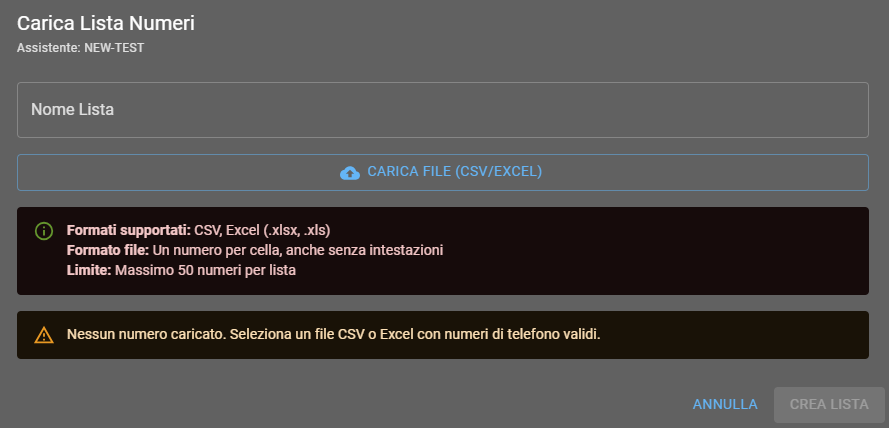
Supported formats
- File formats: CSV, Excel (.xlsx, .xls)
- Data format: one number per line, even without headers
- Limit: maximum 50 numbers per list
Frequently Asked Questions
The button is active only if an AI4CALL number (demo or purchased) has already been assigned to the assistant. Go to "AI4CALL NUMBERS" → "Routing" and assign one.
No. The system uses the number saved in your user profile. If missing, on the first click a modal will ask you to enter it; afterwards it will be reused.
The cost depends on the called number's country and is deducted from the AI4CALL credit. Rates are visible on the "Profiles" page.
Yes. Calls will pass through your operator without AI4CALL charges.
With AI4CALL trunk they must be in international format with "+", e.g., +390200000. With customer trunk use the format required by your operator.
Maximum 50 numbers per file. Accepted formats are CSV or Excel (.xls/.xlsx) with one number per line.
No. The system calls one contact at a time; when it ends (answer, busy, no answer) it automatically moves to the next.
With AI4CALL trunk you can only select from assigned AI4CALL numbers. With customer trunk manually enter the CLI you want to display.
Yes. Click "STOP CAMPAIGN" in the management panel; the ongoing call will be completed, but no new ones will start.