
Tool Responses
View and analyze all responses received from tools called by your AI assistants. Monitor successes, errors, latencies and call debugging in real time to optimize performance.
Response log overview
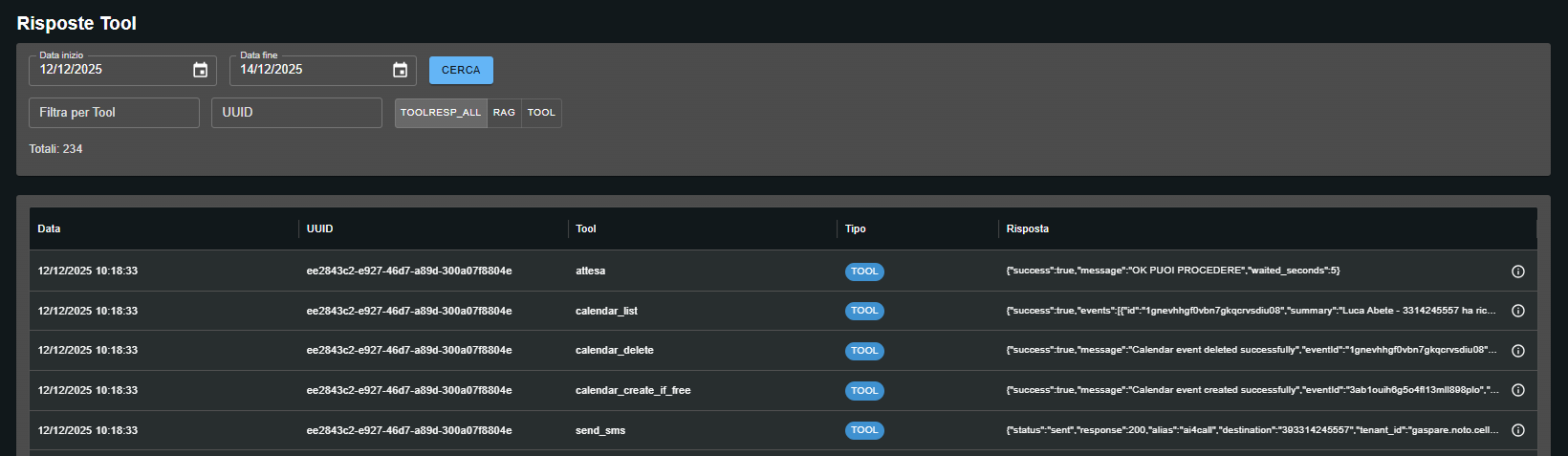
The Tool Responses page shows a complete table of all tool invocations made by AI assistants with the corresponding responses received.
Response detail view
Tool Response Detail
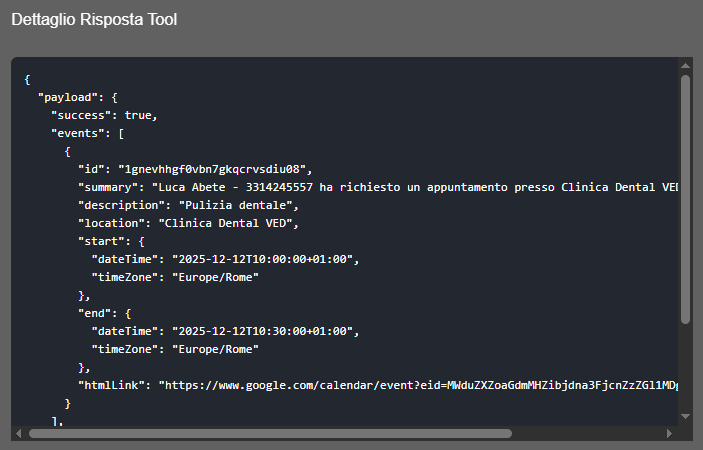
Clicking the ⓘ icon opens a "Tool Response Detail" modal showing the complete JSON of the tool response with syntax highlighting.
Success Response
For tools that executed correctly, the modal shows the complete structured payload.
Error Response
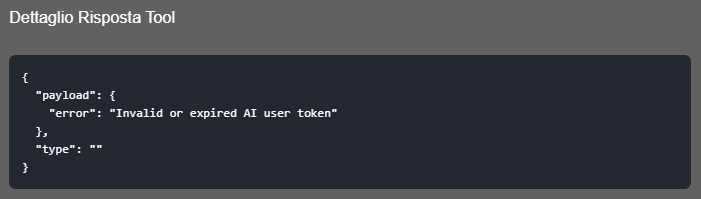
For tools that failed, the modal shows the error payload.
Use cases
🔍 Debug tool errors
Scenario: a customer reports that the assistant cannot book appointments.
Action:
- Filter by UUID of the problematic call
- Identify which tools were called
- Open detail of calendar_create_if_free tool response
- Check error payload: "Invalid or expired AI user token"
- Diagnosis: Google Calendar token expired → renew authorization
📊 Tool performance analysis
Scenario: verify how many times a specific tool is called.
Action:
- Filter by tool send_sms
- Set date range for last week
- View total count and analyze temporal patterns
- Open details to verify success rate
🎯 Specific conversation tracking
Scenario: analyze all tool calls of a single conversation.
Action:
- Copy UUID from conversations page
- Paste in UUID filter
- View complete sequence of called tools
- Verify chronological order and payload of each
⏱️ Temporal audit
Scenario: verify tool activity in a specific time window.
Action:
- Set Date from: 12/12/2025, Date to: 14/12/2025
- Click SEARCH
- Analyze total count and tool distribution
- Filter by type (RAG vs TOOL) for granular analysis
Response examples
Success with data
Payload with "success": true and structured data (events, messages, query results).
{"success": true, "events": [...], "summary": "..."}Operation success
Execution confirmation without additional data.
{"success": true, "message": "Calendar event deleted successfully"}Wait completed
Delay/wait tool returning waited time.
{"success": true, "message": "OK YOU CAN PROCEED", "waited_seconds": 5}Authentication error
Failure due to expired or invalid token.
{"error": "Invalid or expired AI user token"}SMS response
Send confirmation with recipient details.
{"status": "sent", "response": "200", "alias": "default", "destination": ...}Calendar data
Array of events with timestamps, location, Google Calendar link.
{"success": true, "events": [{...}], "htmlLink": "https://..."}Each row is a single response received from a tool after the AI assistant invoked it during a conversation. It includes timestamp, conversation identifier (UUID), name of called tool and complete JSON payload of the response.
Click the ⓘ (info) icon at the end of the row. A "Tool Response Detail" modal will open with the complete formatted and scrollable JSON.
Identifies that the response comes from a standard tool (not RAG). It is a visual category indicator that allows quick distinction of call types.
Copy the conversation UUID (visible in the UUID column or from the conversations page) and paste it in the "UUID" field above the table. All tool calls from that conversation share the same UUID.
It is the counter of the total number of responses that match the currently applied filters. If you have no active filters, it shows all responses recorded in the system.
Use the "Filter by Tool" field and type the tool name (e.g., "send_sms", "calendar_list", "atlesa"). Then click SEARCH to apply the filter.
They are quick filters for response type. TOOLRESP_ALL shows all responses, RAG filters only responses from knowledge base/RAG, TOOL filters only standard operational tools.
This error indicates that the authentication token for an external service (e.g., Google Calendar) has expired or is invalid. You need to renew the authorization in the tool configuration.
It means the tool successfully executed the requested operation. The payload may contain additional data (events, messages, results) or simply operation confirmation.
Yes. Filter by conversation UUID and sort by Date column. You will see the temporal sequence of all tools called during that conversation.
Filter by specific tool name and scroll through responses. If you see many payloads with "error" field instead of "success": true, you have a recurring issue to investigate.
Currently there is no direct export function in the shown interface. For bulk analysis or data export, contact support or use AI4CALL API if available.
Retention policy depends on the plan. Generally, tool responses are kept for debugging and audit purposes. Verify the policies of your specific plan.
From the conversation UUID you can trace back to the assistant. The UUID allows you to correlate with the conversations page where you find assistant details and configuration.
When a customer reports a problem: (1) Find timestamp/UUID of problematic call, (2) Filter here by UUID, (3) Identify called tools, (4) Open error payload details, (5) Diagnose cause (expired token, wrong parameters, service down).