
Custom Tools and MCP Servers on AI4CALL
Integrate external tools and functionalities into your AI assistants
Introduction
Custom Tools allow extending the capabilities of your AI phone assistant by connecting it to external systems. You can create custom API calls or configure MCP servers, not present in our marketplace, for advanced integrations.
Authentication system
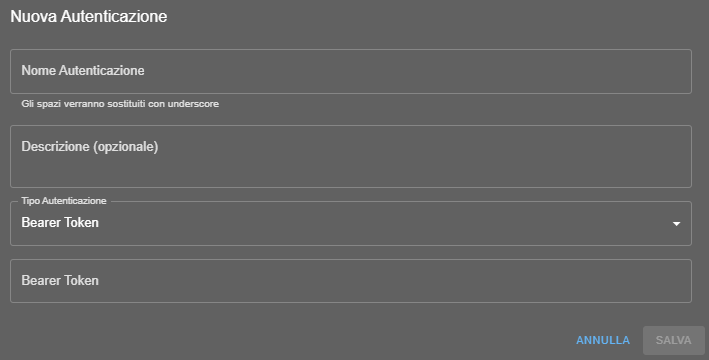
Before creating tools or MCP, it is recommended to configure the authentications you will need. Authentications are reusable "storage": you create them once and then associate them with various tools or MCP servers that need them.
Create a new Authentication:
- Go to Tools → AUTHENTICATION tab
- Click + NEW AUTH
- Configure authentication parameters (Bearer Token, API Key, OAuth2, etc.)
- Save authentication with an identifying name
Saved authentications will be available for all your tools and MCP servers.
Create a Custom Tool
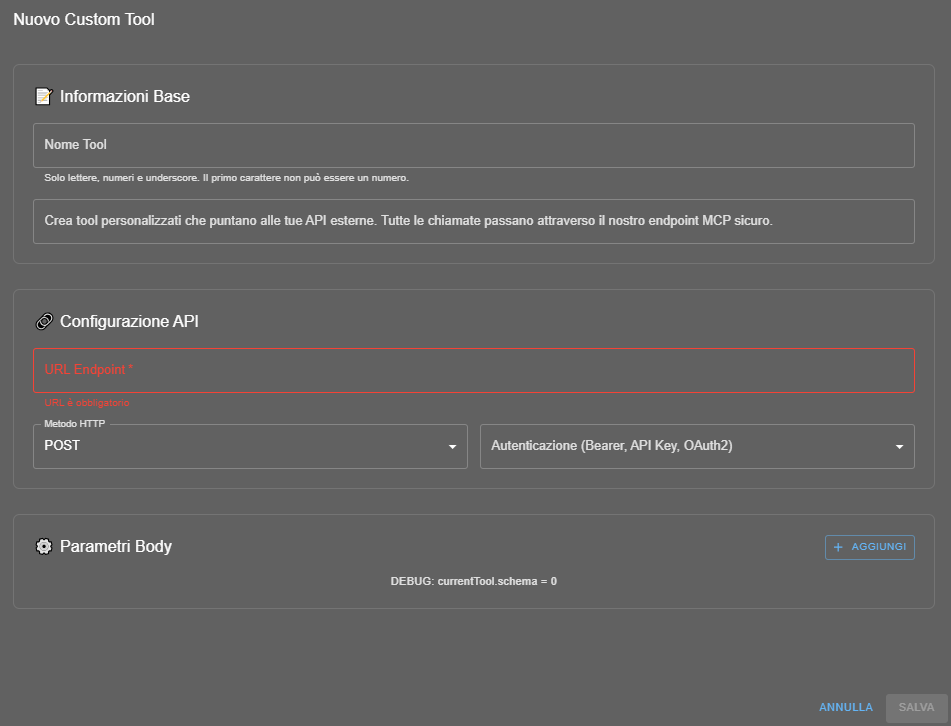
Custom tools allow the assistant to make calls to external APIs during phone conversations.
Create a new Tool:
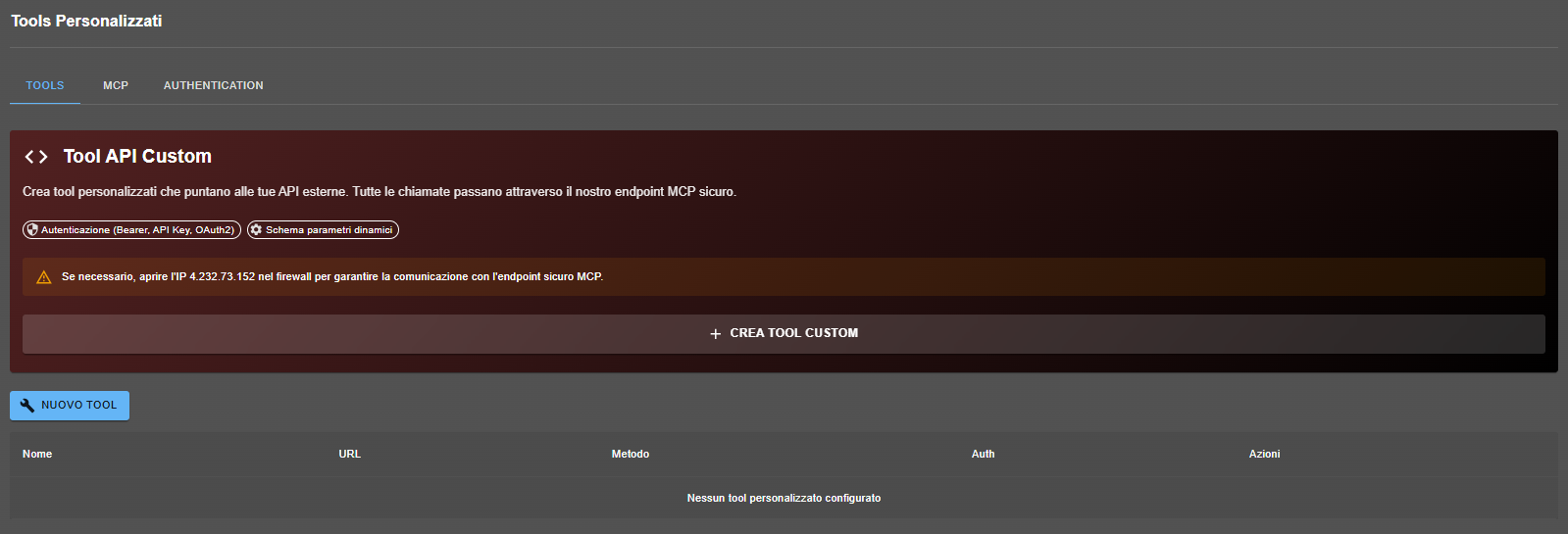
- Go to Tools → TOOLS tab
- Click + NEW TOOL
- Fill in the fields:
- Tool Name: unique identifying name (e.g.: search_customer_by_phone)
- URL Endpoint: complete API address
- HTTP Method: select POST, GET, PUT, etc.
- Authentication: choose a previously configured authentication
- Body Parameters (define which data the AI will send to your API):
- Property name: field name (e.g.: caller_phone)
- Type: string, number, boolean, etc.
- Description: explain to the AI when and how to use this parameter
- Required: check if parameter is mandatory
Insert in the body all parameters to send to your API.
Important note: parameter descriptions are fundamental. Write clear descriptions that help the AI understand when and how to collect information from the user.
Configure an MCP Server
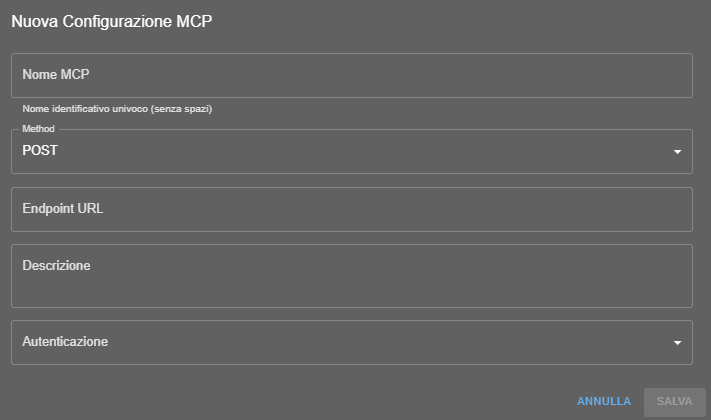
MCP (Model Context Protocol) servers allow more advanced and structured integrations.
MCP Configuration:
- Go to Tools → MCP tab
- Click + NEW MCP
- Fill in the fields:
- MCP Name: unique server identifier
- Method: HTTP method (usually POST)
- Endpoint URL: URL of your MCP server
- Description: explain what this MCP server does
- Authentication: choose a previously configured authentication
Association to Assistants
Once tools and/or MCP Servers are created, you can associate them with one or more assistants.
Best practices
- Clear descriptions: the AI uses descriptions to understand when to invoke tools.
- Handle errors: your APIs must respond consistently even in case of error.
- Timeout: consider that the user is on the phone, APIs must respond quickly (< 5 seconds)
- Always test APIs: connect them to the phone assistant and verify proper operation
Usage examples
🔍 Data Search
Query your database to provide real-time information
🎫 Ticket Creation
Open automatic tickets in your CRM or helpdesk system
💳 Order Verification
Check order status in your e-commerce
They are functionalities that allow extending the capabilities of your AI phone assistant by connecting it to external systems. Tools are custom API calls, while MCP (Model Context Protocol) servers allow more advanced and structured integrations.
A Custom Tool is typically a single API call (e.g., GET, POST) configured to perform a specific action (e.g., search for a customer). An MCP Server is a more complex integration that follows a specific protocol (MCP) and can expose a broader and more structured set of tools, resources or functionalities to the AI assistant.
Yes, it is highly recommended. The authentication system works as reusable "storage". You can create credentials once (Bearer Token, API Key, OAuth2, etc.) under the AUTHENTICATION tab and then associate them with all tools or MCP servers that need them.
Go to Tools → TOOLS tab, click + NEW TOOL and fill in the fields: Tool Name, URL Endpoint, HTTP Method and select a preconfigured authentication. The crucial part is defining Body Parameters, clearly describing each field (name, type, description) to help the AI understand when and how to use the tool.
Go to Tools → MCP tab, click + NEW MCP and fill in required fields: MCP Name, Method (usually POST), Endpoint URL of your MCP server, a clear description of its function and select an authentication.
Descriptions are fundamental because the AI itself reads them to decide when and how to use the tool during a phone conversation. Clear and precise descriptions guide the AI to collect the right information from the user before invoking the API.
Once created and configured correctly, you can associate them with one or more assistants from the respective assistant configuration page.
It is crucial that APIs respond quickly, ideally in less than 5 seconds. The user is waiting on the phone, so long timeouts would ruin the experience.
The page suggests several use cases: Data Search (e.g., from your database), Ticket Creation (in a CRM/helpdesk system), and Order Verification (check status on an e-commerce).
• Write clear descriptions for parameters and tools.
• Handle errors in your APIs: they must return consistent responses even in case of failure.
• Respect recommended timeout (<5 seconds).
• Always test integrations by connecting them to the assistant and simulating a real call.