
Sub-User Management
Delegate access to the AI4CALL portal to collaborators and employees with separate accounts
What is a Sub-User?
Sub-Users are secondary accounts linked to your main (corporate) account. They allow collaborators, employees or partners to access the AI4CALL portal with separate credentials, maintaining central control and traceability of operations.
How It Works
Sub-User Creation
Main account creates the sub-user with email, name, surname and password
Activation
Activate the sub-user and the system automatically sends credentials via email
Access
Sub-user logs in using the main account email + their own credentials
Monitoring
All sub-user activities are recorded in logs consultable by the main account
1Creating a Sub-User
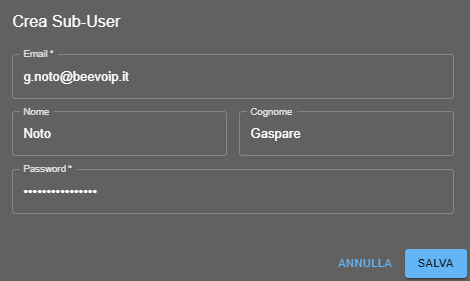
To create a new sub-user:
- Go to the Sub-User Management menu
- Click + ADD SUB-USER
- Fill in required fields:
- Email: collaborator email address (will be used as username)
- Name: collaborator first name
- Surname: collaborator last name
- Password: set a temporary password (sub-user can change it after first login)
- Click SAVE
Note: the sub-user is created but initially in "Inactive" status.
2Sub-User Activation
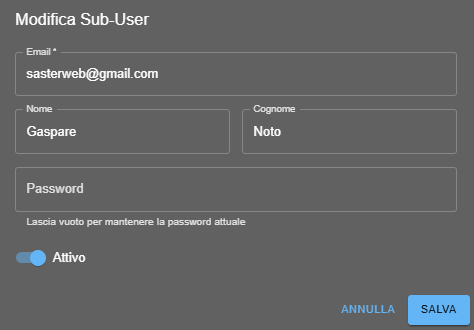
To activate a sub-user and send them access credentials:
- From sub-user list, click the Edit icon (pencil) of the sub-user to activate
- Activate the Active toggle
- Click SAVE
✉️ The system will automatically send an email to the sub-user containing:
- Main account email to use for login
- Their own credentials (email and password)
- Instructions for accessing the portal
3How a Sub-User Logs In

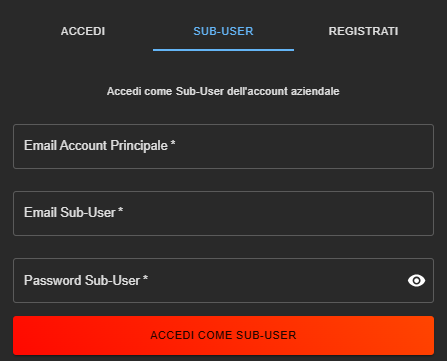
The sub-user accesses the portal this way:
- Go to the AI4CALL login page
- Click on the SUB-USER tab
- Insert:
- main account email: main account email
- Sub-User email: Sub-User email
- Sub-User password: Sub-User password
- Click LOGIN AS SUB-USER
This system ensures that each sub-user is always linked to the main corporate account.
4Monitoring
In the management dashboard you can:
👁️ View
Complete list of all sub-users with status (Active/Inactive) and visibility
✏️ Edit
Change name, surname, password or activation status
🗑️ Delete
Permanently remove a sub-user from the account
📊 Monitor
Check last login and creation date
Sub-User Statuses:
- Active: green: the sub-user can access the portal
- Inactive: red: the sub-user has been created but cannot yet access
Visibility:
- Visible: the sub-user can be seen in lists and reports
- Set visibility permissions according to your organizational needs
Use Cases
🏢 Support Team
Each operator has their own access to manage assistants they are responsible for
🎯 Account Manager
Salespeople can configure assistants for their own clients
👨💼 External Consultants
Partners and consultants can work on the portal with temporary access
🔄 Staff Rotation
Easy addition/removal of collaborators without changing the main account
🔐 Security
Each user has their own credentials, no password sharing
The maximum number of available sub-users is 10. Contact AI4CALL support to increase the limit if necessary.
The main account can reset the sub-user's password from the "Edit Sub-User" section. By deactivating and reactivating the user, an email with new access data is sent to them.
Currently all active sub-users have the same operational permissions (assistant creation, tool management, RAG, etc.) but cannot modify account settings, billing or create other sub-users. Advanced role-based access control (RBAC) functionalities are on the roadmap.
Go to "Edit Sub-User", deactivate the "Active" toggle and save. The sub-user will no longer be able to access immediately. If you want to permanently remove the user, use the delete button (trash icon).
Check that the email address is correct and verify the spam folder. Alternatively, you can manually communicate credentials to the sub-user: main account email + sub-user email and password. The sub-user can log in from the "SUB-USER" tab of the login.
No, all sub-users share the main account's plan and budget. All conversation minutes and LLM tokens consumed are counted on the company's single plan.
The sub-user accesses the same portal as the main account with all operational functionalities: they can create and edit assistants, manage custom tools, RAG collections, view statistics and reports. They do not have access to: sub-user management, complete logs, billing settings, administrative account data.